Import data from files
Use NineData Data Import to load data from SQL, CSV, or Excel files into a target database. The workflow is designed for one-time data loads, database initialization, and controlled bulk updates where teams need reliable execution and traceable results.
When to use Data Import
Use Data Import to:
- Load data exported from another system into an operational database.
- Initialize a new database with seed data.
- Apply bulk inserts or updates from prepared files.
- Standardize file-based imports through a shared database DevOps workflow.
Supported file types
| Import Type | File Format |
|---|---|
| SQL | ZIP, SQL, TXT |
| CSV | ZIP, CSV |
| EXCEL | ZIP, XLS, XLSX |
CSV and EXCEL imports support advanced options such as header rows, field mapping, delimiters, and import modes.
Before you begin
Before you create an import task, make sure that:
- You have a NineData account.
- The target data source has been added to NineData.
- You have permission to access the target database and run an import task.
- The import file matches one of the supported formats.
Import Data
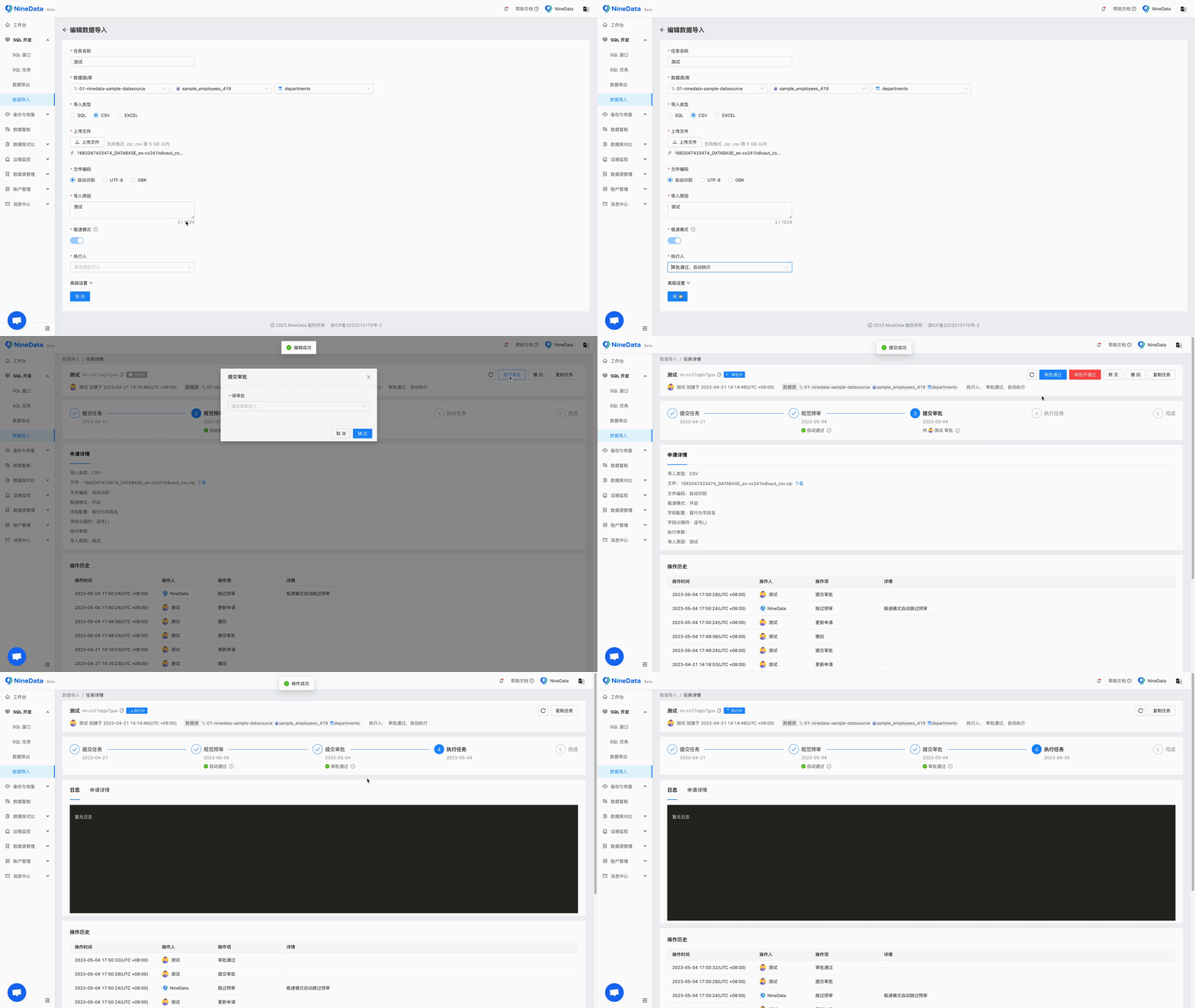
- Sign in to the NineData console.
- In the left navigation, choose Database DevOps > Data Import.
- Create a data import task.
- Configure the task name, target data source, target database, import type, file, and executor.
- Save the task.
- On the task details page, review the task status and wait for the import to finish.
In enterprise workflows, the task may require approval before execution. After approval, the configured executor can run the task based on your organization's policy.
Result
After the task finishes, the imported data is written to the target database. Review the task details to confirm the execution status, imported rows, and any error messages that require follow-up.