Create data sources
Add self-managed or cloud-hosted data sources to NineData so they can be used by Database DevOps, backup and restore, data replication, database comparison, and other supported features.
Before you begin
Prepare the data source address, port, authentication credentials, network access method, and any required allowlist or gateway settings before you create the data source.
Supported data sources
Supported cloud vendors: Alibaba Cloud, Tencent Cloud, Huawei Cloud, AWS, Mobile Cloud, Baidu Cloud, Google Cloud, and Azure.
Supported data source types:
Category Data Source Database - Relational Databases: MySQL, ShardingProxy, SQL Server, PostgreSQL, Oracle, OceanBase for Oracle, OceanBase for MySQL, Db2, Dameng, KingbaseES for PostgreSQL, KingbaseES for Oracle, Klustron, openGauss, Sybase, TiDB, GreatSQL, GBase, GBase8a, Massive Database, GoldenDB, YashanDB, HaishanDB, YashanDB MySQL
- NoSQL Databases: MongoDB, Redis, Milvus
- Data Warehouses: ClickHouse, Doris, SelectDB, Greenplum, StarRocks, SingleStore, Hive, MaxCompute, Snowflake
- Other Data Sources: Elasticsearch, Kafka, OpenSearch
Alibaba Cloud RDS MySQL, PolarDB MySQL, AnalyticDB MySQL, RDS SQL Server, RDS PostgreSQL, AnalyticDB PostgreSQL, Cloud Database MongoDB, Cloud Database Redis, Cloud Database Clickhouse, Search and Analysis Service Elasticsearch, Cloud Message Queue Kafka, AnalyticDB PostgreSQL, DataHub, MaxCompute, Lindorm Tencent cloud Cloud Database MySQL, TDSQL-C MySQL, Cloud Database SQL Server, Cloud Database PostgreSQL, Cloud Database MongoDB, Cloud Database Redis, Elasticsearch Service, Message Queue CKafka, TDSQL MySQL, TDSQL PostgreSQL Huawei Cloud Cloud Database RDS for MySQL, Cloud Database GaussDB for MySQL, Cloud Database RDS for SQL Server, Cloud Database RDS for PostgreSQL, Document Database Service DDS, Cloud Database GaussDB for Redis, Cloud Search Service CSS, Distributed Message Service Kafka, Cloud Database Warehouse (DWS), Cloud Database GaussDB AWS RDS MySQL, RDS PostgreSQL, RDS MariaDB, RDS SQL Server, RDS Oracle, Aurora MySQL, Aurora PostgreSQL, DocumentDB, MemoryDB for Redis, Redshift, ElastiCache (Redis Engine) ECloud RDS for MySQL, MongoDB, Redis Baidu Cloud Cloud Database RDS MySQL, DocDB for MongoDB, Cloud Database Redis, Cloud Native Database GaiaDB, Cloud Database GaiaDB-X, Cloud Vector Database VectorDB, PegaDB
ShardingProxy is available as a relational data source type. When creating the data source, select ShardingProxy, configure the connection information displayed on the page, and complete the connection test before creation. After creation, the data source can be selected in SQL Console, SQL Tasks, permission requests, development policies, Data Import, and Data Export when those capabilities are enabled in the current console.
Network and quota requirements
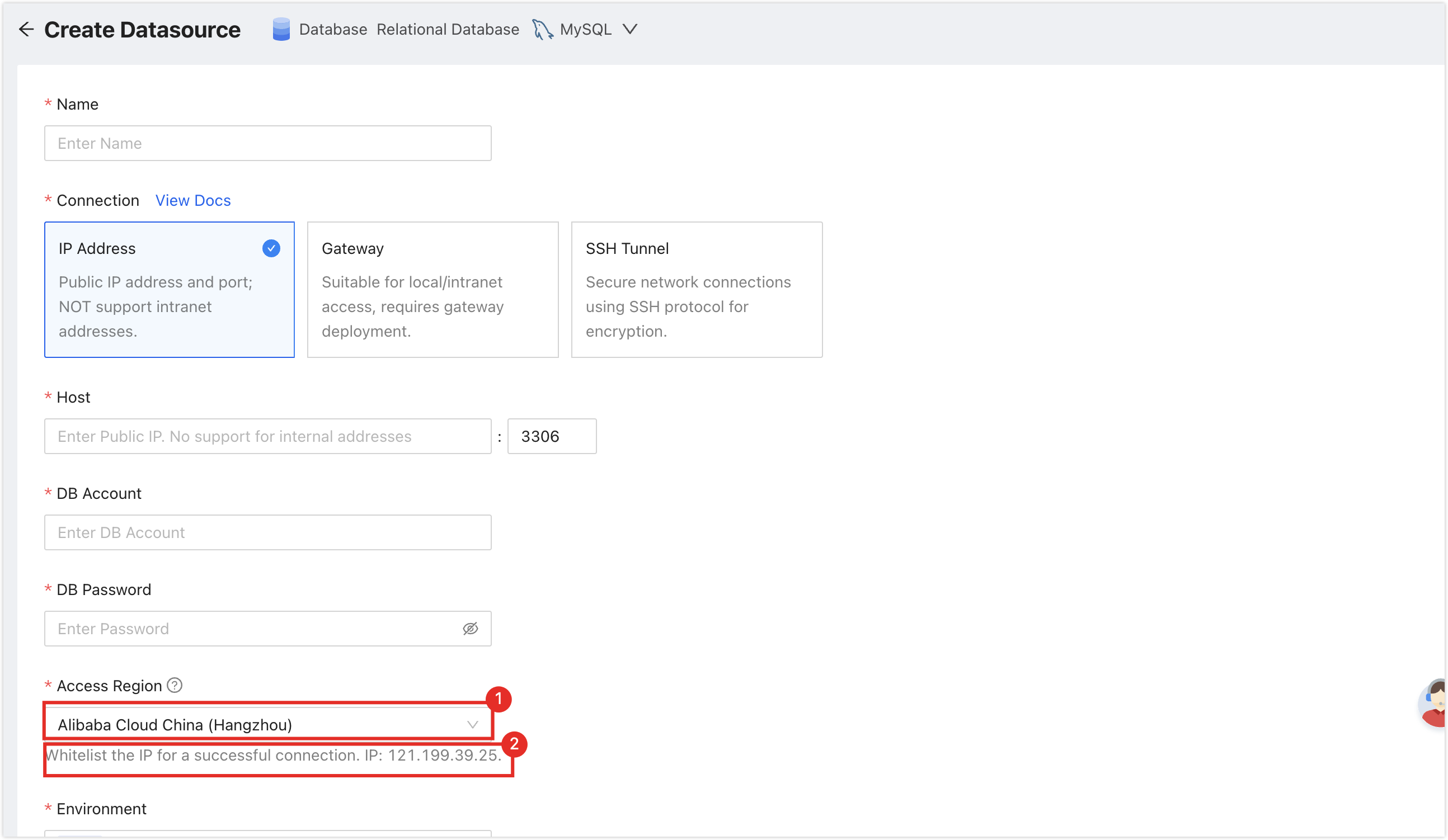
To ensure a stable connection, first select Access Region on the Create Datasource page. Then add the NineData service IP address shown below to your server allowlist. For self-managed databases in an IDC, see Appendix II. For cloud servers or managed databases, follow the cloud vendor's official documentation.
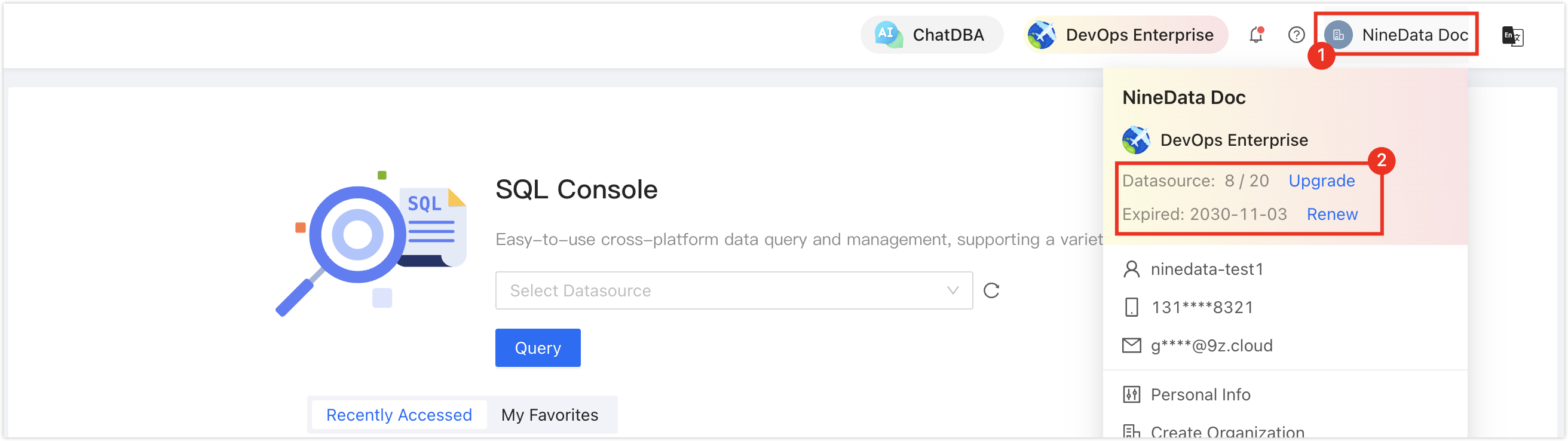
Make sure you have available data source quota before creating a new data source. Check the remaining quota in the NineData console.
Create self-managed data sources
Use the following links to open the creation guide for each self-managed data source type.
Create cloud vendor data sources
Sign in to the NineData Console.
On the left navigation pane, click Datasource > Datasource.
- Select the Datasource tab, and then select Create Datasource. In the data source type selector, choose (Cloud Vendor Name) > (the type of data source to be added). On the Create Datasource page, configure the parameters based on the table below.tip
If you make a mistake during the operation, select the
 icon at the top of the Create Datasource page and choose again.
- Alibaba Cloud
- Tencent Cloud
- Huawei Cloud
- AWS
- E Cloud
- Baidu Cloud
- Google Cloud
- Azure
Supported instance types:
- RDS for MySQL
- PolarDB for MySQL
- AnalyticDB for MySQL
- RDS for SQL Server
- RDS for PostgreSQL
- ApsaraDB for MongoDB
- ApsaraDB for Redis
- ApsaraDB for ClickHouse
- Elasticsearch
- ApsaraMQ for Kafka
- AnalyticDB for PostgreSQL
- DataHub
- MaxCompute
- Self-managed Datasource
| Parameter | Description |
|---|---|
| Name | Enter a meaningful data source name so it is easy to search and manage later. |
| Connection | Select how NineData connects to the data source.
|
| Access Method | Select how to locate the Alibaba Cloud instance: by Instance ID or by Host.
|
| Login Method | Alibaba Cloud RDS for MySQL supports the following login methods:
|
| Authentication DB | Required when the data source is MongoDB, specifying the authentication database for the current user. |
| DB Account | The username of the data source. |
| DB Password | The password of the data source. |
| Access Region | Only required when accessing the data source through the connection address. Select the region closest to your data source location to effectively reduce network latency. |
| Environment | Select the environment that matches the business purpose of this data source. NineData provides PROD and DEV by default; create custom environments if additional labels are required. Note: In organization mode, database environments can also be used for permission policy management. For example, the default Prod Admin role can access only data sources in PROD. For more information, see Manage Roles. |
| Encryption | Choose whether to connect with SSL encryption. If the data source requires SSL, enable this switch or the connection fails. Use the switch on the right to enable or disable encrypted transmission. For some data source types, click > to the left of Encryption to expand advanced settings. Note: Supported SSL options vary by data source type. See the console for the available options. |
Supported instance types:
- TencentDB for MySQL
- TDSQL-C for MySQL
- TencentDB for SQL Server
- TencentDB for PostgreSQL
- TencentDB for MongoDB
- TencentDB for Redis
- TDSQL MySQL Edition
- TDSQL PostgreSQL Edition
- Elasticsearch Service
- Message Queue CKafka
- TDSQL for MySQL
- TDSQL-A for PostgreSQL
- Self-managed Datasource
| Parameter | Description |
|---|---|
| Name | Enter a meaningful data source name so it is easy to search and manage later. |
| Connection | Select how NineData connects to the data source.
|
| Access Method | Select how to locate the cloud vendor instance: by Instance ID or by Host.
|
| Authentication DB | Required when the data source is MongoDB, specifying the authentication database for the current user. |
| DB Account | The username of the data source. |
| DB Password | The password of the data source. |
| Access Region | Only required when accessing the data source through the connection address. Select the region closest to your data source location to effectively reduce network latency. |
| Environment | Select the environment that matches the business purpose of this data source. NineData provides PROD and DEV by default; create custom environments if additional labels are required. Note: In organization mode, database environments can also be used for permission policy management. For example, the default Prod Admin role can access only data sources in PROD. For more information, see Manage Roles. |
| Encryption | Choose whether to connect with SSL encryption. If the data source requires SSL, enable this switch or the connection fails. Use the switch on the right to enable or disable encrypted transmission. For some data source types, click > to the left of Encryption to expand advanced settings. Note: Supported SSL options vary by data source type. See the console for the available options. |
Supported instance types:
- RDS for MySQL
- GaussDB for MySQL
- RDS for SQL Server
- RDS for PostgreSQL
- Document Database Service (DDS)
- GaussDB for Redis
- Cloud Search Service (CSS)
- Distributed Message Service for Kafka
- Data Warehouse Service (DWS)
- GaussDB
- Self-managed Datasource
| Parameter | Description |
|---|---|
| Name | Enter a meaningful data source name so it is easy to search and manage later. |
| Connection | Select how NineData connects to the data source.
|
| Access Method | Select how to locate the cloud vendor instance: by Instance ID or by Host.
|
| Authentication DB | Required when the data source is MongoDB, specifying the authentication database for the current user. |
| DB Account | The username of the data source. |
| DB Password | The password of the data source. |
| Access Region | Only required when accessing the data source through the connection address. Select the region closest to your data source location to effectively reduce network latency. |
| Environment | Select the environment that matches the business purpose of this data source. NineData provides PROD and DEV by default; create custom environments if additional labels are required. Note: In organization mode, database environments can also be used for permission policy management. For example, the default Prod Admin role can access only data sources in PROD. For more information, see Manage Roles. |
| Encryption | Choose whether to connect with SSL encryption. If the data source requires SSL, enable this switch or the connection fails. Use the switch on the right to enable or disable encrypted transmission. For some data source types, click > to the left of Encryption to expand advanced settings. Note: Supported SSL options vary by data source type. See the console for the available options. |
Supported instance types:
- RDS MySQL
- RDS PostgreSQL
- RDS MariaDB
- RDS SQLServer
- RDS Oracle
- Aurora MySQL
- Aurora PostgreSQL
- DocumentDB
- MemoryDB for Redis
- Redshift
- ElastiCache
- Self-managed Datasource
| Parameter | Description |
|---|---|
| Name | Enter a meaningful data source name so it is easy to search and manage later. |
| Connection | Select how NineData connects to the data source.
|
| Access Method | Select how to locate the cloud vendor instance: by Instance ID or by Host.
|
| Authentication DB | Required when the data source is MongoDB or Redshift, specifying the authentication database for the current user. |
| DB Account | The username of the data source. |
| DB Password | The password of the data source. |
| Access Region | Only required when accessing the data source through the connection address. Select the region closest to your data source location to effectively reduce network latency. |
| Environment | Select the environment that matches the business purpose of this data source. NineData provides PROD and DEV by default; create custom environments if additional labels are required. Note: In organization mode, database environments can also be used for permission policy management. For example, the default Prod Admin role can access only data sources in PROD. For more information, see Manage Roles. |
| Encryption | Choose whether to connect with SSL encryption. If the data source requires SSL, enable this switch or the connection fails. Use the switch on the right to enable or disable encrypted transmission. For some data source types, click > to the left of Encryption to expand advanced settings. Note: Supported SSL options vary by data source type. See the console for the available options. |
Supported database types include:
- RDS for MySQL
- MongoDB
- Redis
- Self-managed Datasource
| Parameter | Description |
|---|---|
| Name | Enter the name of the data source. Use a meaningful name for easy lookup and management. |
| Connection | Choose how NineData connects to the data source.
|
| Access Method | Select how to locate the cloud vendor instance: by Instance ID or by Host.
|
| Authentication DB | Required when the data source is MongoDB. Specify the authentication database for the current user. |
| DB Account | Username of the data source. |
| DB Password | Password of the data source. |
| Access Region | Required only when the data source is accessed by connection address. Select the region closest to the data source to reduce network latency. |
| Environment | Select the environment that matches the business purpose of this data source. NineData provides PROD and DEV by default; create custom environments if additional labels are required. Note: In organization mode, database environments can also be used for permission policy management. For example, the default Prod Admin role can access only data sources in PROD. For more information, see Manage Roles. |
| Encryption | Choose whether to access the data source using SSL encryption. If the data source requires an SSL encrypted connection, you must enable this switch; otherwise, the connection will fail. Click the switch on the right to enable or disable encrypted transmission. Some data source types allow you to click the > on the left of Encryption to expand detailed configuration. Note: Different data source types have different supported options. See the console for accurate information. |
Supported database types include:
- RDS for MySQL
- DocDB for MongoDB
- Redis
- GaiaDB
- GaiaDB-X
- Cloud Vector Database VectorDB
- Self-managed Datasource
| Parameter | Description |
|---|---|
| Name | Enter the name of the data source. Use a meaningful name for easy lookup and management. |
| Connection | Choose how NineData connects to the data source.
|
| Access Method | Select how to locate the cloud vendor instance: by Instance ID or by Host.
|
| Authentication DB | Required when the data source is MongoDB. Specify the authentication database for the current user. |
| DB Account | Username of the data source. |
| DB Password | Password of the data source. |
| Access Region | Required only when the data source is accessed by connection address. Select the region closest to the data source to reduce network latency. |
| Environment | Select the environment that matches the business purpose of this data source. NineData provides PROD and DEV by default; create custom environments if additional labels are required. Note: In organization mode, database environments can also be used for permission policy management. For example, the default Prod Admin role can access only data sources in PROD. For more information, see Manage Roles. |
| Encryption | Choose whether to access the data source using SSL encryption. If the data source requires an SSL encrypted connection, you must enable this switch; otherwise, the connection will fail. Click the switch on the right to enable or disable encrypted transmission. Some data source types allow you to click the > on the left of Encryption to expand detailed configuration. Note: Different data source types have different supported options. See the console for accurate information. |
Supported instance types:
- Memorystore
- Cloud SQL For MySQL
- Cloud SQL For SQLServer
- Cloud SQL For PostgreSQL
- AlloyDB For PostgreSQL
- Oracle Database@Google Cloud
| Parameter | Description |
|---|---|
| Name | Enter a name for the data source. For easier future identification and management, use a meaningful name. |
| Connection | Choose how NineData connects to the data source.
|
| Access Method | Select how to locate the Google Cloud instance. This is fixed as Host.
|
| Architecture Type | Select the deployment architecture of the data source instance.
|
| DB Account | The username for the data source. |
| DB Password | The password for the data source. |
| Access Region | Select the region closest to your data source location to effectively reduce network latency. |
| Environment | Select the environment that matches the business purpose of this data source. NineData provides PROD and DEV by default, and custom environments are also supported. Note: In organization mode, database environments can also be used for permission policy management. For example, the default Prod Admin role can access only data sources in PROD. For more information, see Manage Roles. |
| Encryption | Controls SSL encryption for data source access. If the data source requires encrypted connections, enable this switch; otherwise, the connection fails. Use the switch to enable or disable encrypted transmission. For some data source types, click > to the left of Encryption to expand detailed configurations. Note: Options vary by data source type. See the console for details. |
Supported instance types:
- SQL Database
- Azure Database for MySQL
- Azure Database for PostgreSQL
- Oracle Database@Azure
- Azure Managed Redis
- Azure Cache for Redis
| Parameter | Description |
|---|---|
| Name | Enter a name for the data source. For easier future identification and management, use a meaningful name. |
| Connection | Choose how NineData connects to the data source.
|
| Access Method | Select how to locate the Azure instance. This is fixed as Host.
|
| DB Account | The username for the data source. |
| DB Password | The password for the data source. |
| Access Region | Select the region closest to your data source location to effectively reduce network latency. |
| Environment | Select the environment that matches the business purpose of this data source. NineData provides PROD and DEV by default, and custom environments are also supported. Note: In organization mode, database environments can also be used for permission policy management. For example, the default Prod Admin role can access only data sources in PROD. For more information, see Manage Roles. |
| Encryption | Controls SSL encryption for data source access. If the data source requires encrypted connections, enable this switch; otherwise, the connection fails. Use the switch to enable or disable encrypted transmission. For some data source types, click > to the left of Encryption to expand detailed configurations. Note: Options vary by data source type. See the console for details. |
- After completing the configuration, click the arrow next to Create Datasource and select Connection Test to test the connection. If Connection Successfully appears, click Create Datasource to add the data source. If the test fails, review the connection settings and test again.
Result
After the connection test succeeds and the data source is created, the data source appears in the data source list and can be used by NineData features that support that data source type.
Appendix 1: Create an environment
NineData provides PROD and DEV by default. Create custom environments for your organization's business, permission, or workflow needs.
Sign in to the NineData Console.
Go to Datasource > Datasource.
Click the Environment tab. The page lists all environments under the current user in personal mode or organization in organization mode. Use Edit or Delete to manage custom environments.
Click Create Envir..
Complete the configuration using the table, and then click OK.
Parameter Description Name Enter an environment name with 1 to 16 characters. Use a meaningful name so the environment is easy to identify. Label Color Choose the color of the environment label displayed in the console.
Appendix 2: Add NineData service IP addresses to a database allowlist
When you add a data source located in On-Premise/Other Cloud, add the NineData service IP addresses to the database allowlist so NineData can connect to the database.
- MySQL
- Oracle
- PostgreSQL
- MongoDB
- Kafka
- SQL Server
- ClickHouse
- Redis
- ElasticSearch
This section uses MySQL 8.0 as an example.
- New account: Sign in to the database as the root account, create an account for NineData, and grant the required permissions.
  CREATE USER '<account name>'@'<NineData IP address>' IDENTIFIED BY '<access password>';
  GRANT <privilege name> ON <database name>.* TO '<account name>'@'<NineData IP address>';
- Existing account: Sign in to the database as the root account, add the NineData service IP address to the account allowlist, and grant the required permissions.
GRANT <privilege name> ON <database name>.* TO '<account name>'@'<NineData IP address>' IDENTIFIED BY '<access password>';
When you add the MySQL data source in NineData, use the account and password that allow connections from the NineData service IP address.
This section uses Oracle 12c as an example. The same method applies to Oracle 10g and later.
Open the Oracle configuration file
sqlnet.orausing a text editor. This file is typically located in the/network/admin/directory within the Oracle installation directory. For example:/opt/oracle/product/OraHome/network/admin/sqlnet.ora. If the file is not in that location, search for it withfind / -name sqlnet.ora 2>/dev/nullin the terminal.Modify
tcp.validnode_checking,tcp.invited_nodes, andtcp.excluded_nodesinsqlnet.ora.tcp.validnode_checking = yes
tcp.invited_nodes = (127.0.0.1, <allowed IP addresses or address ranges>)
tcp.excluded_nodes = (<denied IP addresses or address ranges>)tip- If these parameters do not exist, add them.
- The
tcp.validnode_checkingparameter can take valuesyesorno, indicating whether the whitelist is enabled or disabled. Setting it tonowill render thetcp.invited_nodesandtcp.excluded_nodesconfigurations ineffective. - The
tcp.invited_nodesparameter must retain127.0.0.1to allow local connections to the database. - If the same IP address is listed in both
tcp.invited_nodesandtcp.excluded_nodes, the IP will still be allowed to access the database. - Multiple addresses or address ranges should be separated by commas (,).
Run
lsnrctl reloadto reloadsqlnet.oraand apply the changes.tip- If you manually created
sqlnet.ora, runlsnrctl stop, and then runlsnrctl startto restart the Oracle listener. - If
lsnrctlis not found, switch to the Oracle account by runningsu - oracle, and then try again.
- If you manually created
This section uses PostgreSQL 10.9 as an example.
Open the PostgreSQL configuration file
postgresql.conf. The file is usually located at<PostgreSQL installation directory>/data/postgresql.conf.Find the
listen_addressesparameter, remove the preceding comment symbol (#), and set its value to'*'to allow connection requests from all IP addresses. Save and exit thepostgresql.conffile.Open
pg_hba.conf. The file is usually located at<PostgreSQL installation directory>/data/pg_hba.conf.Find the
IPv4 local connectionsorIPv6 local connectionssection, and add the IP address range to allow under theADDRESScolumn. For example, to allow192.168.1.0through192.168.1.255, use the following entry:# TYPE DATABASE USER ADDRESS METHOD
# "local" is for Unix domain socket connections only
#local all all trust
# IPv4 local connections:
#host all all 127.0.0.1/32 trust
host all all 192.168.1.0/24 md5Save and exit the
pg_hba.confconfiguration file, then restart the PostgreSQL service for the changes to take effect.
This section uses MongoDB 5.0 as an example.
Connect to MongoDB as a user with root privileges, and create or update an account for NineData.
Create an account: Use the following command to create an account for NineData and grant the required role permissions.
db.createUser{
  user: "<account name>",
  pwd: "<password>",
  roles: [
    { role: "<role name>", db: "<database name>" },
  ],
  authenticationRestrictions: [
   {
       clientSource: ["<NineData service IP address>"],
       serverAddress: ["<MongoDB server IP address>"]
     },
       ...
  ]
}
Existing account: Use the following command to add the NineData service IP address to an existing account and grant the required role permissions.
db.updateUser(
   "<account name>",
     {
     roles : [
       { role: "<role name>", db: "<database name>" },
        ...
     ],
     pwd: "<password>",
     authenticationRestrictions: [
     {
       clientSource: ["<NineData service IP address>"],
       serverAddress: ["<MongoDB server IP address>"]
     },
        ...
     ]
)
Use the above account to add a MongoDB data source through the NineData console.
This section uses Kafka 3.3.2 as an example.
Open the Kafka configuration file
server.properties. The file is usually located at<Kafka installation directory>/config/server.properties.Find the
listenersparameter and set its value to the IP address and port number that are allowed to access Kafka. For example, to allow NineData to access Kafka, set it to:listeners=PLAINTEXT://121.199.39.25:9092Save the changes and restart the Kafka service.
This section uses SQL Server 2022 as an example.
Sign in to the host where SQL Server runs, and open SQL Server Configuration Manager.
Select SQL Server Network Configuration, and then select the SQL Server instance to modify.
Double-click the TCP/IP protocol in the right window.
tipMake sure that the TCP/IP protocol is enabled.
Click the IP Addresses tab, and add the IP address that can access SQL Server. For example, to allow the host
192.168.1.2, enter192.168.1.2in the text box to the right of IP Address.Click OK and restart the SQL Server instance.
This section uses ClickHouse 22.1 as an example.
Open the ClickHouse configuration file
users.xmlwith a text editor. The file is usually located at/etc/clickhouse-server/users.xml.Find the account used by NineData, such as
<default>. Under<networks>, add the NineData service IP address to the<ip>tag.Example:
<users>
    <default>
        <networks>
            <ip>121.199.39.25</ip>
        </networks>
    </default>
</users>
Save the configuration file.
Use these steps to add an IP allowlist in Redis:
Open the Redis configuration file
redis.confwith a text editor. The file is usually located at/etc/redis/redis.conf.Find the
bindparameter and set it to the IP addresses or address ranges that can access Redis. Separate multiple IP addresses or address ranges with spaces or commas.Example:
bind 121.199.39.25Find the
protected-modeparameter and set its value tonoto allow external connections to access Redis.Example:
protected-mode noSave the configuration file.
This section uses Elasticsearch 7.17 as an example. The same method applies to Elasticsearch 5.x, 6.x, and 7.x.
Open the Elasticsearch configuration file
elasticsearch.ymlwith a text editor. This file is usually located in theconfigsubdirectory of the Elasticsearch installation directory.Find the
network.hostparameter and set it to the IP addresses or address ranges that can access Elasticsearch. Separate multiple IP addresses or address ranges with commas.Example:
network.host: 121.199.39.25, 123.57.58.208Save the configuration file.
Appendix 3: Add multi-active tags to data sources
If a data source is used in multi-node replication tasks, which replicate data among three or more data sources, each participating data source must have a globally unique multi-active tag. The tag helps prevent circular replication.
Sign in to the NineData Console.
In the left navigation pane, click Datasource > Datasource.
Click the target data source ID to open the Data Source Details page.
- In the data source details area (including data source name, ID, creator, creation time, etc.), click Show Details.
Find Multi-Active Tag, and click the
 icon on the right.
Enter the Multi-Active Tag, and click OK.
tip- Multi-active tag can contain 1~64 characters.
- The multi-active tag must be globally unique and cannot be duplicated with other multi-active tag.
Appendix 4: Create Tags
Tags are used for custom grouping in the slow query analysis feature of the Database DevOps module. Configure tags for specific data sources to group and display slow queries on the dashboard by business logic, department, or other requirements. This helps you more precisely identify and address performance bottlenecks.
Sign in to the NineData Console.
Go to Datasource > Datasource.
Click the Tag tab, and then click Create Tag.
In the Create Tag dialog, enter the Tag Name and click OK.
tip- The tag name must be globally unique.
- After creating the tag, bind it to the target data source in the slow query analysis module. For more information, see Slow Query Analysis.
Troubleshooting
| Issue | Possible Cause | Solution |
|---|---|---|
Error when adding a data source: http connections are not allowed from xxx.xxx.xxx.xxx:xxxxx. | The NineData service IP address is not in your server allowlist. | Before adding a data source, add the NineData service address to the data source allowlist. For more information, see Network and quota requirements. |