MySQL Instance Inspection with ChatDBA | NineData
Connection, workload, slow SQL, lock-wait, and long-transaction issues can affect one another. Instance inspection provides a quick view before a release, a traffic peak, or a change, and helps determine the next troubleshooting step.
Before you begin
- Sign in to the NineData console.
- Add the MySQL or MySQL-compatible data source to NineData.
- Confirm that the current account can access the target data source. Actual performance-diagnosis options are subject to the console.
Procedure
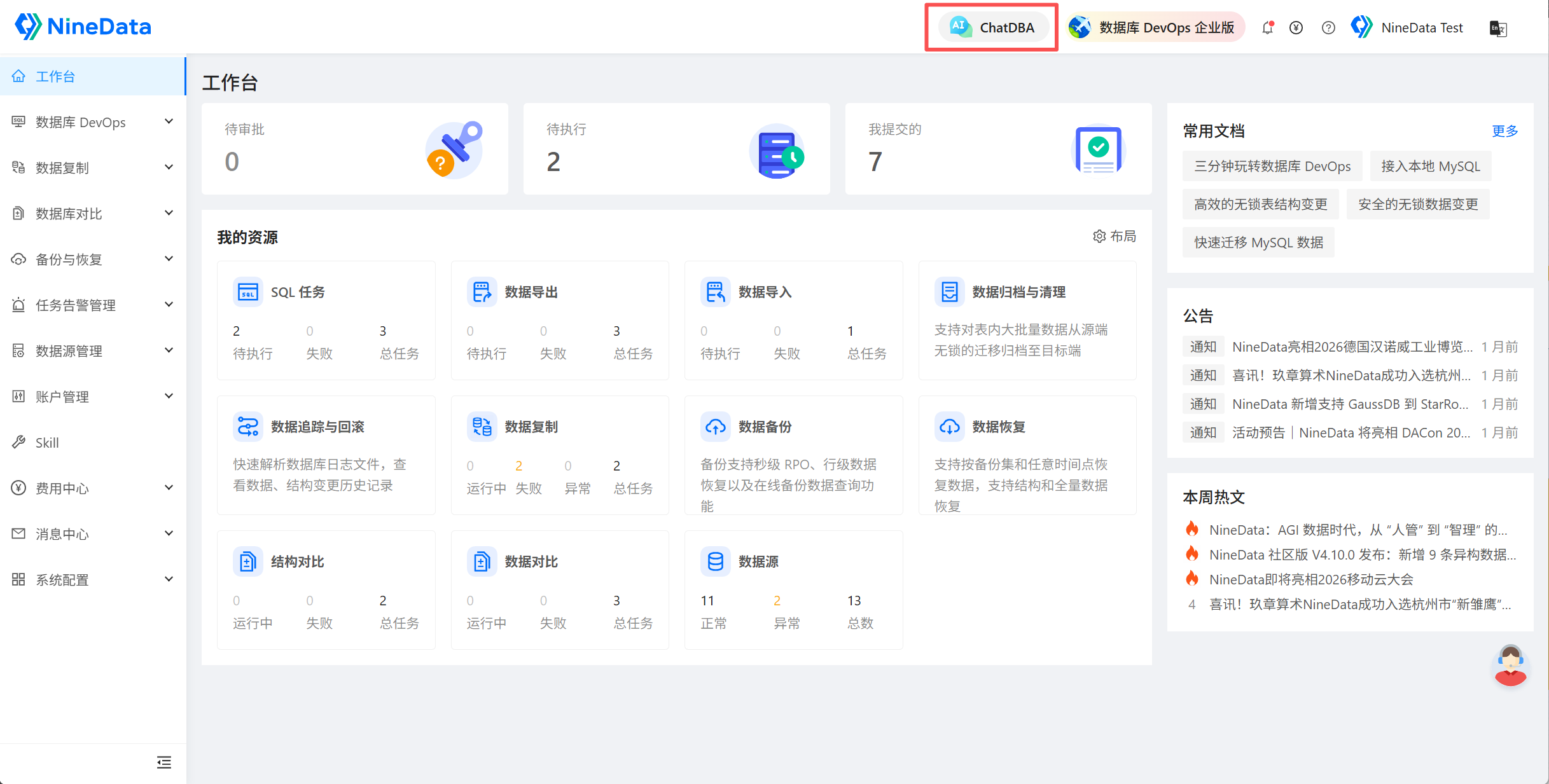
Open ChatDBA at the top of the page.
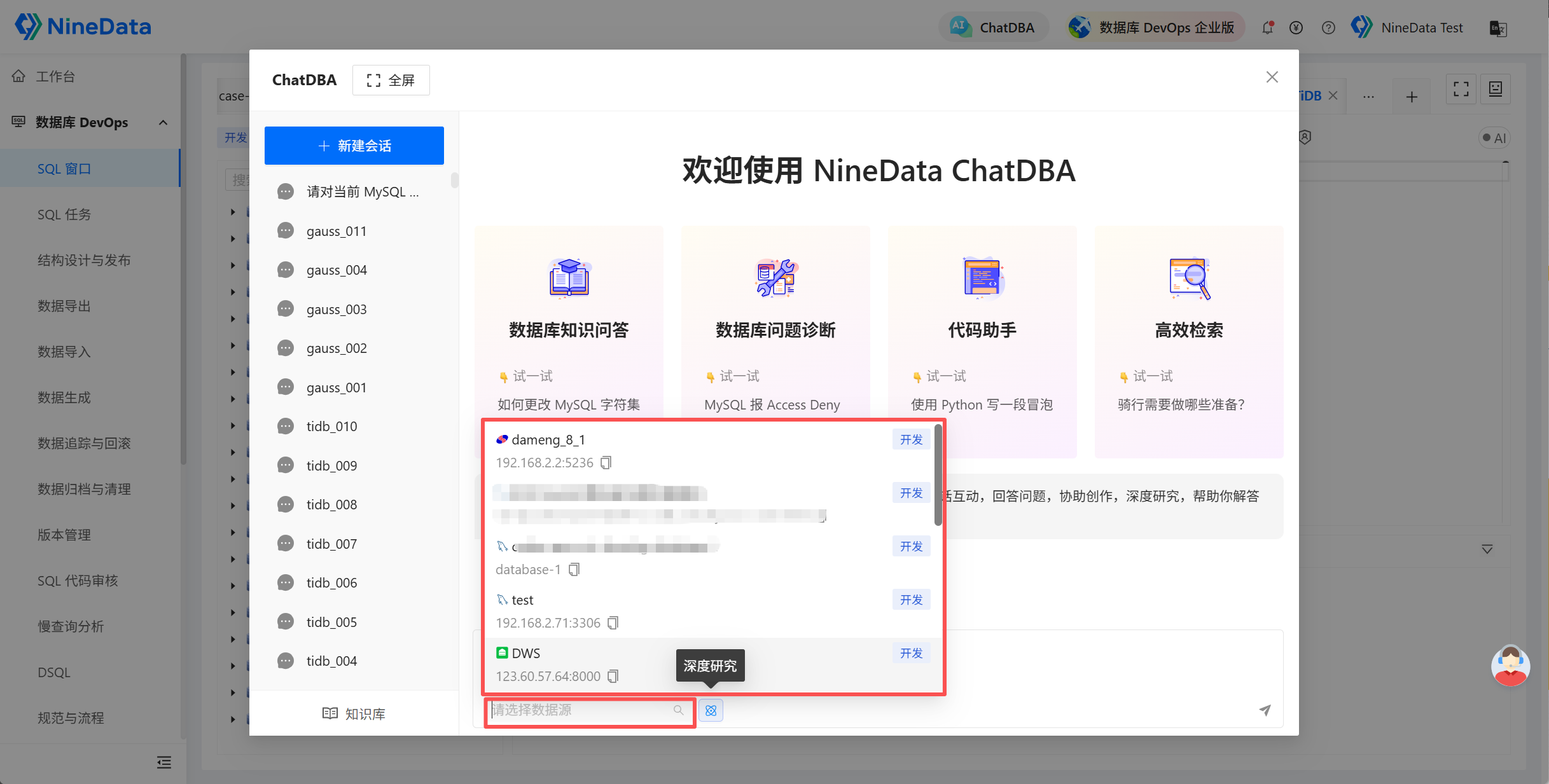
Click Select Datasource and select the MySQL data source to inspect.
Enter and send a request such as:
Check the current MySQL instance for connection, workload, slow SQL, lock-wait, and long-transaction risks, then prioritize the next troubleshooting steps.Review instance status, abnormal sessions, resource usage, wait relationships, and diagnostic suggestions.
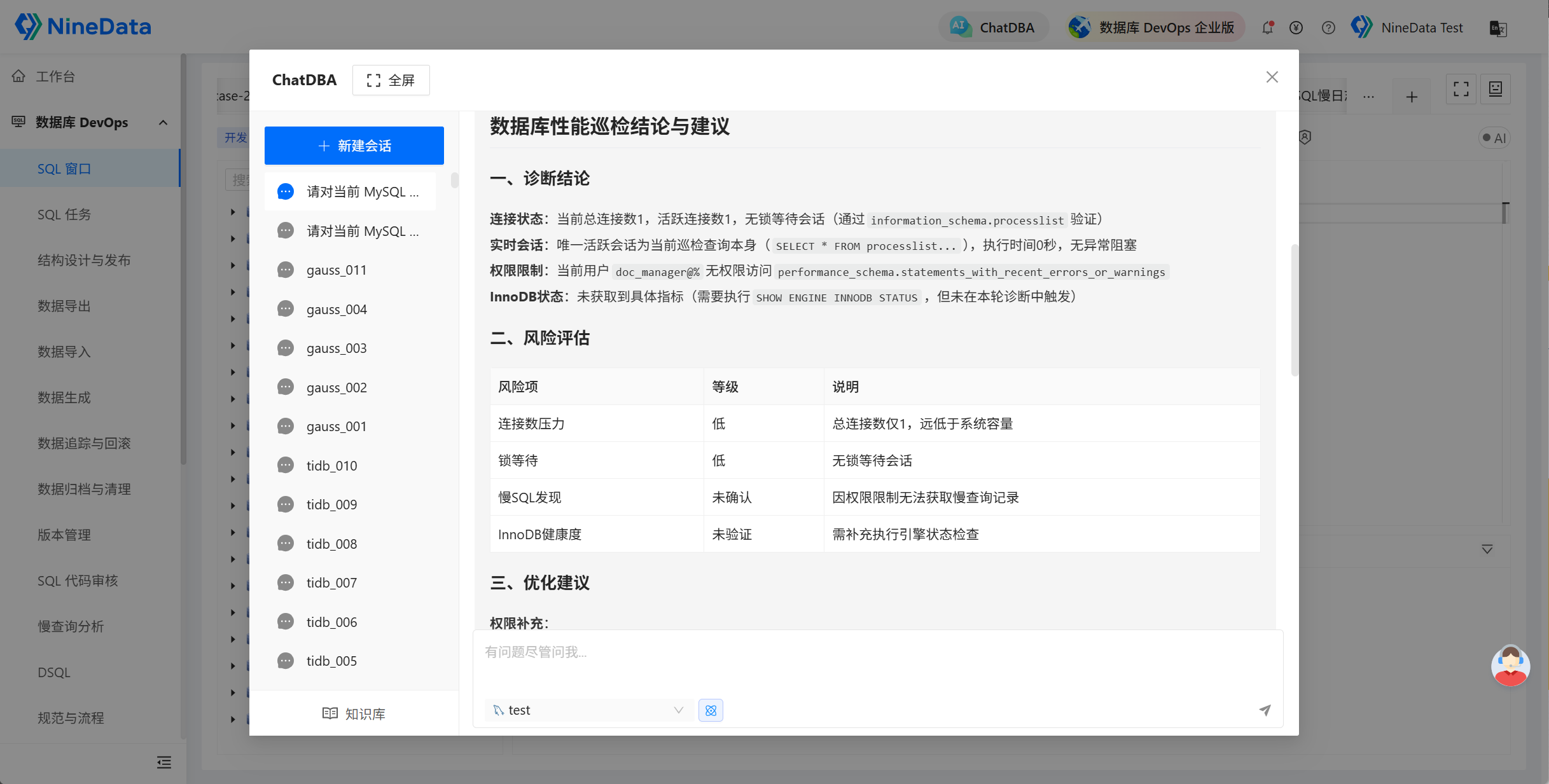
Result and precautions
- Use the inspection as an entry point, then continue with session diagnosis, slow SQL governance, lock diagnosis, or long-transaction diagnosis.
- Treat ChatDBA output as assistance. Before terminating a session, committing, rolling back, or changing production data, confirm business impact, permissions, approval, and rollback.
- Cross-check important conclusions with monitoring, SQL Console, or database system views.