Create an AWS private network connection
Create a private network connection between NineData and AWS so NineData can connect to AWS cloud services without exposing the database over a public network.
This operation creates an endpoint in your cloud provider account to connect NineData to cloud provider services in a private network environment. The endpoint service may incur charges. For cost details, see your cloud provider's official billing documentation.
Before you begin
- Your data source is hosted on AWS.
- You have an AWS EC2 server for installing the NineData gateway. This server shares the same VPC as the cloud database. If a different VPC is used, private network connectivity must exist between this server and the cloud database.
Limitations
The regions that currently support establishing a private network connection are AWS Asia Pacific (Singapore), AWS US West (N. California), AWS US West (Oregon), and AWS Europe (Frankfurt). Your cloud service must be located in one of these regions.
Procedure
Before creating a private network connection, add the AccessKey information for the target AWS account to NineData. For details, see Configure AWS Access Credentials.
Sign in to the NineData Console.
Go to Datasource > Private Link.
Hover over Create PrivateLink and select AWS from the list.
tipIf no Private Link exists yet, the page is empty. Click Create PrivateLink on the page.On the Create PrivateLink page, configure the parameters.
Parameter Description Name Enter a name for the private network connection. Use a meaningful name for easier lookup and management. Authorize Select Grant Access Permission and Auto-create. Region Choose the region where the data source you want to connect to via the private network is located. Cloud Vendor Root Account ID Enter the AWS main account ID. After entering the ID, select a blank area on the page. Continue after Add Successfully appears.
Note: Only the main account ID is supported. Sub-account IDs are not supported. Contact the main account owner if you need the main account ID.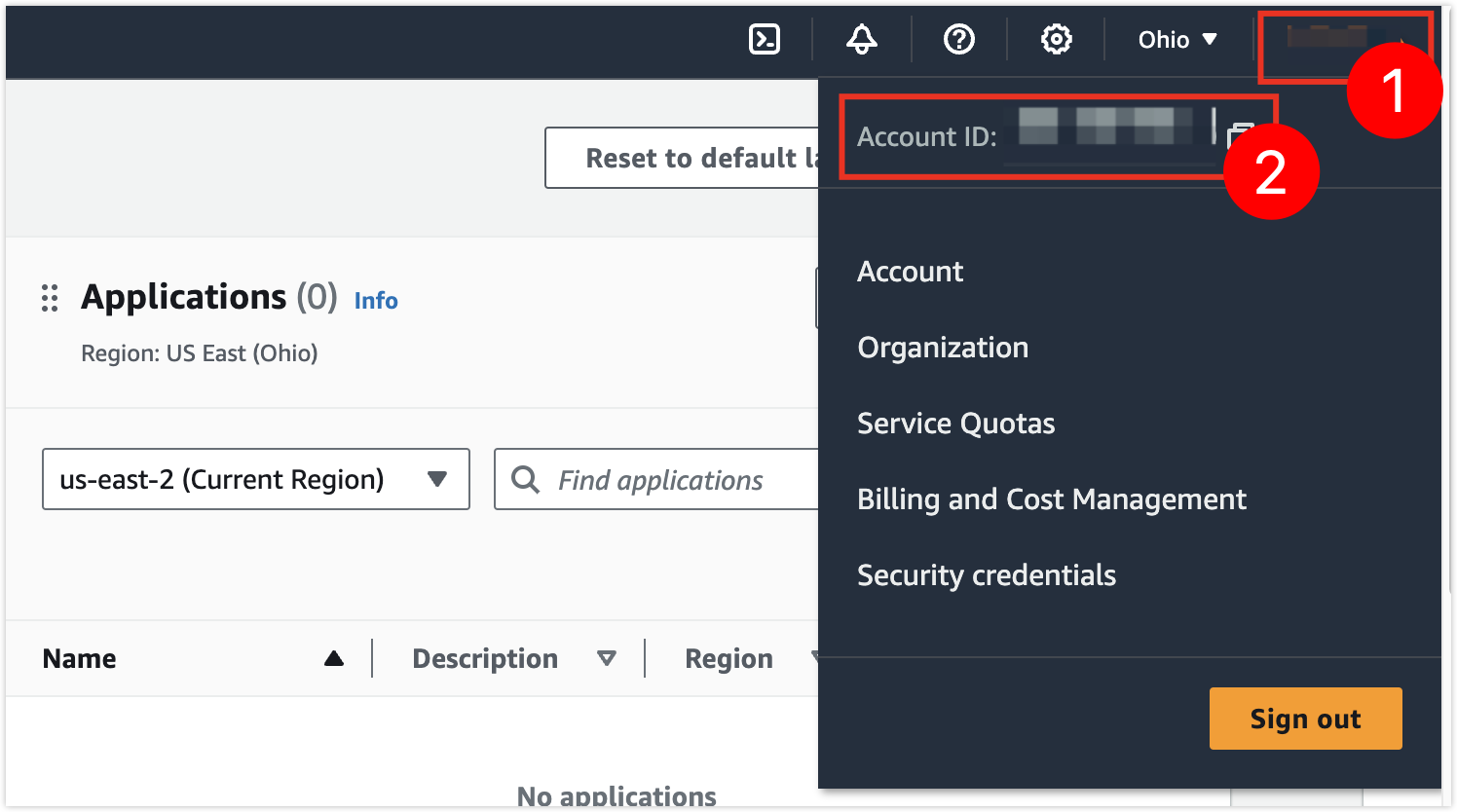
Access Credentials Select the configured cloud vendor access credential. If no credential exists, see Configure AWS Access Credentials. VPC Select the VPC used for the endpoint.
Important: The VPC must be the same as the EC2 VPC, or the two VPCs must have private network connectivity.Click Connection Test and wait until Connection Successfully appears. Then, click Create PrivateLink to navigate to the Install Gateway page.
tipIf the connection test fails, adjust the parameter configurations until the connection test passes.
In Environment, choose the operating system of your EC2 server, and then follow the installation instructions on the page to connect to the target EC2 server and install the gateway.
infoThis gateway establishes a connection between the data source and the AWS endpoint over the private network. The EC2 instance used for gateway installation must have private network connectivity with the AWS endpoint; otherwise, the gateway connection fails.
After the installation finishes, the Install Gateway page shows Gateway Connected. Click Completed and back to List to proceed.
Result
The AWS private network connection is created in NineData and can be used when you add or manage AWS data sources.