Create a PolarDB-X Data Source
This guide describes the connection, access, login, and encryption settings shown in the Alibaba Cloud PolarDB-X creation forms.
Before you begin
The server IP address of NineData has been added to the data source allowlist. The server IP address can be viewed by selecting the target region in Access Region on the Create Datasource page.

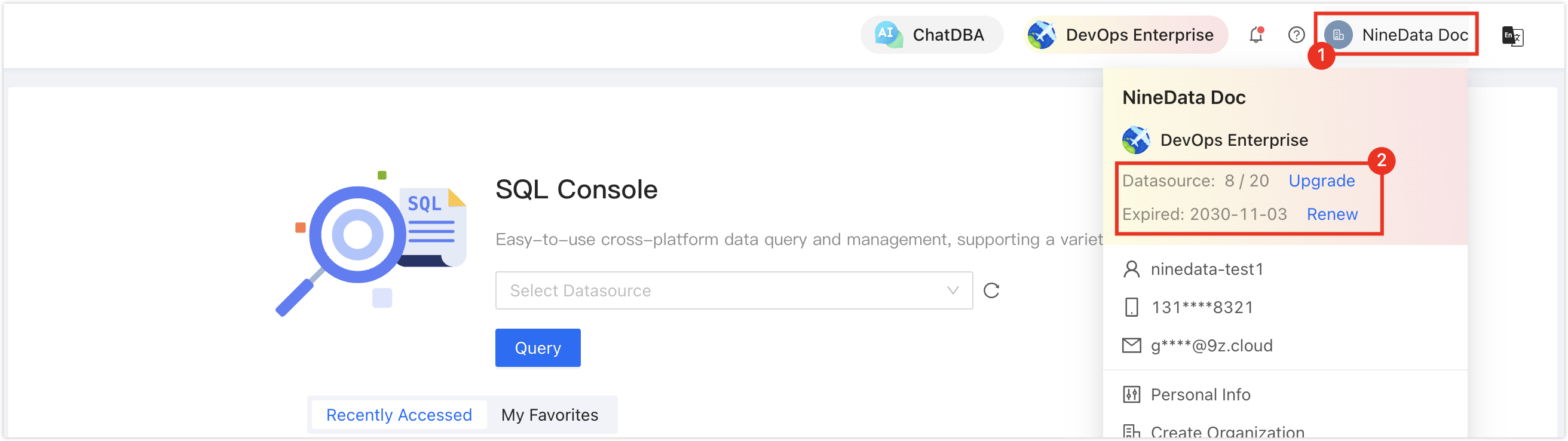
Make sure data source quota is available; otherwise, the data source cannot be added. Check the remaining quota in the NineData Console header.
Procedure
Sign in to the NineData console.
Go to Datasource > Datasource.
Open the data-source type selector and choose the PolarDB-X type that matches your source instance. The current selector shows two PolarDB-X entries. Then configure the parameters displayed in the form.
tipIf you select the wrong type, click the
 icon at the top of the page to reselect it.
Configure the data source parameters:
Parameter Control type Required Default or display condition Description Host Host-address field; host-list row in multi-node architectures Required in the host-address access branch and for multi-node host-list rows Shown in public-address, Gateway, and host-address access branches; the Instance ID access branch uses instance selectors. Multi-node architectures display a required host-list row. Enter the PolarDB-X database host. For public-network connections, if the current form displays a network allowlist requirement, use the address shown in the form.
After configuring the parameters, use the connection-test and submission controls shown in the current console to verify connectivity and create the data source. The test result depends on the feedback actually displayed by the console.