Create a SingleStore data source
Add SingleStore to NineData for Database DevOps, backup and recovery, data replication, and database comparison workflows.
Before you begin
The server IP address of NineData has been added to the data source allowlist. The server IP address can be viewed by selecting the target region in Access Region on the Create Datasource page.

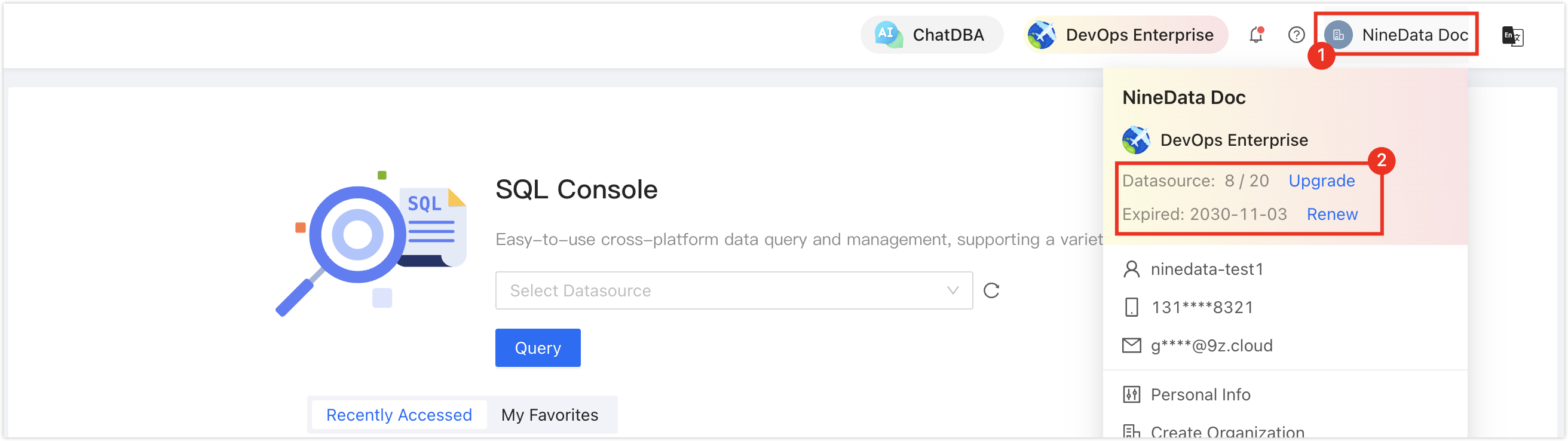
Make sure data source quota is available; otherwise, the data source cannot be added. Check the remaining quota in the NineData Console header.
Procedure
Sign in to the NineData Console.
On the left navigation pane, click Datasource > Datasource.
- Select the Datasource tab, and then select Create Datasource. In the data source type selector, choose Database > (the type of data source to be added). On the Create Datasource page, configure the parameters based on the table below.tip
If you make a mistake during the operation, select the
 icon at the top of the Create Datasource page and choose again.
Configure the data source parameters:
Parameter Description Name Enter a meaningful data source name for future search and management. Connection Select how NineData connects to the data source. Options include IP Address, Gateway, and SSH Tunnel. - IP Address: Connect through a public network address.
- Gateway: Connect through a NineData gateway. Connect the host where the data source is located first. For setup steps, see Add Gateway.
- SSH Tunnel: Connect through an SSH tunnel.
- IP Address: Connect through a public network address.
- SSH Tunnel: Connect through an SSH tunnel.
Configuration items when Connection is IP Address Host: Enter the public connection address and port of the data source. Configuration items when Connection is Gateway - Gateway: Select the NineData gateway installed on the host where the data source is located.
- Host: Use localhost if the data source is on the same host, or enter the internal IP address of the host where the data source is located.
Configuration items when Connection is SSH Tunnel - SSH Host: Enter the public IP address or domain name of the server where the target data source is located, and enter the SSH port. The default SSH port is 22.
- SSH Authentication Method: Select the SSH authentication method.
- Password: Connect with SSH Username (server login name) and Password (server login password).
- SSH Username: Enter the login username of the server where the target data source is located.
- Password: Enter the login password of the server where the target data source is located.
- Key (recommended): Connect with SSH Username and Key File.
- SSH Username: Enter the login username of the server where the target data source is located.
- Key File: Click Upload to upload the private key file. The private key file has no file extension. If you have not created one, see Generate SSH Tunnel Key File.
- Password: Enter the passphrase set when the key file was generated. If no passphrase was set, leave this field blank.
Note: After you configure SSH, click Connection Test. The test has two possible results: - Password: Connect with SSH Username (server login name) and Password (server login password).
- Connection Successfully: The SSH tunnel is connected.
- Error message: The connection failed. Troubleshoot the issue and try again.
- Host: Use localhost if the data source is on the same host, or enter the internal IP address of the host where the data source is located.
DB Account The username of the data source. DB Password The password of the data source. Access Region Select the region closest to the data source to reduce network latency. Environment Select the environment that matches the business purpose of the data source. NineData provides PROD and DEV by default; create custom environments if additional labels are required.
Note: In organization mode, database environments can also be used for permission policy management. For example, the default Prod Admin role can access only data sources in PROD. For more information, see Manage Roles.After you configure all parameters, click Connection Test next to Create Datasource to test connectivity. When Connection Successfully is displayed, click Create Datasource to create the data source. Otherwise, review the connection settings and run the test again.
Result
The SingleStore data source is added to NineData and can be used by supported features such as data replication, database comparison, and Database DevOps.