Create an SAP HANA Data Source
Add an SAP HANA data source to NineData. This guide covers selected fields in the SaaS form; check the current form for other required fields that apply to your connection method.
Before you begin
The server IP address of NineData has been added to the data source allowlist. The server IP address can be viewed by selecting the target region in Access Region on the Create Datasource page.

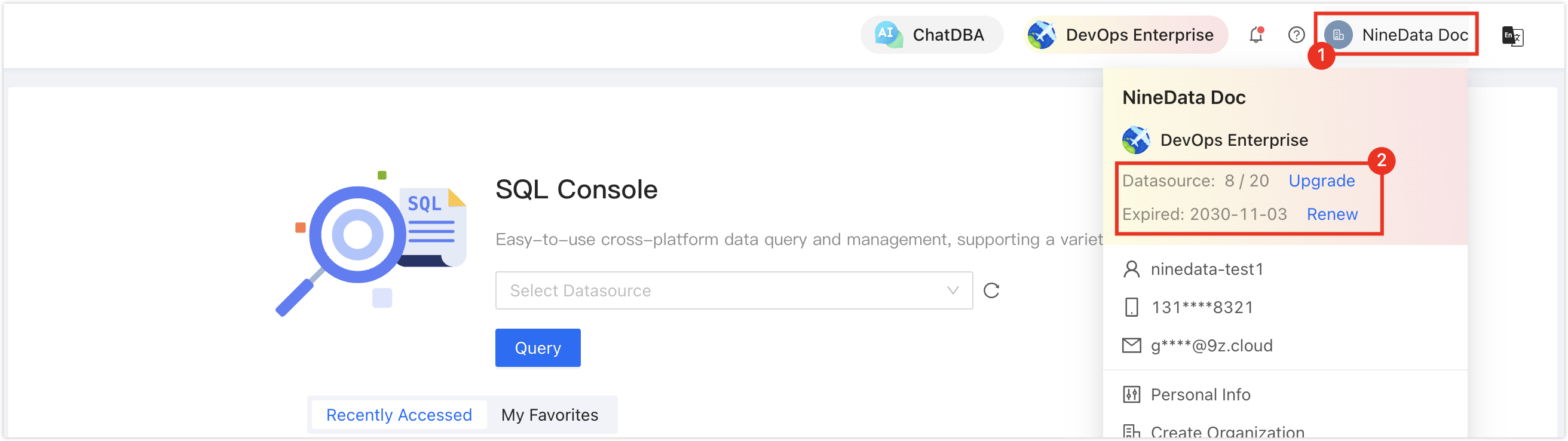
Make sure data source quota is available; otherwise, the data source cannot be added. Check the remaining quota in the NineData Console header.
Procedure
Sign in to the NineData Console.
On the left navigation pane, click Datasource > Datasource.
- Select the Datasource tab, and then select Create Datasource. In the data source type selector, choose Database > (the type of data source to be added). On the Create Datasource page, configure the parameters based on the table below.tip
If you make a mistake during the operation, select the
 icon at the top of the Create Datasource page and choose again.
The table lists selected fields from the HANA SaaS data source form. It does not cover every field; check the current form for other required fields.
Parameter Control type and required status Default and options Description Connection Single-select group; required The public network path is selected initially. Select a database connection path. The selected path determines which configuration fields appear. Host Required host field Displayed for direct, gateway-forwarded, and SSH-tunneled connections Enter the SAP HANA database host.