Integrate DingTalk Approval Workflows
NineData can connect approval processes with DingTalk. After the integration is configured, users can submit SQL tasks and data-management requests in NineData, while approvers review the workflow in DingTalk.
Before you begin
- You have already created or joined an organization, and the organization has subscribed to DevOps Enterprise. Please ensure that your annual or monthly subscription is still active. For more information, please refer to Manage Organizations.
- Your current account has been switched to the target organization. For more information, please refer to Switching to an Organization.
- Sign in to the DingTalk Open Platform with an enterprise administrator account.
- Your NineData deployment is the dedicated cluster edition.
- You have system administrator permissions in NineData.
- Your DingTalk enterprise has already configured the organization structure, contact directory, employee mobile numbers, and other basic information.
Step 1: Create a custom app in the DingTalk Open Platform
Sign in to the DingTalk Open Platform with an enterprise administrator account.
Click Create App in the page toolbar.
Enter the app information on the creation page, click Save, and then open the app details page.
- App name: for example,
NineData-Approval Integration. - App description: for example,
Used for NineData task approval workflow integration. - App icon (optional): upload the corresponding icon.
- App name: for example,
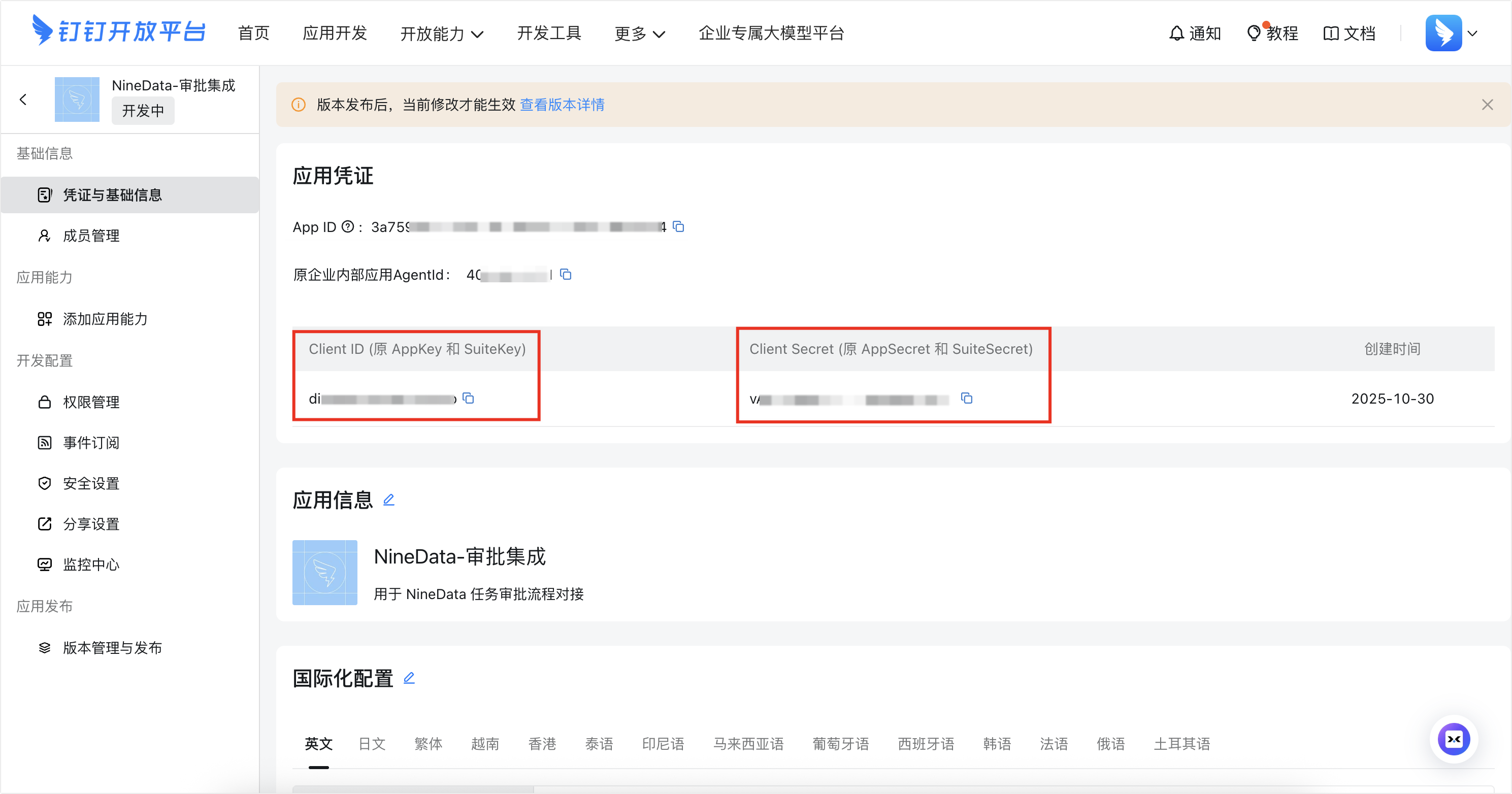
Go to Basic Information > Credentials & Basic Information, and record the values of Client ID and Client Secret.
Go to Development Configuration > Permission Management, select the required permissions, and then click Batch Apply.
Workflow instance write permission
Workflow template read permission
Workflow instance read permission
Employee mobile phone information (permission ID:
fieldMobile)Member information read permission (permission ID:
qyapi_get_member)Get basic member information by mobile number (permission ID:
qyapi_get_member_by_mobile)Approval workflow data management permission
NoteIn addition to workflow permissions, make sure the contact-related permissions above are also granted, especially Employee mobile phone information, Member information read permission, and Get basic member information by mobile number. If any of these permissions are missing, NineData may fail to obtain approver information when querying DingTalk approval workflow details, and the approver will not be displayed.
In the DingTalk Open Platform, Member information read permission usually includes APIs such as Query user details, Get user ID list by department, and Get administrator list. If the page also lists Get executive mode setting, authorize it as well so the returned user information contains all required fields.
Step 2: Create an approval template in the DingTalk admin console
Sign in to the DingTalk admin console with an enterprise administrator account.
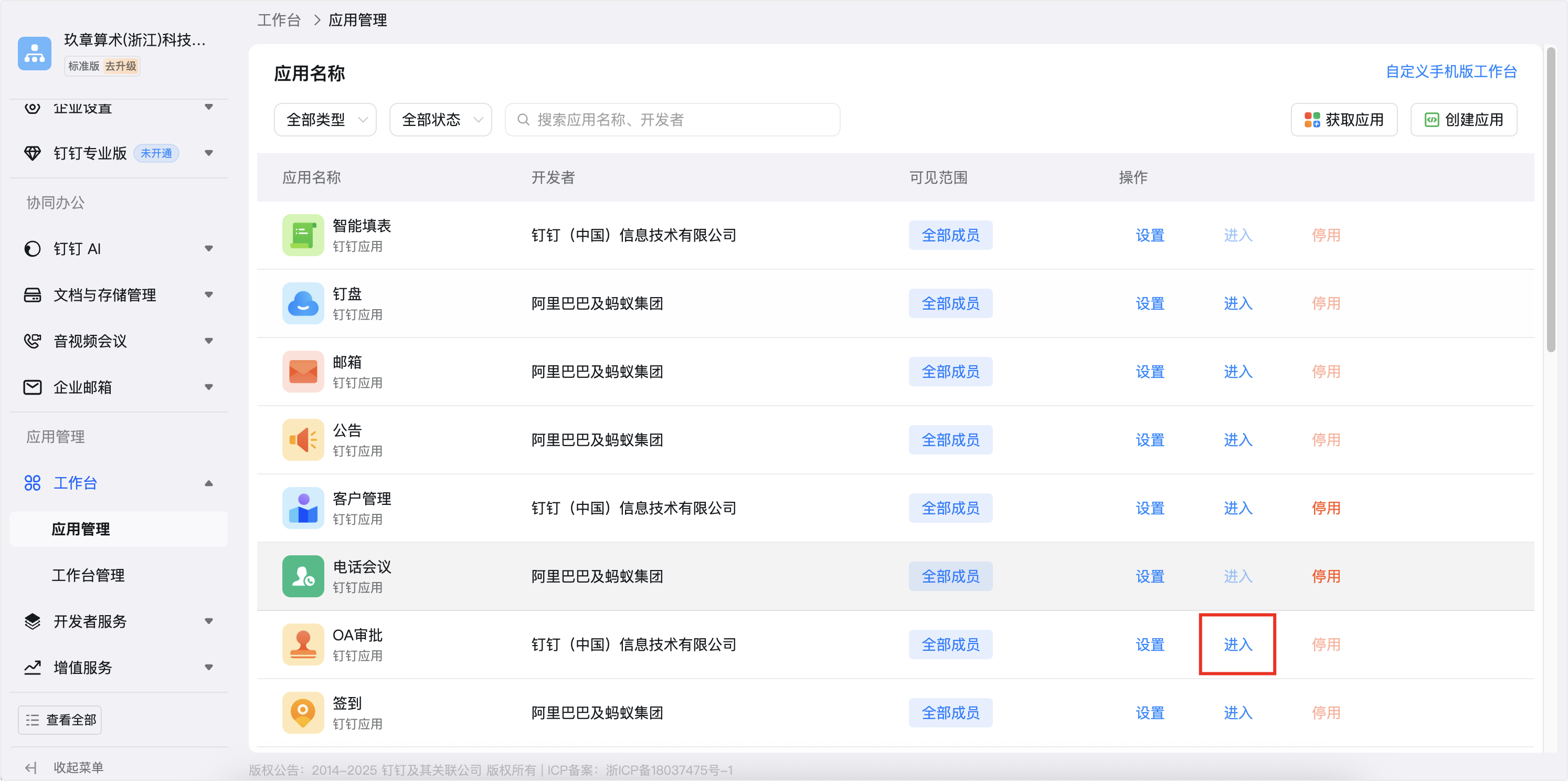
Go to Workbench > Application Management.
tipThe navigation pane is long. If Workbench does not appear, scroll down the page.
In the Application Name list, find OA Approval, and click Enter in the Operation column on the right.
Click Create Approval Form in the page toolbar. In the dialog, configure the form information, and then click Form Design at the top of the page. For more information, see the official DingTalk documentation.

- Form name: for example,
NineData Approval Workflow. - Group: select the group where the current workflow belongs. Create a new group or select an existing one.
- Who can initiate: select which departments or members can initiate this workflow.
- Form administrator: specify one or more members as the administrators of the current workflow.
- Form name: for example,
On the Form Design page, design the required form fields, and then click Process Design at the top of the page.
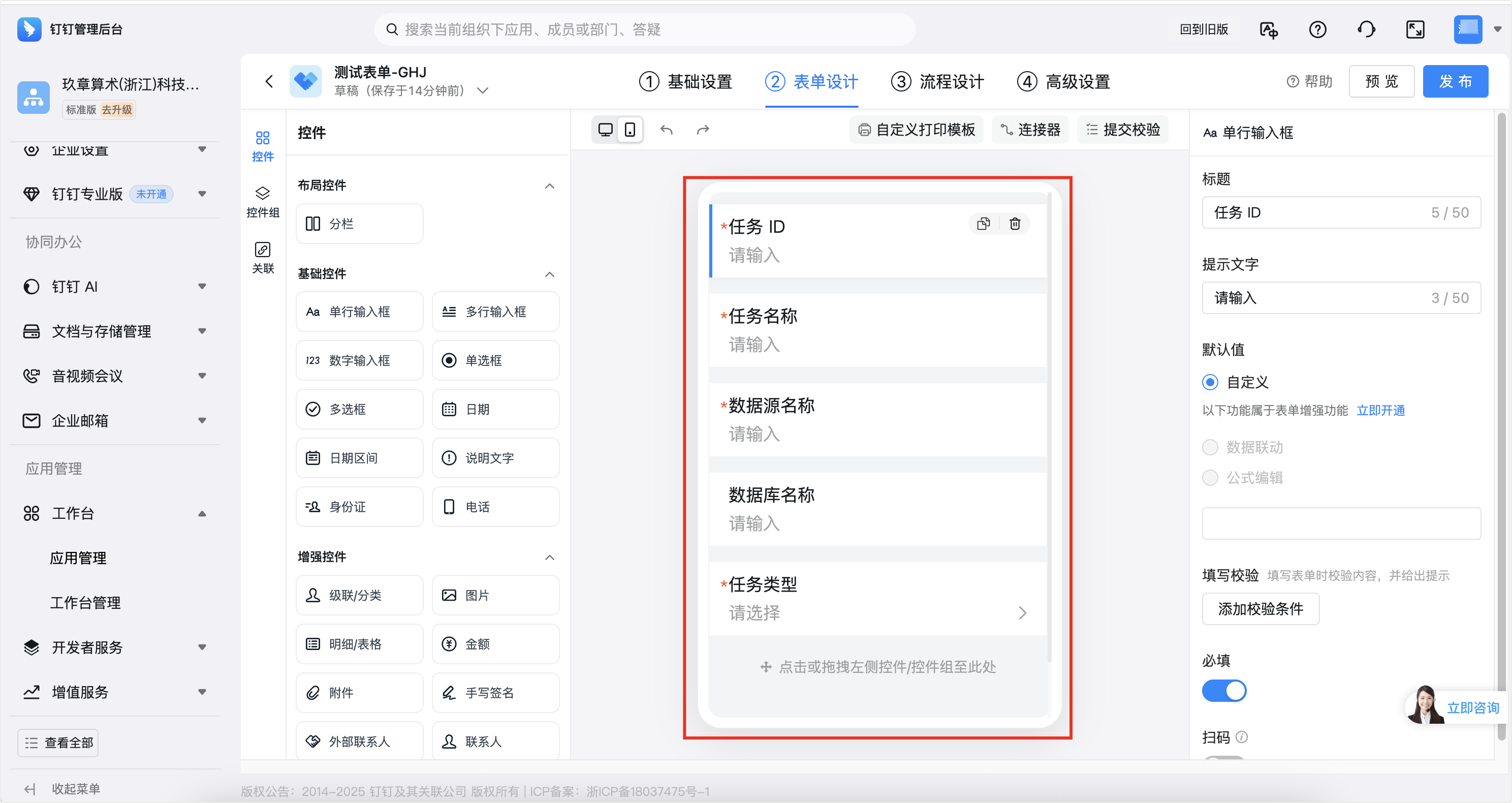
- Drag controls on the left, such as text, single choice, and attachment, into the form area.
- Configure the title, field name, required setting, and helper text for each control.
- For detailed NineData task types and subtypes, see Appendix 3.
On the Process Design page, design the approval workflow based on your enterprise organization structure.
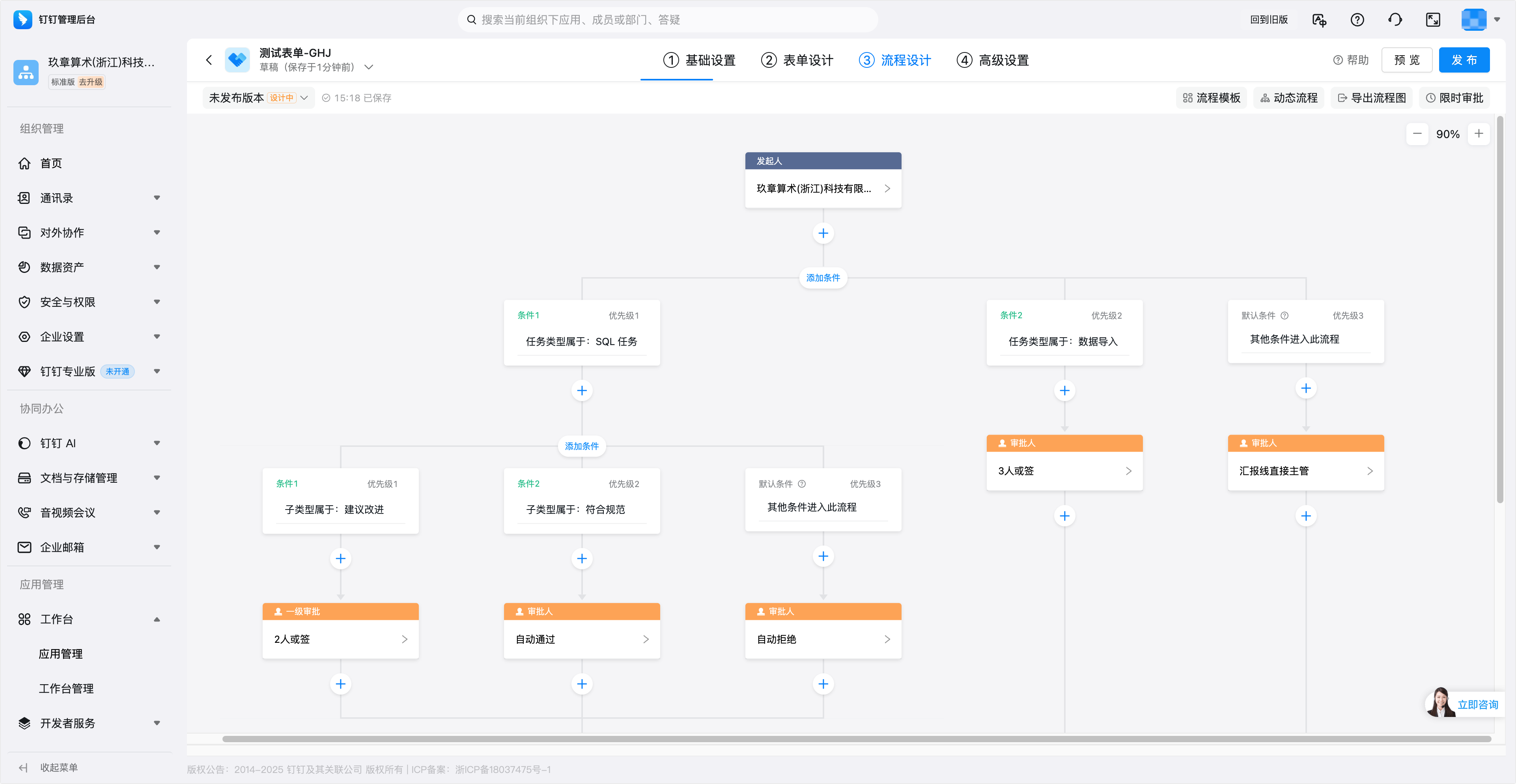
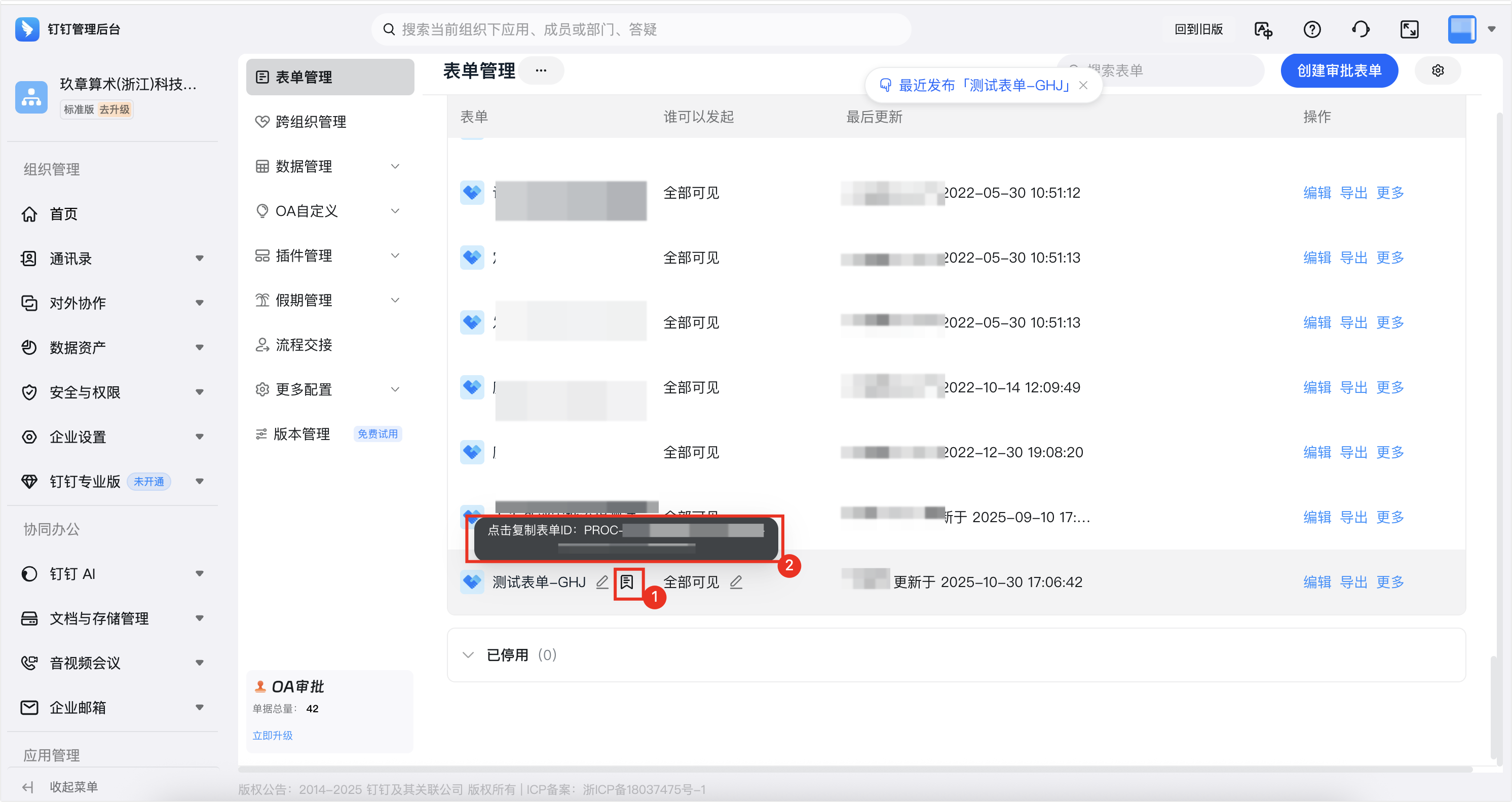
Click Publish, and then click Done in the dialog. The browser opens the Form Management page. Find the form you just created and record the generated form ID.
Step 3: Bind the DingTalk app in NineData
Sign in to the NineData Console.
Go to DevOps > Policy & Process.
Click the Approval Process tab, and then click External approve channel.
Click Add External Approval Channel, configure the app information in the dialog, and click OK to finish binding the app.
Parameter Description Channel Name Custom name of the approval channel, used to distinguish different external approval systems in NineData. Example: DingTalk Approval Workflow.Channel Type Select the type of the external approval channel. Choose DingDing here. NineData calls the corresponding API logic based on this type. AppID The unique identifier of the app in the DingTalk Open Platform. It corresponds to the Client ID obtained in Step 1. 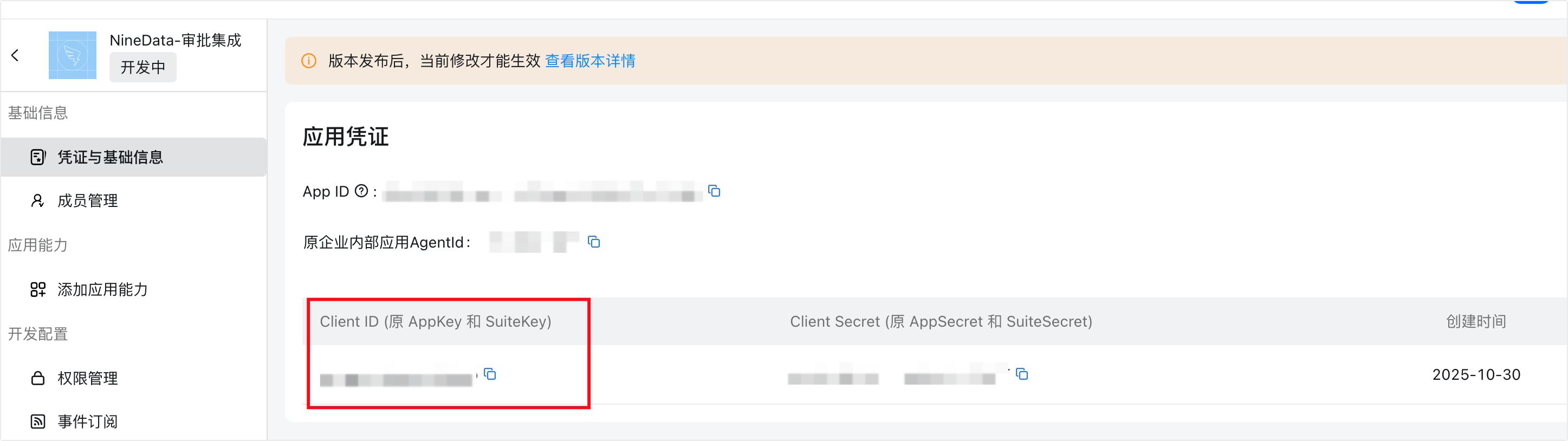
AppSecret The secret of the app, used to verify the legitimacy of the communication between NineData and the DingTalk Open Platform. It corresponds to the Client Secret obtained in Step 1. 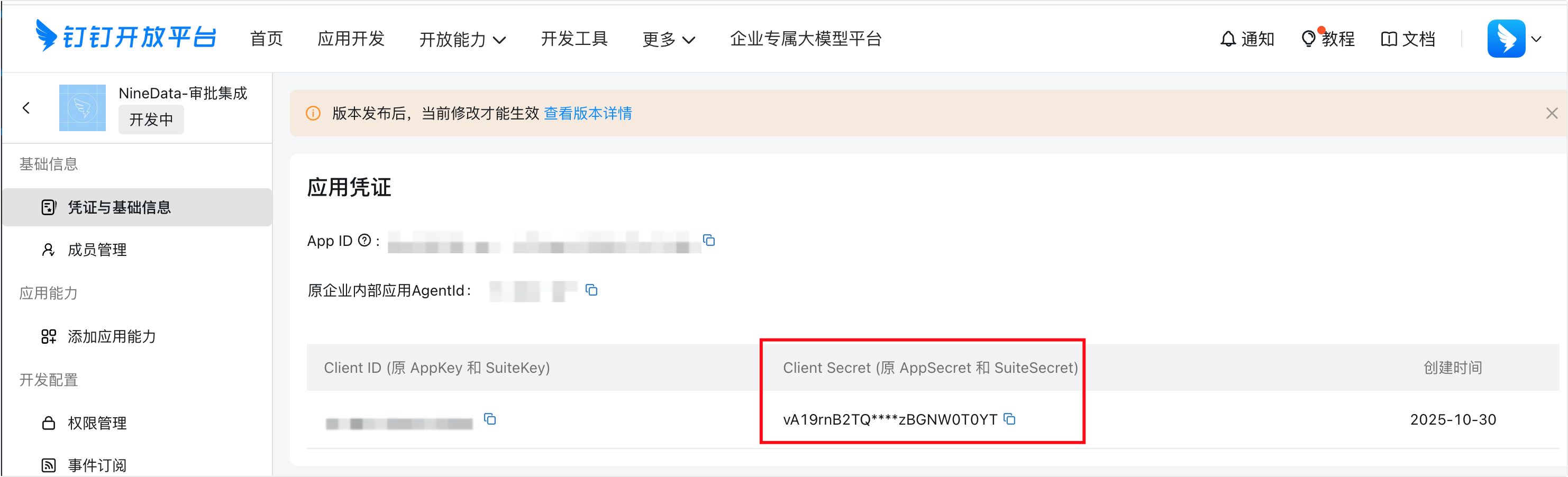
Signed Token Leave this empty for now. DingTalk generates it later when you configure event subscription in the DingTalk Open Platform. AesKey Leave this empty for now. DingTalk generates it later when you configure event subscription in the DingTalk Open Platform. Click the newly bound app ID and record Callback url at the bottom of the page. You will use it later when configuring event subscription on the DingTalk side. The URL must be publicly accessible.
Click the Approval Workflow Mapping Definition tab, and then click Add approval progress definition. Configure the workflow mapping parameters.
Parameter Description Associated Applications Select the app you just bound. Name Custom name of the approval workflow mapping. Approval Definition ID The ID of the approval template created in the DingTalk admin console. It corresponds to the form ID obtained in Step 2. 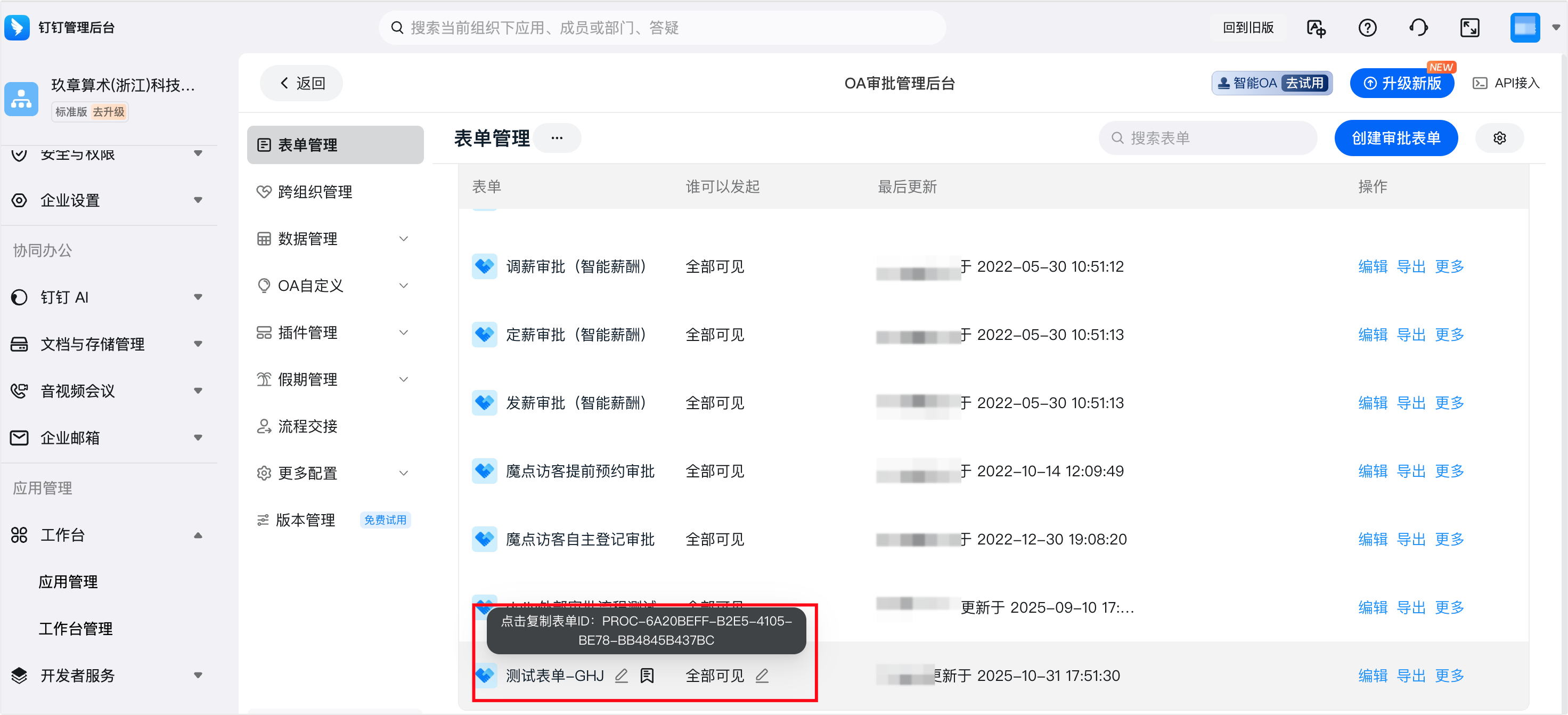
Approval Workflow Configuration This configuration allows you to define each node in the approval workflow in detail based on actual business needs, and to verify whether the workflow can run through by using the test function. For examples of each workflow configuration, see Appendix 1. Click OK to complete the configuration.
Step 4 (Optional): Configure event subscription in the DingTalk Open Platform
Return to the DingTalk Open Platform and open the app you created earlier.
Go to Development Configuration > Event Subscription, and configure the event subscription parameters.
Parameter Description Push method Select HTTP Push. Encrypted aes_key Click the  icon on the right to generate an encrypted
 aes_key. Paste the generatedaes_keyinto the aes_key of the app bound in NineData.Signature token Click the icon on the right to generate a signature token. Paste the generatedtokeninto Signed Token of the app bound in NineData.Request URL Enter the callback URL provided by NineData. Click Save, and then turn on Approval Event under Event Subscription below. Event subscription is now configured.
Step 5: Bind the approval workflow
Sign in to the NineData Console.
Go to DevOps > Policy & Process.
Click the Approval Process tab, find the target approval workflow that needs DingTalk approval enabled, click the workflow name, and go to the Details page.
Click the tab of the task type to configure, and then click Edit for the target workflow. Select Launch External Approval Workflow at the bottom of the Edit Process page, choose the DingTalk app in the selector on the left, choose the corresponding DingTalk workflow ID on the right, and click OK.
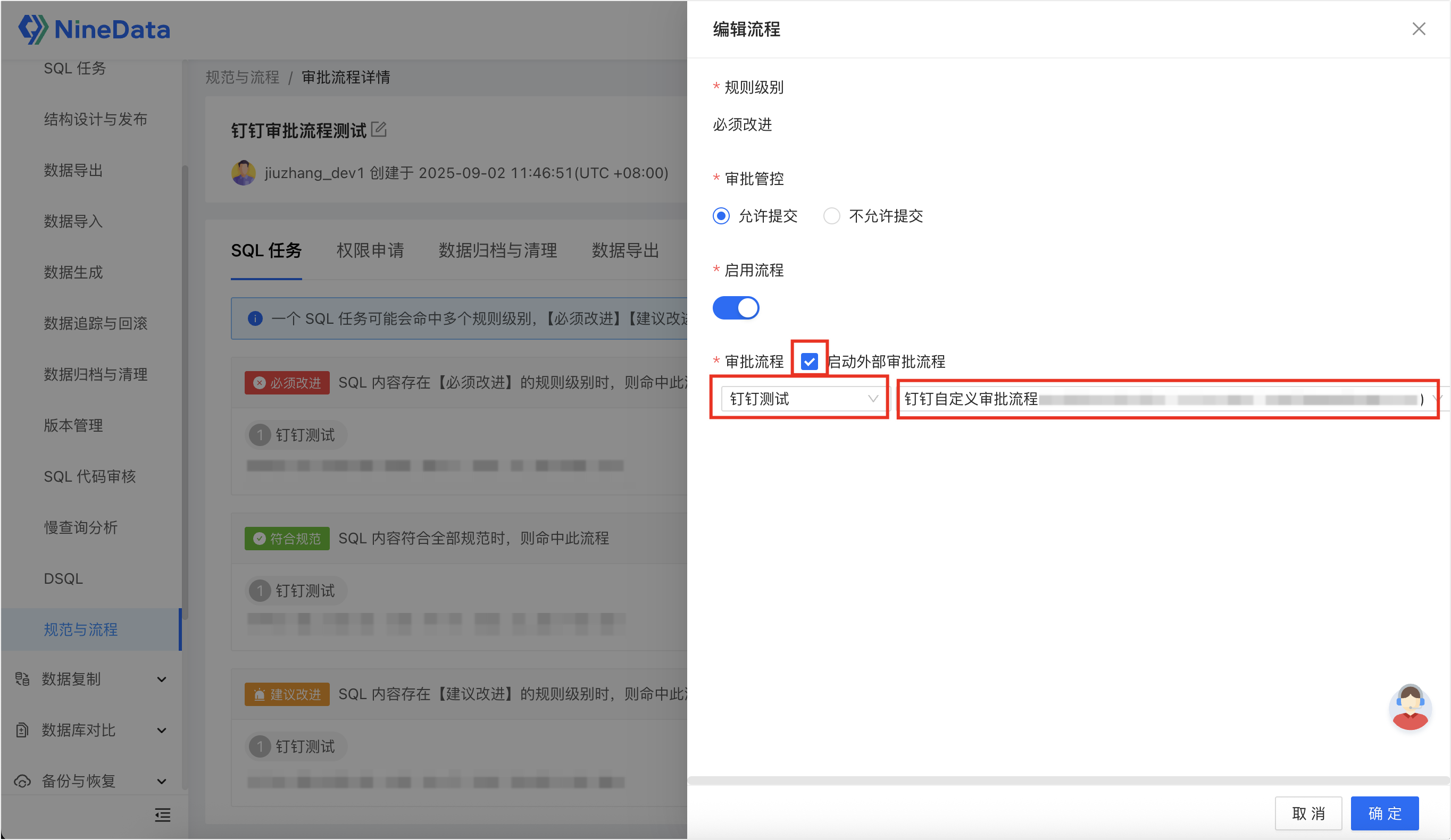
Result
NineData is connected to the DingTalk approval channel, the DingTalk approval template is mapped to a NineData workflow definition, and the selected NineData approval process can initiate external DingTalk approvals.
Next steps
- Submit a test task from NineData and confirm that the DingTalk approval instance is created.
- Approve, reject, revoke, and synchronize a test instance to verify the scripts in Appendix 1.
- Keep the callback URL publicly reachable if you enabled DingTalk event subscription.
Appendix 1: Example script for NineData approval workflow configuration
Token Acquisition (Required): Use the authentication information of the app created in DingTalk to obtain the accessToken. Replace
reqBody.put("appKey",APP_ID)andreqBody.put("appSecret",APP_SECRET)with the actual DingTalk Open Platform credentials, whereappKeycorresponds to Client ID andappSecretcorresponds to Client Secret.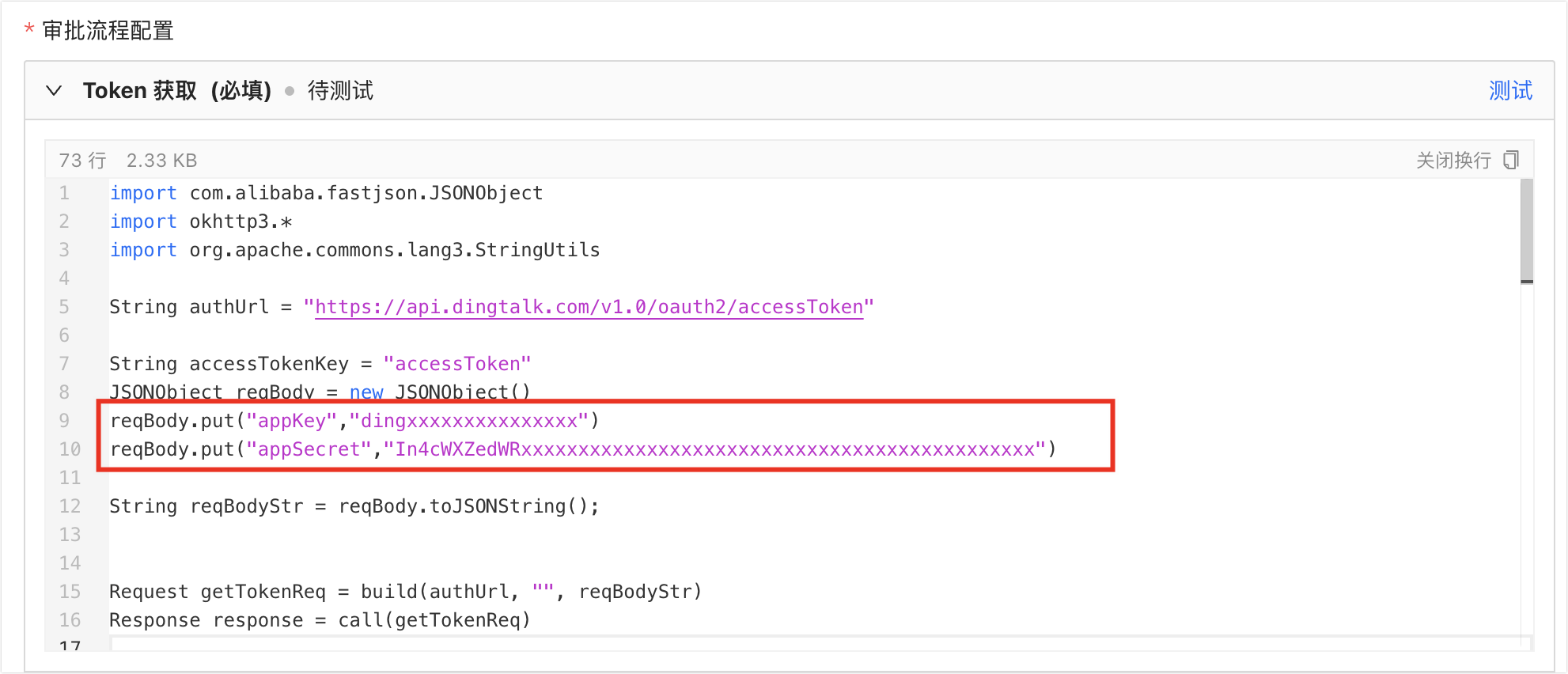
Example:
reqBody.put("appKey","dingxxxxxxxxxxxxxxx")
reqBody.put("appSecret","In4cWXZedWRxxxxxxxxxxxxxxxxxxxxxxxxxxxxxxxxxxxxxxxxxxxxx")
Create Approval Workflow (Required): NineData uses this API to submit task data to DingTalk. DingTalk then creates an instance on the specified approval template and starts the approval workflow. Define the form format in the script and map NineData internal platform task fields such as task name, database name, and approval reason to the external approval template fields in the DingTalk approval form created earlier.
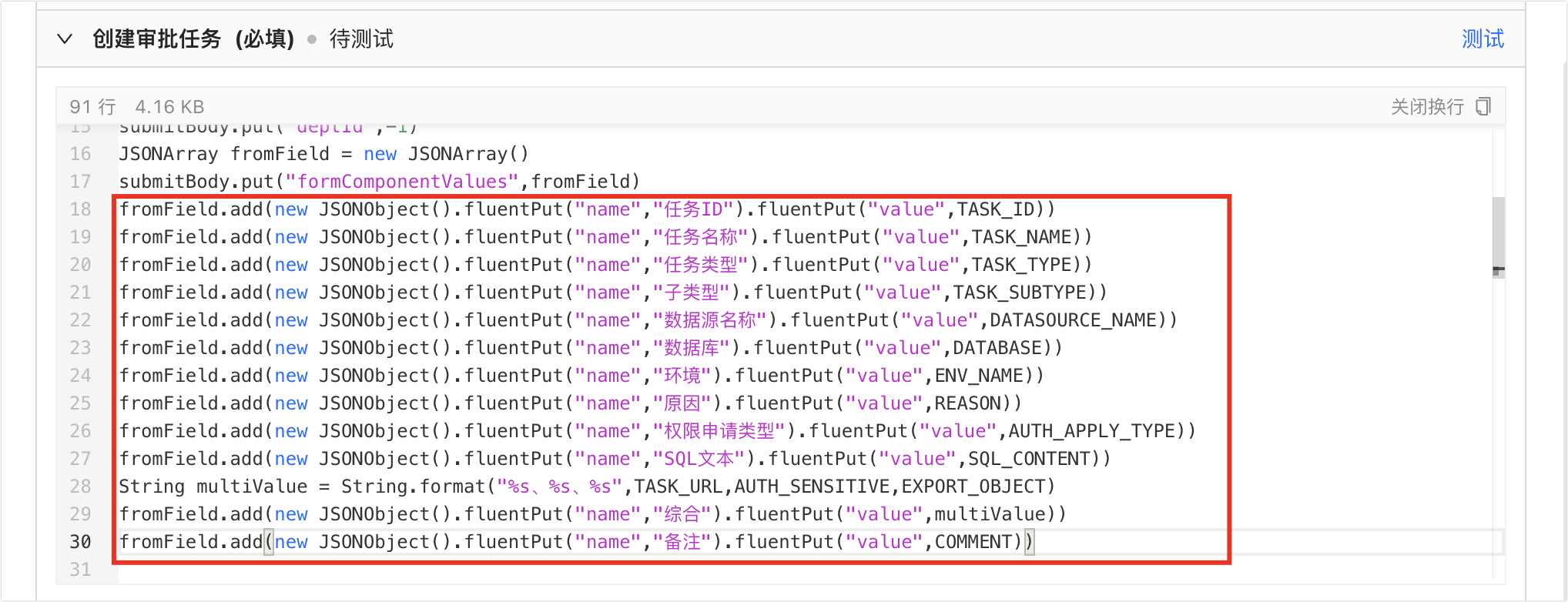 Note
NoteField mapping: The
nameinfluentPutmust strictly match the field name in the DingTalk template form.Variable parameters: For the
valueinfluentPut, see Appendix 2.Keep the InstanceID: After the test of the current workflow succeeds, keep the returned approvalInstanceId to continue testing Revoke Approval Workflow.

Example:
fromField.add(new JSONObject().fluentPut("name","Task ID").fluentPut("value",TASK_ID))
fromField.add(new JSONObject().fluentPut("name","Task Name").fluentPut("value",TASK_NAME))
fromField.add(new JSONObject().fluentPut("name","Task Type").fluentPut("value",TASK_TYPE))
fromField.add(new JSONObject().fluentPut("name","Subtype").fluentPut("value",TASK_SUBTYPE))
fromField.add(new JSONObject().fluentPut("name","Data Source Name").fluentPut("value",DATASOURCE_NAME))
fromField.add(new JSONObject().fluentPut("name","Database").fluentPut("value",DATABASE))
fromField.add(new JSONObject().fluentPut("name","Environment").fluentPut("value",ENV_NAME))
fromField.add(new JSONObject().fluentPut("name","Reason").fluentPut("value",REASON))
fromField.add(new JSONObject().fluentPut("name","Permission Request Type").fluentPut("value",AUTH_APPLY_TYPE))
fromField.add(new JSONObject().fluentPut("name","SQL Text").fluentPut("value",SQL_CONTENT))
String multiValue = String.format("%s, %s, %s",TASK_URL,AUTH_SENSITIVE,EXPORT_OBJECT)
fromField.add(new JSONObject().fluentPut("name","Summary").fluentPut("value",multiValue))
fromField.add(new JSONObject().fluentPut("name","Remarks").fluentPut("value",COMMENT))
"Revoke Approval Workflow" (Required): Before the approval ends, revoke an initiated approval instance by the approval workflow instance ID, approvalInstanceId.
No script changes are required for this workflow. For testing, only
accessTokenand the target workflowapprovalInstanceIdare required.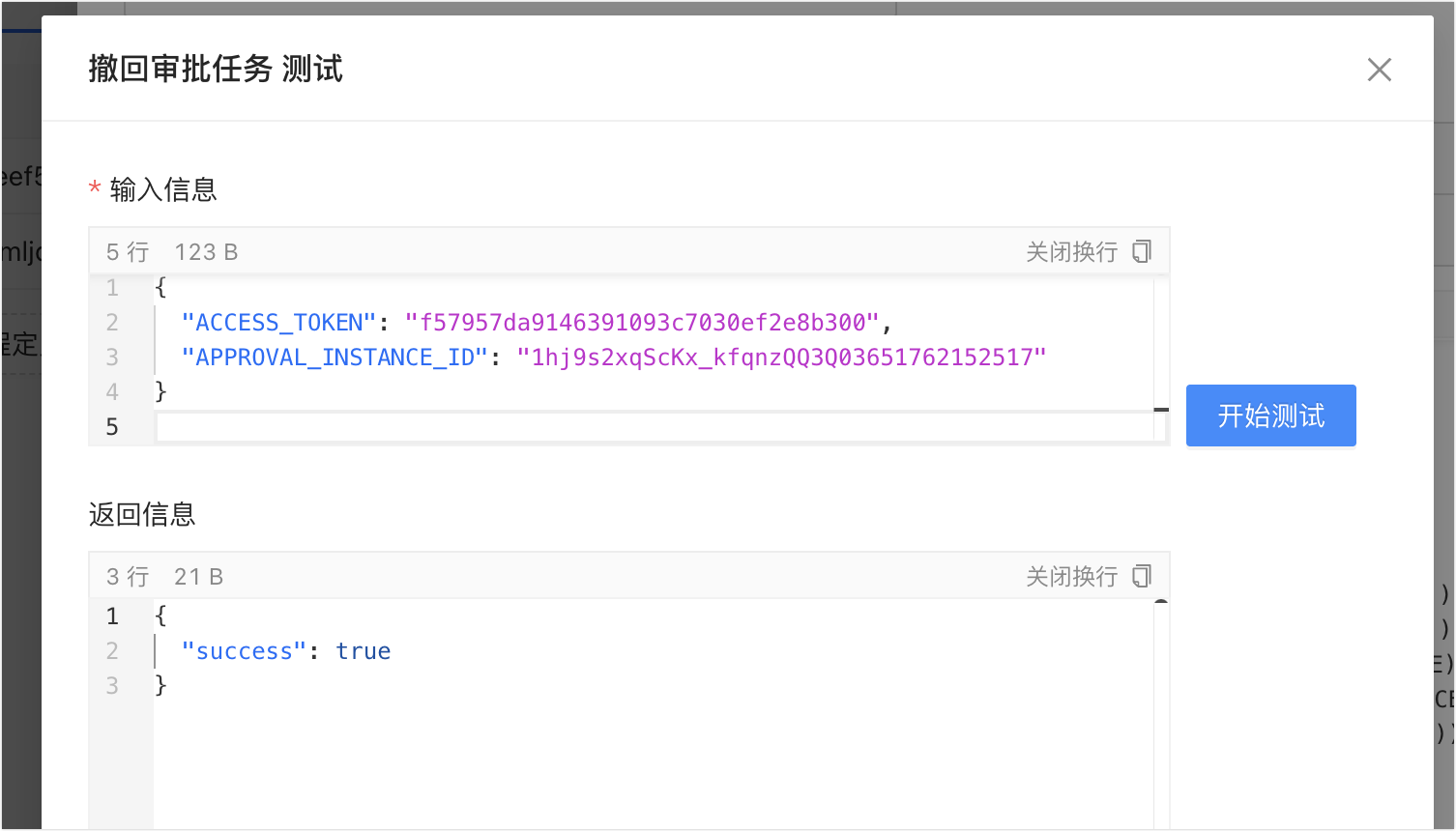
Callback Approval Workflow Notification (Optional): When key status changes occur in the DingTalk approval workflow, such as approved, rejected, terminated, transferred, or copied, DingTalk actively sends event notifications to the
callback URLprovided by NineData. NineData then parses the message and maps it back to the internal task status.No script changes or tests are required for this workflow. Keep the default configuration.
Synchronize Approval Workflow Status (Required): Use this workflow to actively confirm approval progress or obtain more detailed information, such as the form, operation records, or approvers.
No script changes are required for this workflow. For testing, only
accessTokenand the target workflowapprovalInstanceIdare required.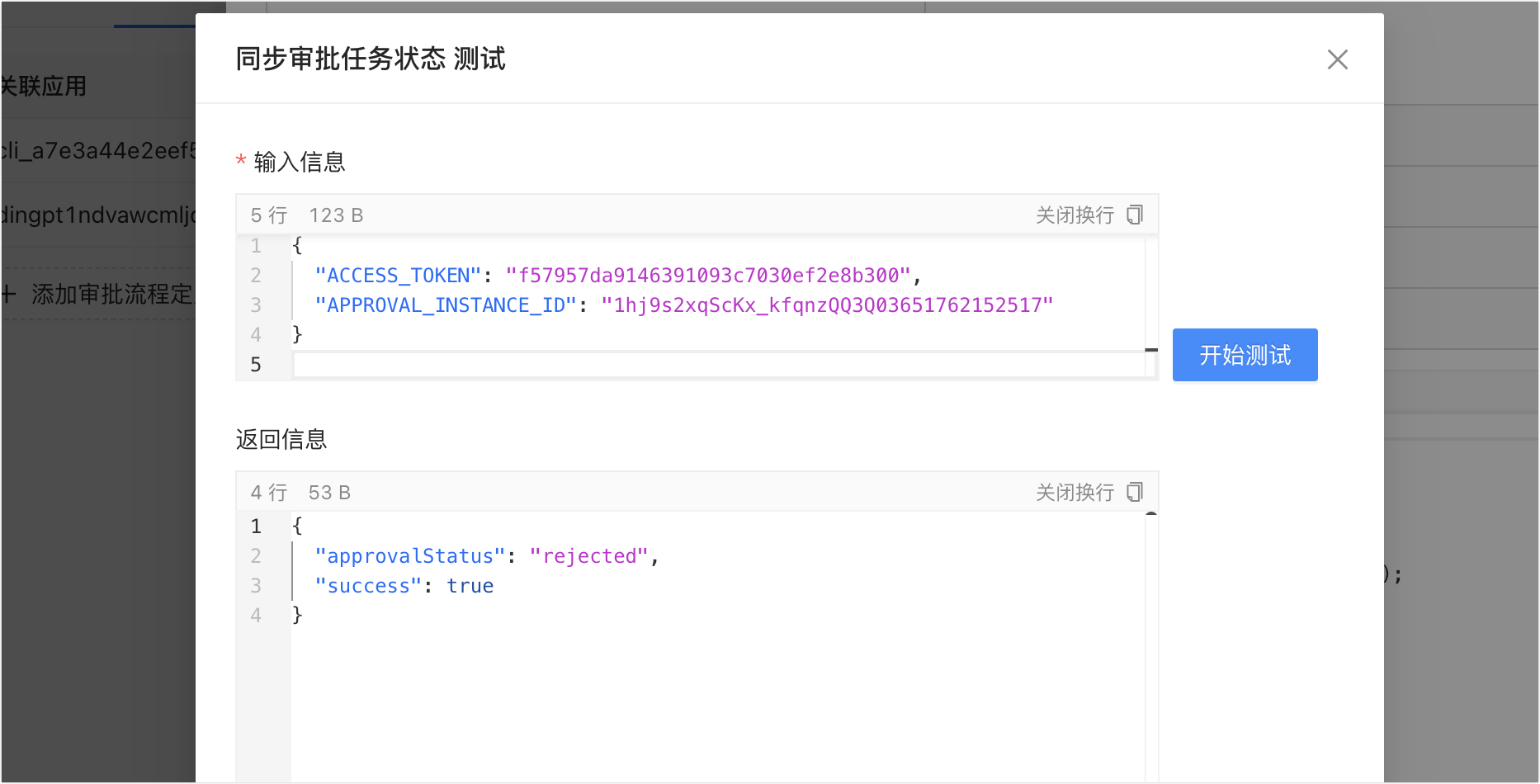
Appendix 2: Form field parameter list
| Variable Code | Meaning |
|---|---|
| TASK_NAME | Task name |
| TASK_ID | Task ID |
| TASK_TYPE | Task type |
| TASK_SUBTYPE | Subtype |
| COMMENT | Remarks |
| ENV_NAME | Environment |
| DATASOURCE_NAME | Data source name |
| DATASOURCE_URL | Data source URL |
| DATABASE | Database name |
| Schema | Schema name |
| DATABASE_GROUP_ID | Database group ID |
| DATABASE_GROUP_NAME | Database group name |
| EXPORT_METHOD | Export method |
| EXPORT_CONTENT | Export content |
| REASON | Reason |
| AUTH_TYPE | Request type |
| SUBMITTER | Submitter |
| SQL_CONTENT | SQL text (summary, first 200 characters) |
| SQL_FULL_CONTENT | SQL text (full text, up to 5000 characters) |
| TASK_URL | Task request URL |
| FILE_TYPE | Export/import file type |
| AUTH_SENSITIVE | Sensitive column |
| AUTH_EXPIRATION_TIME | Permission validity period |
| AUTH_APPLY_TYPE | Permission type |
| CREATE_TIME | Submission time |
| EST_AFFECTED_ROWS | Estimated affected rows |
| AUTH_APPLY_OBJECT_DB | Requested database |
| AUTH_APPLY_OBJECT_TB | Requested table |
| DATASOURCE_ID | Data source ID |
| EXECUTOR | Executor |
| EXPORT_OBJECT | Export object, including database or table information, or SQL statements |
| TASK_DETAILS | Task details |
| SUBMITER_PHONE | Submitter mobile number |
| APPROVAL_CODE | External approval template code |
Appendix 3: NineData task types and subtypes
| Task Type | Task Subtype |
|---|---|
| SQL Task Schema Design & Release | Must Modify |
| Suggested | |
| Passed | |
| Apply Permission | Datasource |
| Database | |
| Table Permission | |
| Apply for Sensitive Column - S1 | |
| Apply for Sensitive Column - S2 | |
| Apply for Sensitive Column - S3 | |
| Apply for Sensitive Column - S4 | |
| Apply for Sensitive Column - S5 | |
| Data Export | SQL Query |
| Export Database | |
| Export Table | |
| Data Import | Batch Mode |
| Data Generation | Data Generation |
| Track & Rollback | Track & Rollback |
| Archive & Clean | Cleansing |
| Archiving | |
| Archiving + Cleansing | |
| SQL Code Review | SQLReview-Index Recommend |
| SQLReview-Must Modify | |
| SQLReview-Suggest | |
| SQLReview-Pass |