NineData DSQL
NineData DSQL lets you query multiple data sources through one SQL interface and aggregate results into a unified result set. Use it when data is distributed across different databases, schemas, or database engines.
Background
Enterprise data is often split across departments, applications, and platforms. Querying that data is difficult when each system uses different storage models, schemas, or query languages. NineData DSQL provides a unified SQL workspace for cross-database queries across supported data sources.
What is NineData DSQL?
NineData DSQL is a cross-database query capability for homogeneous and heterogeneous database systems. Access multiple databases in a single query, retrieve distributed data, and aggregate the output into one result set.
NineData DSQL provides these capabilities:
- Connect to multiple database systems: Query data across supported database systems from different vendors or platforms.
- Result integration and output: Integrate query results from homogeneous and heterogeneous database systems and return them in a standard output format.
- Data privacy and security protection: Supports anonymization of sensitive data and control of access permissions to protect data privacy and security, preventing data leaks and unauthorized access.
- Scalability and flexibility: Add or remove data sources as query requirements change.
- Graphical interface support: Use a visual interface to browse DBLinks, write SQL, run queries, and inspect results.
Query syntax
In DSQL, use this three-part syntax to specify source data for both join queries and single-table queries: <DBLINK name>.<database|Schema name>.<table name>.
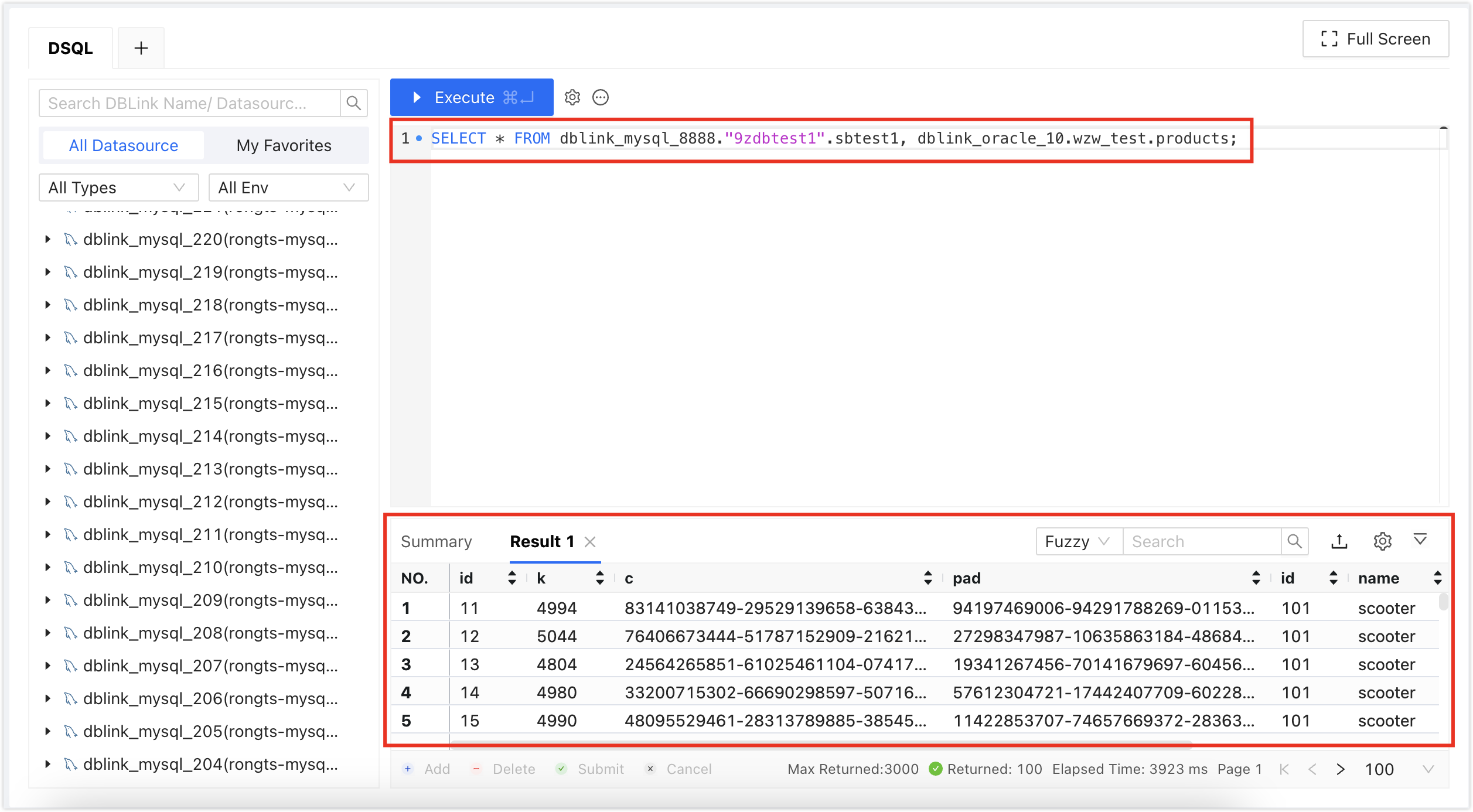
Example 1: Query data from DBLINK1 (MySQL) and DBLINK2 (Oracle).
SELECT *
  FROM DBLINK1.database_name.table_name a,
       DBLINK2.schema_name.table_name b
 WHERE a.id=b.id;
Example 2: Query data from one table in DBLINK1.
SELECT *
  FROM DBLINK1.database.table_name
 WHERE id=1;
If a database or table name starts with a number or uses a reserved keyword, enclose the name in double quotes (") to avoid query failure.
For example: SELECT * FROM dblink_mysql_3451."9zdbtest3".sbtest1;
Use cases
- Enterprise data integration: Query data from multiple departments or systems and combine the results for analysis and reporting.
- Data analysis: Retrieve data from multiple databases before using downstream analysis or BI tools.
- Metadata management: Query metadata from multiple databases to understand data distribution, content, and relationships.
- Data warehousing: Query data warehouses and operational databases from one interface before further analysis or processing.
- E-commerce operations: Retrieve shopping cart, order, account, or inventory data that is distributed across multiple databases.
Before you begin
- You have created or joined an organization, and this organization has subscribed to either DevOps Pro or DevOps Enterprise. Please ensure that your annual or monthly subscription is still active. For more information, please refer to Manage Organizations.
- Your current account has switched to the target organization. For more information, please refer to Switching to an Organization.
- The data sources you use for DSQL are MySQL, Oracle, or OceanBase Oracle.
- Add the required data sources to the NineData console. See Creating Data Sources.
Procedure
Sign in to the NineData Console.
Go to DevOps > DSQL.
In the DSQL window, run cross-database queries on multiple data sources.
 tip
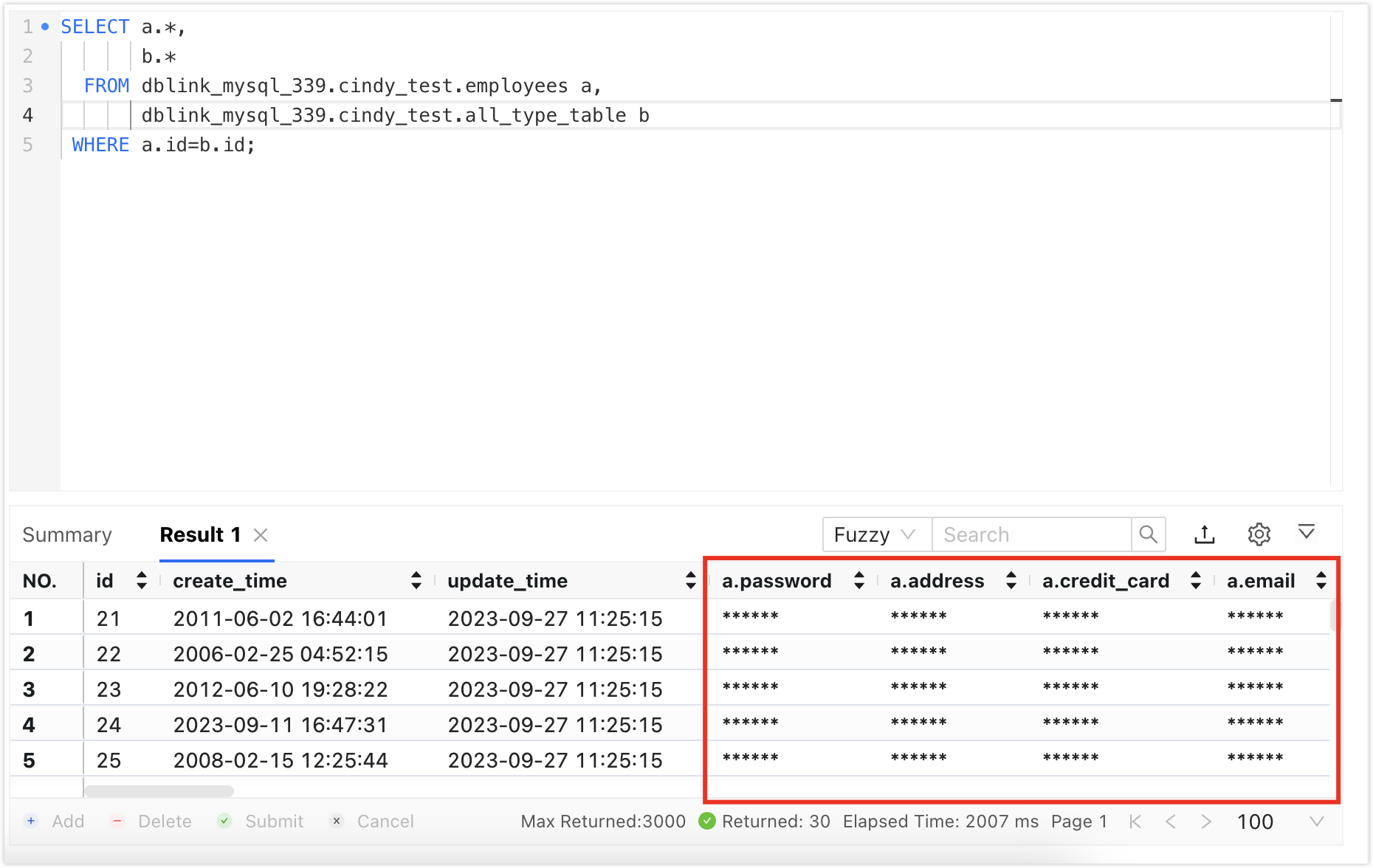
tipIf sensitive columns are configured for the target data source, masked values are displayed by default. To view complete values, apply for sensitive column permissions first.
The left side of the window displays all DSQL-enabled data sources in your organization that you have permission to view. Use this list to find the DBLINK nameEvery data source entered into NineData has DSQL enabled by default and is assigned a default DBLINK name for cross-database querying. The default DBLINK naming rule is
DBLINK_<data source type>_<number>. The DBLINK name can be changed manually., database name, schema name, and table name.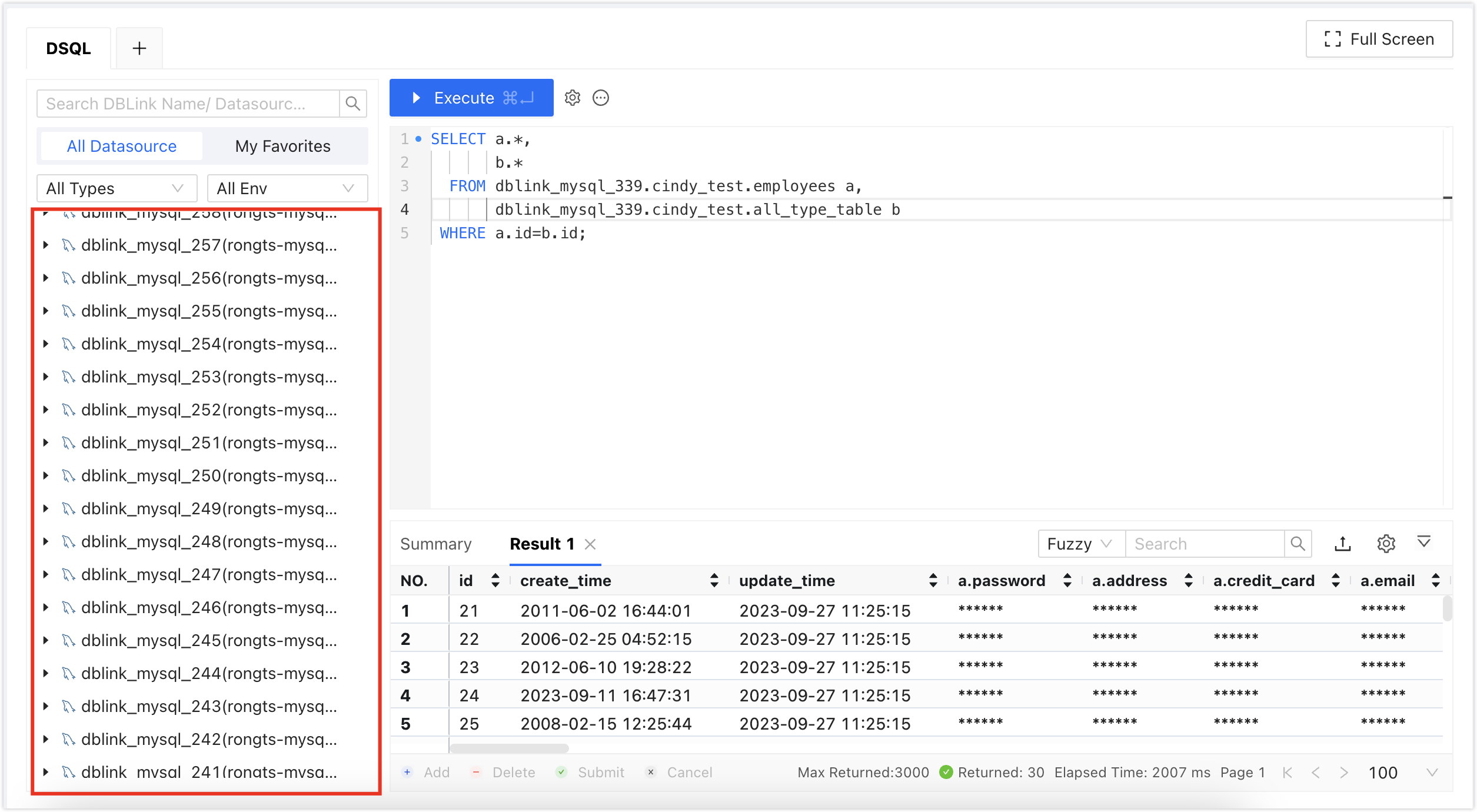
For details about the DSQL window, see DSQL interface reference.
Result
DSQL executes the cross-database query and displays the execution information and result set in the DSQL window. Review the selected DBLink, database or schema name, table name, and returned result set before exporting or reusing the output.
DSQL interface reference
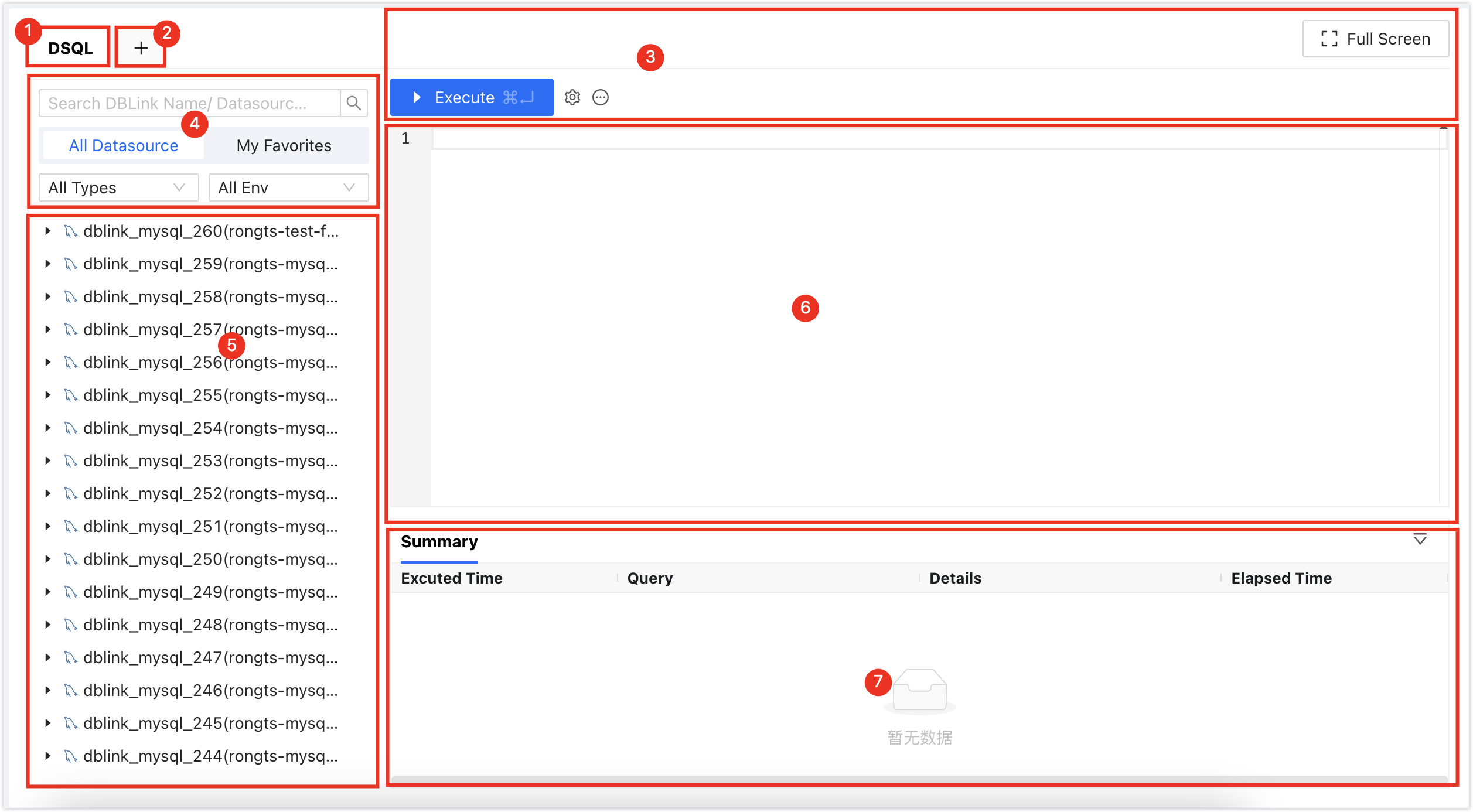
| Number | Feature | Description |
|---|---|---|
| 1 | DSQL Tab | Represents the currently open DSQL tabs. Click a tab to switch between DSQL tabs. Click X on a tab to close it. The first DSQL tab cannot be closed. The right-click menu supports these actions:
|
| 2 | New DSQL Tab | Opens a new DSQL tab. |
| 3 | Function Buttons |
|
| 4 | DBLink Search|Filter|Favorite | Locate the target DBLink (data source):
|
| 5 | DBLink List | Displays all data sources (DBLinks) that you have permission to view in the current organization.
|
| 6 | DSQL Editor | Supports these features:
|
| 7 | Execution Information, Result Set | Displays DSQL execution information and results.
|
 : Execute Execute the selected DSQL query statement.
 : Settings
 : More Options
 : Full Screen Open the DSQL tab in full-screen mode. After you enter full-screen mode, click
  in the toolbar to restore the original size.
 icon to bookmark it.
 : Export the data table in multiple formats. Export the current page or all data, up to 10,000 entries.
 : Move the result set to the bottom of the page. Click
  to restore it.
Appendix: Disable DSQL
Data sources added to the NineData console have DSQL enabled by default. If you no longer need DSQL for a data source, disable it manually.
Sign in to the NineData Console.
- Click Datasource > Datasource.
- Find the data source for which you want to disable DSQL, then click the data source's ID.
- On the Details page, click More to expand more information.
- Find the DSQL option and click the slider to the right to turn it off.
After DSQL is disabled, the data source does not appear in the list on the left side of the DSQL window.