SQL Code Review
NineData SQL Code Review checks SQL before application release. Use it to enforce SQL development policies, detect risky statements, and get index or optimization recommendations before SQL reaches production.
Why use SQL Code Review
SQL changes can affect production stability just as directly as application code. Many teams therefore require SQL to be reviewed before it is released to an online environment. As release frequency increases, relying only on manual DBA review becomes difficult to scale.
SQL Code Review brings this control into the development workflow. It checks submitted SQL against configured policies, identifies risky statements earlier, and helps teams reduce slow SQL and release issues before they reach production.
What SQL Code Review does
NineData SQL Code Review reviews SQL that must be released with application code. Based on intelligent algorithms and the SQL development policies configured by your organization, NineData identifies problematic SQL and blocks release until the review passes.
Use SQL Code Review to:
- Accelerate development: Review large volumes of SQL quickly and give development teams earlier feedback.
- Improve release quality: Detect SQL quality issues during development and keep SQL releases consistent with your standards.
- Reduce DBA workload: Let automation handle repetitive checks so DBAs can focus on complex database work.
Before you begin
- You have already created or joined an organization, and the organization has subscribed to DevOps Enterprise. Please ensure that your annual or monthly subscription is still active. For more information, please refer to Manage Organizations.
- Your current account has been switched to the target organization. For more information, please refer to Switching to an Organization.
- You are using MySQL, PostgreSQL, Oracle, Oceanbase Oracle, OceanBase MySQL, Db2, TiDB, TDSQL MySQL, or GBase8a as your data source.
- The data source to review has been added to NineData. See Create a data source.
- To review SQL based on full query logs, enable full query logs for the data source. If logs are not enabled, follow the instructions on the page to enable them.
- To review SQL based on slow query logs, enable slow query logs for the data source. If logs are not enabled, follow the instructions on the page to enable them.
Create a SQL Code Review task
Sign in to the NineData Console.
Go to DevOps > SQL Code Review.
On the SQL Code Review page, click Create Task, then configure the task.
Parameter Description Name Enter a task name. Use a meaningful name that describes the purpose of the SQL statements. Up to 64 characters are supported. Datasource Select the data source affected by the SQL to review. Database Select the database affected by the SQL to review. Note (Optional) Add notes for unfinished items in the current SQL Code Review task. Submission Method Select the SQL source to review. - SQL Text: Enter SQL directly in the text box.
- SQL File: Click Upload File, then select and upload files that contain the SQL statements to review. Upload multiple files at the same time if required.
Note: To delete an uploaded SQL file, hover over the file name and click the icon next to the file name.
 - XML File: Upload XML files or ZIP packages that contain XML files.
- Code Package: Upload compressed packages that contain code files, such as XML files or SQL files.
- Slow Query Log: Review slow SQL based on the database slow query logs. Select the slow SQL time range in Review Time. The default range is the previous 24 hours. Select up to 24 hours. Data from the previous month is available.
- Full Query Log: Review online SQL based on the database full query logs. Select the SQL generation time range in Review Time. The default range is the previous 12 hours. Select up to 24 hours. Data from the previous month is available.
Review Mode - Full Review: View the review results of the current SQL statements only.
- Differential Review: Compare the current SQL statements with the latest approved historical SQL Code Review results and view only the differences.
Click Create SQL Code Review to start Intelligent PreReview. NineData pre-reviews the submitted SQL and provides optimization suggestions based on intelligent algorithms. Based on the SQL development policy associated with the current data source, one of these outcomes occurs:
Pre-review passed: Depending on the approval process configuration, the task status changes to Pending or Successfully. If it is the former, continue to the next step. If it is the latter, the process ends.
Pre-review failed: The task status changes to PreReview Fail. Click Check Again in the toolbar to run pre-review again, or click Withdraw to edit and resubmit the task.
tipUse the optimization suggestions and index recommendations to improve SQL statements and indexes. See View optimization recommendations.
Click Submit Approval in the toolbar. In the dialog, select the approvers for the process and click OK.
tip- The number of approvers depends on the approval process configuration.
If the Not Specifying Approvers feature is enabled in the current approval process, this section displays After submission, all approvers can review. Please check the results in the approval process.. Submit the work order without manually specifying an approver. All users authorized to approve the current work order receive approval notifications and can approve it.
The task status changes to Pending Approval. Before approval, these actions are available:
- Withdraw: Withdraw the SQL Code Review. See Undo SQL Code Review.
- Transfer: Change the approver for this SQL Code Review.
View optimization recommendations
Sign in to the NineData Console.
Go to DevOps > SQL Code Review.
On the SQL Code Review page, click the task ID of the target SQL Code Review, or click Details in the Actions column.
On the Details page, view the optimization recommendations generated for this SQL Code Review task, including Policy Review and Index Recommendations. These actions are available.
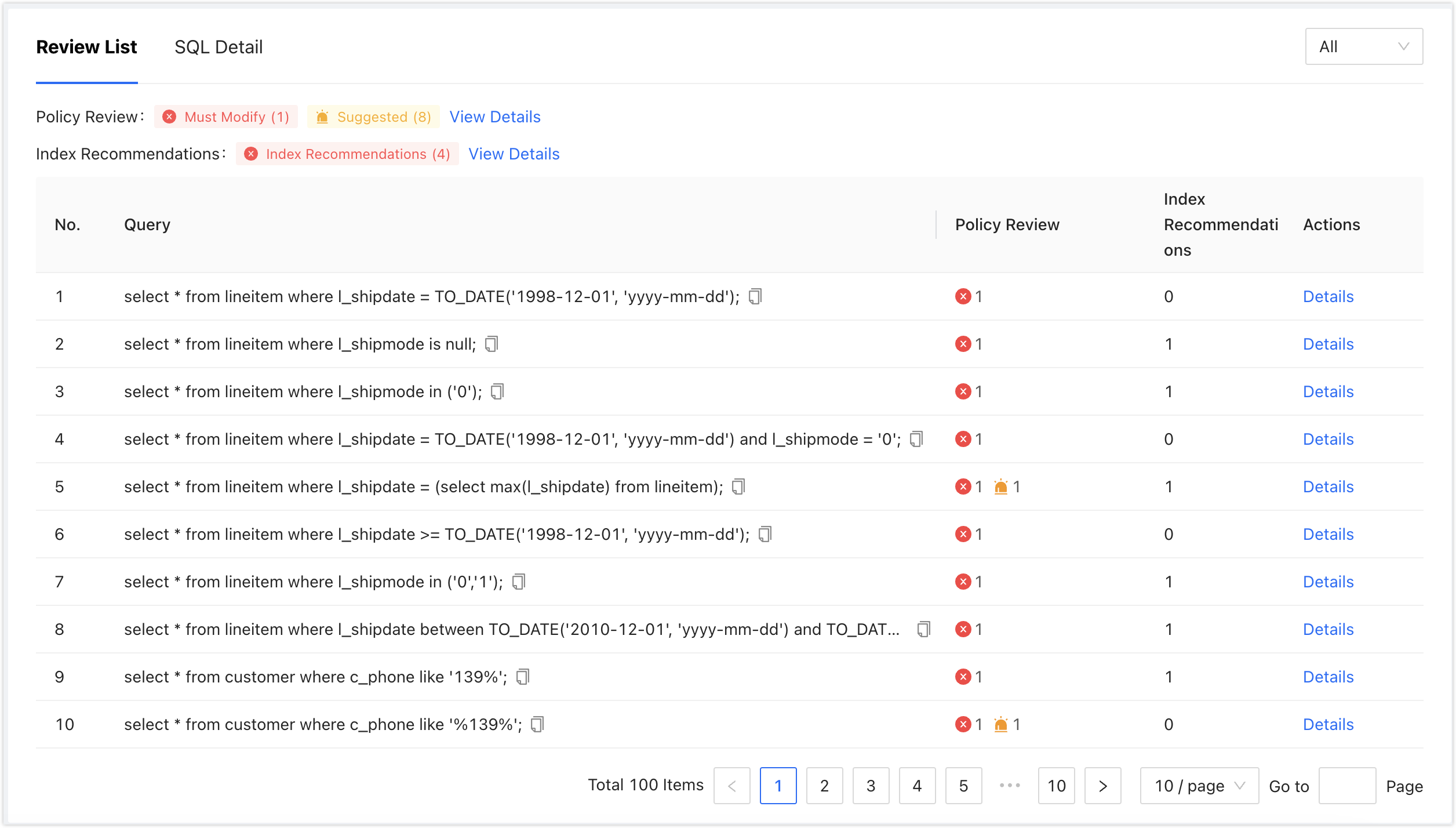
Operation Description View overall optimization recommendations On the Review List tab, view the total number of suggestions and the suggestion count for each SQL statement. Click View Details for Policy Review or Index Recommendations to view overall optimization recommendations. These entries appear only when recommendations exist. Filter SQL statements On the Review List tab, click the dropdown menu in the toolbar to filter SQL statements by categories such as All, Must Modify, Suggested, Index Recommendations, and Syntax. View details of Policy Review and Index Recommendations On the Review List tab, hover over the number for the target SQL statement in the Policy Review or Index Recommendations column. If recommendations exist, the tooltip displays the details. View optimization recommendations for the target SQL statement On the Review List tab, click Details in the Actions column for the target SQL statement. The Optimize page opens with detailed Policy Review, Index Recommendations, and the SQL statement itself. Click the Execution Plan and Meta Data tabs to view the execution plan and metadata for the SQL statement. View overall SQL details Click the SQL Details tab to view all SQL statements in the current SQL Code Review task. tipWhat Policy Review and Index Recommendations mean:
- Policy Review: Audits SQL statements based on the SQL development specifications bound to the current data source and provides optimization suggestions.
- Index Recommendations: Provides index optimization suggestions based on artificial intelligence auditing of SQL statements.
Undo SQL Code Review
When a SQL Code Review is in PreReview Fail, Pending, or Rejected status, withdraw the review request. After withdrawal, edit the task and submit it again.
Before you begin
- The status of SQL Code Review is PreReview Fail, Pending, or Rejected.
- You are the Administrator or the Submitter of the target SQL Code Review.
Procedure
Sign in to the NineData Console.
- Go to DevOps > SQL Code Review.
- On the SQL Code Review page, find the target SQL Code Review task. Click the task ID, or click Details in the Actions column for the task. On the Details page, click Withdraw in the toolbar.
- In the confirmation window, click Withdraw or Withdraw and Edit.
- Withdraw: The task status changes to Withdraw. To edit the task again, click the SQL Code Review ID in the SQL Code Review list to open the Details page, then click Edit in the toolbar.
- Withdraw and Edit: The task status changes to Withdraw, and NineData opens the SQL Code Review editing page.
Approve SQL Code Review
Before you begin
- The status of SQL Code Review is Pending Approval.
- You are the Administrator or the Approver of the target SQL Code Review.
Procedure
Sign in to the NineData Console.
Go to DevOps > SQL Code Review.
On the SQL Code Review page, find the target task. Click the task ID, or click Details in the Actions column for the task.
On the Details page, first review the task configuration in the application details area, then approve the target SQL Code Review and choose Transfer, Approved, or Rejected based on your decision. Task configuration is consolidated in the application details area; the exact content depends on the current console.
Operation Description Transfer Task Transfer Transfer the task to another user for approval. Approve Application Approved Approve the application. After you click Approved, enter Reason if needed, then click OK. Reject Application Rejected Reject the application. After you click Rejected, enter Reason for rejection, then click OK.
Result
The SQL Code Review task records the submitted SQL, review results, optimization recommendations, and approval history. After the review passes, use the result as release evidence or continue with the required approval workflow.