SQL Tasks
Use SQL tasks to submit, review, approve, execute, and recover database changes through a governed workflow. SQL tasks are intended for DDL and DML changes that require policy prechecks, approval, execution controls, or automatic backup before execution.
Overview
Before a SQL task runs, NineData checks the SQL against the policies associated with the target data source. Depending on your configuration, the task can then move through approval, backup, execution, pause, restart, termination, and recovery.
NineData can also back up the current data state before execution to reduce the impact of operational mistakes or unexpected errors. If an error occurs, download the backup data and roll back the change manually.
Before you begin
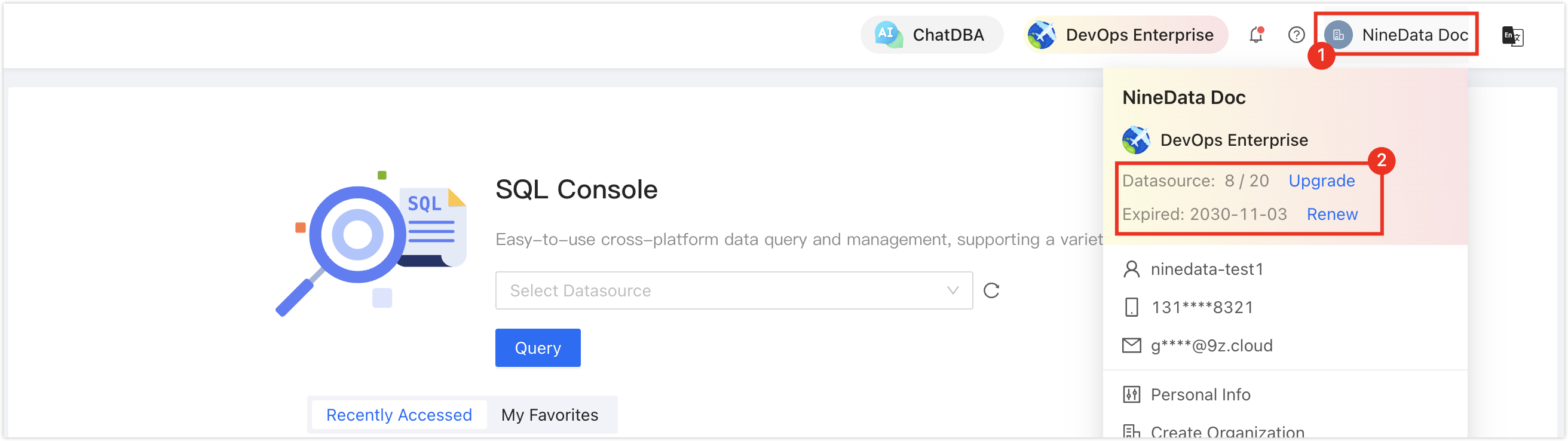
In the commercial versions (DevOps Pro, DevOps Enterprise), make sure your monthly or yearly subscription has not expired. An expired subscription may prevent you from using the Database DevOps service. Check the remaining quota and expiration date in the NineData Console header.
- NineData retains the backed-up data for 7 days. After that, it expires.
Supported scope
Supported data source types are MySQL, ShardingProxy, SQL Server, Oracle, OceanBase Oracle, OceanBase MySQL, Db2, PostgreSQL, Doris, SelectDB, Redis, MongoDB, DaMeng, KingBase, Klustron, DWS, MaxCompute, AWS Redshift, Snowflake, openGauss, GaussDB, TiDB, GreatSQL, GBase, GBase8a, GaiaDB, GaiaDB-X, TDSQL MySQL, Lindorm, PolarDB-X, ClickHouse, MemoryStore, PolarDB-Oracle, SingleStore, SQLDatabase, Sybase, TDSQL Oracle, and YashanDB.
To use the automatic backup feature, the data source type must be MySQL, SQL Server, Oracle, PostgreSQL, Greenplum, KingbaseES, or PolarDB-X.
Procedure
The following sections explain how to submit, approve, execute, pause, terminate, restart, and recover SQL tasks.
Submit a SQL change task
Before you begin
- An organization has been created or joined. See Manage organizations.
- The NineData console is in organization mode. To switch from personal mode to organization mode, see Switch to an organization.
- The current user has access to the SQL Tasks module. See Preset role permissions.
Procedure
Sign in to the NineData Console.
Go to DevOps > SQL Task.
tipIf SQL Task is not found, verify that the console is in organization mode. To switch from personal mode to organization mode, see Switch to an organization.
On the SQL Task page, click Create SQL Task.
tipIf no SQL task exists yet, the page is empty. Click Create SQL Task on the page.On the Create SQL Task page, configure the SQL task.
Parameter Description Name Enter a SQL task name that describes the purpose of the change. Up to 64 characters are supported. Datasource Select the data source or database group that contains the target database. Database|Schema Select the database or schema where the SQL change runs. Executor Select the user who executes the SQL statement after the SQL task is approved.
Note: The options in the Executor list depend on whether the current data source uses SQL Dev Policy:- If the current data source is configured with SQL Dev Policy, the options are based on the SQL Task Executor Config rule configured in the current policy. This rule is located on the SQL Task & Console tab. For configuration details, see Edit Policy.
- If the current data source is not configured with SQL Dev Policy, the options are users who have SQL Task - Exec permission for the current data source. For permission configuration, see Configure User Permissions.
Estimated Affected Rows Enter the estimated number of rows affected by the change. During Policy Pre-check, NineData compares the actual affected rows with the estimate and displays a message if they differ. Note (optional) Add notes for the SQL task, such as the reason for the change or the expected execution time. On the details page, hover over a long note to view the full text. Submission Method Enter the SQL to execute, or upload a file that contains the SQL statement. - SQL Text: Enter SQL directly in the text box.
- SQL File: Click Upload File, then select and upload a file that contains the SQL statement.
Note: After the upload finishes, hover over the file name and select to preview the file or
  to delete it.
Rollback SQL (optional) Enter rollback SQL when your organization requires a rollback plan. This rollback SQL is recorded in the SQL task but does not affect the task lifecycle. In the SQL task editor, select SQL code to start an AI query with the relevant task context. AI output can be inserted back into the editor. The Rollback SQL area also supports AI-generated rollback SQL. Review the target data source, SQL scope, affected objects, and rollback risk before using AI output.
Click Save and Pre-Check to open the Policy Pre-check page. NineData prechecks the SQL against the SQL development policy associated with the current data source. One of these outcomes occurs:
Precheck passed: Depending on the approval process configuration, the task status changes to Pending or Approved. If approval is still required, continue to the next step. If the task is already approved, the submission process ends.
Precheck failed: The task status changes to Pre-Check Failed. Click Check Again to run the precheck again, or withdraw the SQL task, edit it, and submit it again.
tipPrecheck issues include four categories: Must Modify, Suggested, Syntax, and Permissions:
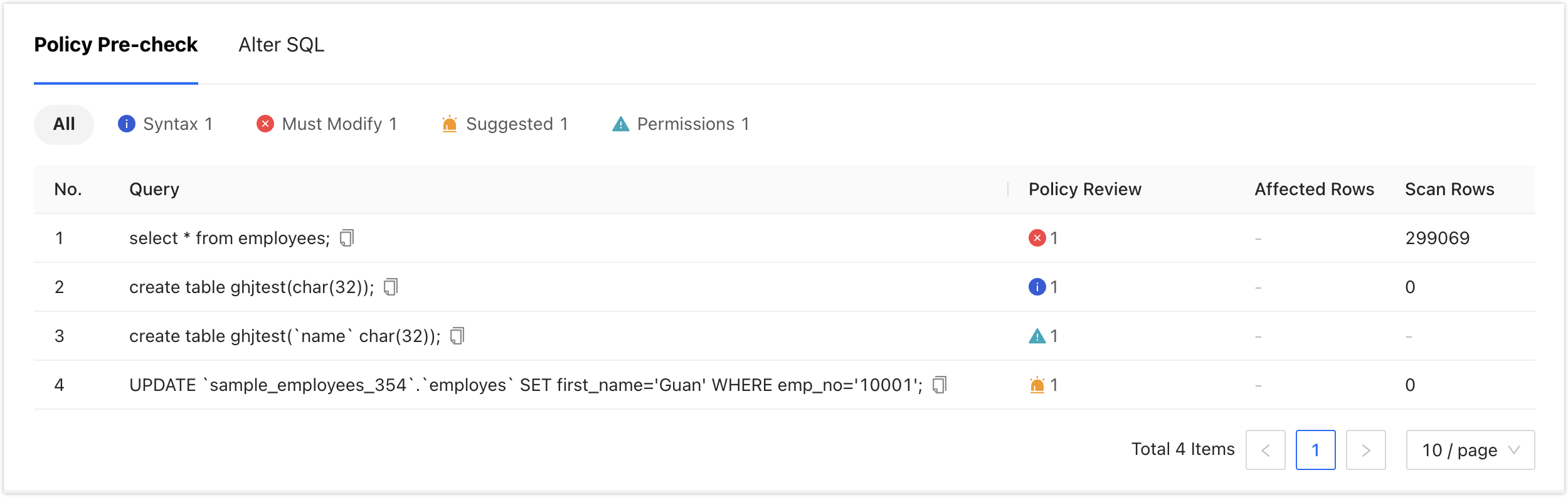
- Must Modify: Violation of the mandatory SQL development standards configured by the administrator.
- Suggested: Violation of the suggested SQL development standards configured by the administrator.
- Syntax: Syntax issues detected by NineData. These issues do not block the SQL task process, but the SQL may fail to execute. Check that the database, table, and syntax exist and are correct.
- Permissions: Violations of the two rules configured by the administrator in the SQL development policy, which block the SQL task workflow.
- Enable SQL task schema update type checking: Used to enable or disable SQL syntax related to structural changes.
- Allowed SQL Task Update Data: Used to enable or disable SQL syntax related to data modification.
Click Submit Approval, select the required approvers in the approval dialog, and click OK.
tip- Depending on the approval process configuration, the number of approvers may vary. Select the approvers required by your process.
If the Not Specifying Approvers feature is enabled in the current approval process, this section displays After submission, all approvers can review. Please check the results in the approval process.. Submit the work order without manually specifying an approver. All users authorized to approve the current work order receive approval notifications and can approve it.
The task status changes to Pending Approval. Before approval is granted, these actions are available:
- Withdraw: Withdraw the SQL task. See Withdraw the SQL task.
- Transfer: Change the approver of the SQL task.
Withdraw a SQL task
Withdraw a SQL task when the task status is Pre-Checking, Pending Approval, Approved, or Scheduled. After withdrawal, NineData does not execute it. Edit the task and submit it again when needed.
Before you begin
- The SQL task status is Pre-Checking, Pending Approval, Approved, or Scheduled.
- You are the Submitter of the SQL task or Administrator.
Procedure
Sign in to the NineData Console.
Go to DevOps > SQL Task.
tipIf SQL Task is not found, verify that the console is in organization mode. To switch from personal mode to organization mode, see Switch to an organization.
On the SQL Task page, find the target SQL task. Click the task ID, or click Details in the Actions column. On the Details page, click Withdraw in the toolbar.
tipAlternatively, click
 > Withdraw in the Actions column of the task.
In the confirmation window that appears, click Withdraw or Withdraw and Edit.
- Withdraw: The task status changes to Withdraw. To edit the task again, find the SQL task in the SQL Task list and click Edit in the Actions column of the task.
- Withdraw and Edit: NineData opens the SQL task edit page.
Approve a SQL task
Before you begin
- The status of the SQL task is Pending Approval.
- You are the Approver of the target SQL task or Administrator.
Procedure
Sign in to the NineData Console.
Go to DevOps > SQL Task.
tipIf SQL Task is not found, make sure your console is in organization mode. To switch from personal mode to organization mode, see Switch to an organization.
On the SQL Task page, find the target SQL task and click its task ID or Details in the Actions column of the task.
On the Details page, review the Policy Pre-check and SQL Details tabs, then select Transfer, Approved, or Rejected as appropriate.
Operation Description Transfer Transfer the task to another user for approval. Approved Approve the request. After you click Approved, enter Reason if needed, then click OK. Rejected Reject the request and do not execute the SQL task. After you click Rejected, enter Reason for rejection, then click OK.
Execute a SQL task
Execute a SQL task when its status is Approved.
Before you begin
- The status of the SQL task is Approved.
- You are the Executor of the target SQL task or Administrator.
Procedure
Sign in to the NineData Console.
Go to DevOps > SQL Task.
tipIf SQL Task does not appear, make sure that your console is in organization mode. To switch from personal mode to organization mode, see Switch to an organization.
On the SQL Task page, click the task ID whose status is Approved.
On the Details page, click Execute in the toolbar.
In the Execute SQL Tasks window, configure Errors Handling, the failure policy, and Execution Method, then click OK.
Operation Description Errors Handling - If an error occurs, terminate the task.: Stop execution immediately when an error occurs during SQL execution.
- Ignore errors, and Continue: Ignore the error and continue execution.
- Rollback Task on Execution Error (MySQL only): Optional when the SQL task contains only DML statements. NineData executes the task transactionally. If any DML statement fails, the entire task rolls back to ensure atomicity and consistency.
Backup Failed Policy SQL tasks are backed up before execution by default to reduce business impact if execution fails. These options are supported: - Failed and Continue Task: Continue executing the current SQL task regardless of whether backup succeeds.
- Failed and STOP Task: Do not execute the current SQL task if backup fails.
Execution Method - Execute Now: Execute the SQL statement immediately.
- Scheduled Execution: Select a time to execute the SQL statement.
- Manual Execution: Manually execute the SQL in the SQL task, and click Executed, marked successful. Alternatively, click Go to SQL Console to execute the SQL manually.
NineData starts the pre-execution backup, and the task status changes to Running. To continue without the automatic backup, click Skip Backup in the toolbar, then click Skip and Continue. Wait until the task status changes to Success.
Pause a SQL task
Pause a SQL task when its status is Executing.
Before you begin
- The SQL task status is Executing.
- You are an Administrator or the Executor of the target SQL task.
Procedure
Sign in to the NineData Console.
Go to DevOps > SQL Task.
tipIf SQL Task is not found, ensure that your console is in organization mode. To switch from personal mode to organization mode, see Switch to an organization.
On the SQL Task page, find the target SQL task. Click the task ID, or click Details in the Actions column.
On the Details page, click Pause in the toolbar.
Terminate a SQL task
Terminate a SQL task when its status is not terminal, such as Success or Terminated. After you terminate the task, NineData stops all ongoing operations, and no further actions are available for that task.
Before you begin
- The SQL task must not be in a terminal state.
- You are a Administrator or the Executor of the target SQL task.
Procedure
Sign in to the NineData Console.
Go to DevOps > SQL Task.
tipIf SQL Task is not found, ensure that your console is in organization mode. To switch from personal mode to organization mode, see Switch to an organization.
On the SQL Task page, find the target SQL task. Click the task ID, or select Details from the Actions column.
On the Details page, click Pause in the toolbar.
Restart a SQL task
Restart a SQL task when its status is Executing or Failed.
Before you begin
- The SQL task status is Executing or Failed.
- You are an Administrator or the Executor of the target SQL task.
Procedure
Sign in to the NineData Console.
Go to DevOps > SQL Task.
tipIf SQL Task is not found, ensure that your console is in organization mode. To switch from personal mode to organization mode, see Switch to an organization.
On the SQL Task page, find the target SQL task. Click the task ID, or click Details in the Actions column. On the Details page, click Restart in the toolbar.
In the Restart window, select Errors Handling, Backup Failed Policy, and Execution Method, then click OK.
Operation Description Errors Handling - If an error occurs, terminate the task.: Stop execution immediately when an error occurs during SQL execution.
- Ignore errors, and Continue: Ignore the error and continue execution.
Backup Failed Policy SQL tasks are backed up before execution by default to reduce business impact if execution fails. These options are supported: - Failed and Continue Task: Continue executing the current SQL task regardless of whether backup succeeds.
- Failed and STOP Task: Do not execute the current SQL task if backup fails.
Execution Method - Execute Now: Execute the SQL statement immediately.
- Scheduled Execution: Schedule the execution of the SQL statement at a specific time.
Download backup data
If a SQL task fails and you must restore data to its pre-execution state, download the backup data for the target SQL task and roll back the data manually.
Before you begin
- The SQL task's target data source type is MySQL or Oracle.
- The data backup status for the target SQL task is Finished.
- You are a Administrator or the Executor of the target SQL task.
- The backup file is not older than 7 days.
Procedure
Sign in to the NineData Console.
Go to DevOps > SQL Task.
tipIf SQL Task is not found, ensure that your console is in organization mode. To switch from personal mode to organization mode, see Switch to an organization.
On the SQL Task page, click the target SQL task ID.
At the top of the page, click More, and then click Download next to Data Backup.
The downloaded backup file is a
.zipfile that contains the SQL files for rollback. To roll back data, upload the file by submitting another SQL task. See Submit a SQL change task.
View the SQL task list
Use the SQL task list to track task status, review task history, and find tasks by workflow or database context.
Sign in to the NineData Console.
Go to DevOps > SQL Task.
tipIf SQL Task is not found, make sure that your console is in organization mode. To switch from personal mode to organization mode, see Switch to an organization.
On the SQL Task page, view all SQL tasks. To find a task faster, filter tasks by:
- Workflow node
- Task status
- Data source
- Date
- Task name or ID
- Database name
Result
SQL tasks provide a controlled workflow for database changes. After you submit a task, it can move through precheck, approval, backup, execution, pause, restart, termination, and backup download based on the task status and your permissions.
NineData OnlineDDL
NineData SQL tasks support NineData OnlineDDL, which lets you change table structures without blocking normal reads and writes on the table. See Perform non-locking structure changes to the table using NineData OnlineDDL.
Automatic backup syntax scope
Before a SQL task runs, NineData identifies SQL statements that may change data or database objects based on the database type. NineData then backs up the affected tables, views, or objects to support rollback if an operation is incorrect or an error occurs.
The following syntax triggers automatic backup for each database type.
PostgreSQL, PostgreSQL-like, Oracle
| Category | Syntax that triggers automatic backup |
|---|---|
| DML | UPDATE, DELETE |
| Table | ALTER TABLE, DROP TABLE, RENAME |
| View | ALTER VIEW, DROP VIEW |
| Function | ALTER FUNCTION, DROP FUNCTION |
| Procedure | ALTER PROCEDURE, DROP PROCEDURE |
| Trigger | ALTER TRIGGER, DROP TRIGGER |
PostgreSQL backup behavior: For DDL statements such as ALTER and DROP, the generated backup is based on the output of SHOW CREATE. For DML that contains complex patterns such as multi-table JOIN or subqueries, SQL rewriting may result in a syntax error and the backup may be skipped. Before submitting or executing a SQL task, check the backup status in task details and use Backup Failed Policy to decide whether the task can continue when backup fails.
MySQL
| Category | Syntax that triggers automatic backup |
|---|---|
| DML | UPDATE, DELETE |
| Table | ALTER TABLE, DROP TABLE, RENAME |
| View | ALTER VIEW, DROP VIEW |
| Function | ALTER FUNCTION, DROP FUNCTION |
| Procedure | ALTER PROCEDURE, DROP PROCEDURE |
| Trigger | ALTER TRIGGER, DROP TRIGGER |
| Event | ALTER EVENT, DROP EVENT |
SQL Server
| Category | Syntax that triggers automatic backup |
|---|---|
| DML | UPDATE, DELETE |
| Table | ALTER TABLE, DROP TABLE, RENAME |
| View | ALTER VIEW, DROP VIEW |
| Function | ALTER FUNCTION, DROP FUNCTION |
| Procedure | ALTER PROCEDURE, DROP PROCEDURE |
| Trigger | ALTER TRIGGER, DROP TRIGGER |