Create MySQL non-table objects visually
In addition to databases and tables, MySQL supports non-table objects such as views, stored procedures, functions, triggers, and events. NineData SQL Console provides visual editors for creating and editing these objects.
Overview
Non-table objects such as views, stored procedures, functions, triggers, and events are core MySQL objects. Creating them manually often requires complex SQL, which can slow down developers, DBAs, and business users who make controlled database changes.
NineData provides visual editors for these objects. Configure object properties in the console, review the generated SQL, and submit the change without writing the full statement from scratch.
Before you begin
The data source type is MySQL.
In organization mode, you have permission to use SQL Console.
In organization mode, you have read and write permissions for the target data source.
tipIf you do not have these permissions, contact your organization administrator to configure permissions or bind roles.
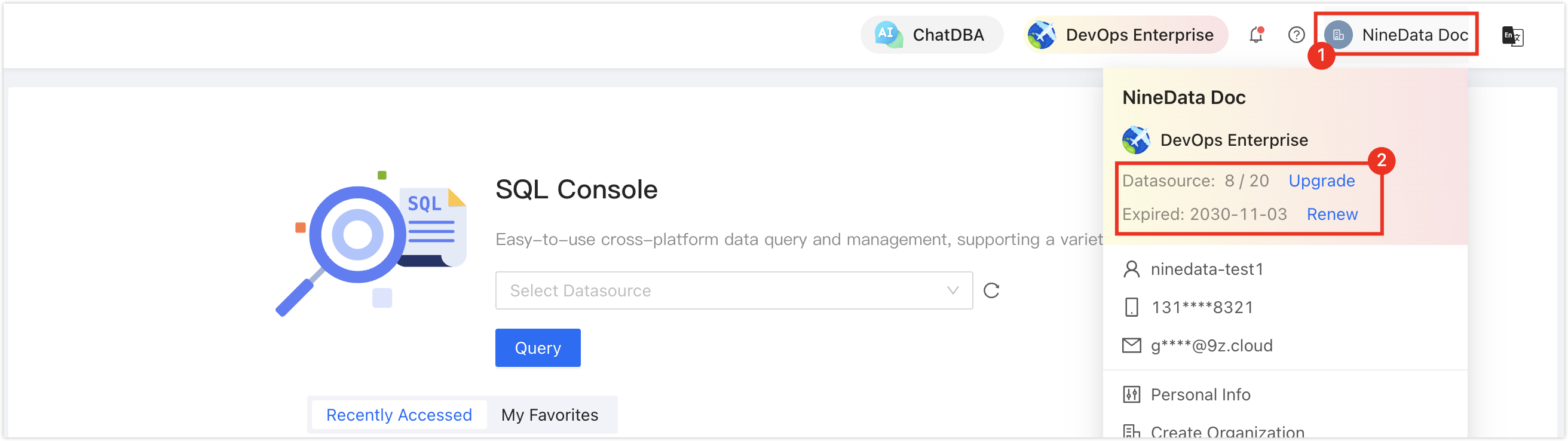
In the commercial versions (DevOps Pro, DevOps Enterprise), make sure your monthly or yearly subscription has not expired. An expired subscription may prevent you from using the Database DevOps service. Check the remaining quota and expiration date in the NineData Console header.
Procedure
Create a view
In the database list in SQL Console, right-click the target database and click Create Object > Create View.
tip- NineData creates the view in this database.
- Alternatively, expand the target database, right-click the Views directory, and then click Create View.
On the Create View tab, configure the view. NineData generates Create Statement at the bottom of the page based on your configuration. Use the table to configure each parameter.
Parameter Description View Name Custom name for the view, default is new_view. Database Select the database in which to create the view, default is the database right-clicked in step 2. Definer Specify the definer of the current view. If empty, the default definer is the current user. SQL Security Choose the permission to be used when the view is called. - Default: Not specified.
- Definer: Use the permissions of the current view definer for querying.
- Invoker: Use the permissions of the view caller for querying.
Check Option Add the Check Option. Default means no option is added. For more information, see official documentation. ALGORITHM Add the Algorithm option. Default means no option is added. For more information, see official documentation. REPLACE Check this option to replace an existing view with the same name in the current database. In the editor below Create Statement, enter the SQL statement that the view executes.
Click Save, confirm the generated SQL statement in the Submit window, and then click OK.
Create a stored procedure
In the SQL Console database list, right-click the target database, and click Create Object > Create Procedure.
tip- NineData creates the stored procedure in this database.
- Alternatively, expand the target database, right-click the Procedures directory, and then click Create Procedure.
On the Create Procedure tab, configure the stored procedure. NineData generates Create Statement at the bottom of the page based on your configuration. Use the table to configure each parameter.
Parameter Description Name Custom name for the stored procedure, default is new_procedure. Database Select the database in which to create the stored procedure, default is the database right-clicked in step 2. Definer Specify the definer of the current stored procedure. If empty, the default definer is the current user. Deterministic Specify whether the execution result of the stored procedure is deterministic. - Default: Not specified.
- DETERMINISTIC: Deterministic, meaning it returns the same result for the same input parameters.
- NOT DETERMINISTIC: Not deterministic, meaning it may return different results for the same input parameters, such as in random number generation or timestamp operations.
SQL Property Choose the execution mode of the stored procedure: - Default: Not specified.
- CONTAINS SQL: The stored procedure contains SQL statements but does not read or modify data.
- NO SQL: The stored procedure does not contain SQL statements.
- READS SQL DATA: The stored procedure contains SQL statements that read data but do not modify it.
- MODIFIES SQL DATA: The stored procedure contains SQL statements that modify data.
SQL Security Choose the permissions to be used when the stored procedure is called. - Default: Not specified.
- Definer: Use the permissions of the current stored procedure definer.
- Invoker: Use the permissions of the stored procedure caller.
Comment Comment content for the stored procedure. Parameters Substitute parameters for the stored procedure. Below BEGIN in the Create Statement editor, enter the actual content of the stored procedure.
Click Save, confirm the generated SQL statement in the Submit window, and then click OK.
Create a function
In the SQL Console database list, right-click the target database, and click Create Object > Create Function.
tip- NineData creates the function in this database.
- Alternatively, expand the target database, right-click the Functions directory, and then click Create Function.
On the Create Function tab, configure the function. NineData generates Create Statement at the bottom of the page based on your configuration. Use the table to configure each parameter.
Parameter Description Function Name Custom name for the function, default is new_function. Database Select the database in which to create the function, default is the database right-clicked in step 2. Definer Specify the definer of the current function. If empty, the default definer is the current user. Deterministic Specify whether the execution result of the function is deterministic. - DETERMINISTIC: Deterministic, meaning it returns the same result for the same input parameters.
- NOT DETERMINISTIC: Not deterministic, meaning it may return different results for the same input parameters, such as in random number generation or timestamp operations.
Returns Choose the data type that the function returns. SQL Security Choose the permissions to be used when the function is called. - Default: Not specified.
- Definer: Use the permissions of the current function definer.
- Invoker: Use the permissions of the function caller.
Comment Comment content for the function. Parameters Substitute parameters for the function. Below BEGIN in the Create Statement editor, enter the actual content of the function.
Click Save, confirm the generated SQL statement in the Submit window, and then click OK.
Create a trigger
In the SQL Console database list, right-click the target database, and click Create Object > Create Trigger.
tip- NineData creates the trigger in this database.
- Alternatively, expand the target database, right-click the Triggers directory, and then click Create Trigger.
On the Create Trigger tab, configure the trigger. NineData generates Create Statement at the bottom of the page based on your configuration. Use the table to configure each parameter.
Parameter Description Trigger Name Custom name for the trigger, default is new_trigger. Database/Table Select the database and the target table to monitor, default is the database right-clicked in step 2. Definer Specify the definer of the current trigger. If empty, the default definer is the current user. Trigger Order If triggers already exist in the target table, choose the priority: - Default: No specific priority. Triggers run in creation order.
- FOLLOWS: Give precedence to existing triggers. Select the existing triggers on the right.
- PROCEDES: Give precedence to the current trigger. Select the existing triggers on the right.
Trigger Time Choose when the trigger runs: - BEFORE: Run the trigger before the monitored event occurs. This is mainly used to prevent invalid changes or prepare data.
- AFTER: Run the trigger after the monitored event occurs.
Trigger Event Choose the operation that triggers the action: - INSERT: Insert operation.
- UPDATE: Update operation.
- DELETE: Delete operation.
In the white area of the Create Statement editor, enter the actual content of the trigger.
Click Save, confirm the generated SQL statement in the Submit window, and then click OK.
Create an event
In the SQL Console database list, right-click the target database, and click Create Object > Create Event.
tip- NineData creates the event in this database.
- Alternatively, expand the target database, right-click the Events directory, and then click Create Event.
On the Create Event tab, configure the event. NineData generates Create Statement at the bottom of the page based on your configuration. Use the table to configure each parameter.
Parameter Description Event Name Custom name for the event, default is new_event. Database Select the database in which to create the event, default is the database right-clicked in step 2. Definer Specify the definer of the current event. If empty, the default definer is the current user. Delete after Exec Controls whether the event is deleted after it completes: - Default: Not specified.
- ON COMPLETION PRESERVE: Preserve the event after it completes.
- ON COMPLETION NOT PRESERVE: Delete the event after it completes.
Event Status Choose the status of the event: - Default: Not specified.
- ENABLE: Enable the event.
- DISABLE: Store the event but do not activate it.
- DISABLE ON SLAVE: The event is not active on the slave.
Excuted Time Specify the execution frequency and time of the event: - One Time: Execute only once, and specify the specific execution time.
- Recurring: Recurring execution, and specify the execution cycle, as well as the start and end time of the cycle.
Comment Comment content for the event. In the white area of the Create Statement editor, enter the actual content of the event.
Click Save, confirm the generated SQL statement in the Submit window, and then click OK.
Manage non-table objects
Perform visual creation, editing, renaming, copying, and deletion operations on MySQL non-table objects in SQL Console.
- Open SQL Console and go to the target data source.
- Right-click the name of the non-table object under the target database and choose the corresponding operation.
Result
NineData creates or updates the selected MySQL non-table object and displays the generated SQL for review before the change is submitted.
Next steps
- Review the generated SQL before applying the change in production.
- Open the object in SQL Console to confirm that the definition matches your intended design.