Generate SQL with Text2SQL
Text2SQL turns natural-language requests into SQL statements in the NineData SQL Console. Use it to explore data, draft queries, or help users who are less familiar with SQL retrieve information faster.
What Text2SQL can do
- Generate SQL from plain English: Describe the result you need, and NineData drafts the corresponding SQL.
- Support common SQL operations: Generate query, create, update, and delete statements for the operation you describe.
- Use database structure as context: NineData uses the selected database, tables, and fields to reduce manual input.
- Improve generated SQL: Use SQL Optimize after generation to review and optimize SQL before execution.
When to use Text2SQL
- Business analysis: Help business, marketing, support, or operations users draft SQL without writing every clause manually.
- Large or unfamiliar schemas: Generate a first draft when a query spans many tables or when table relationships are hard to identify.
- Complex query patterns: Use natural language to describe joins, filters, grouping, or aggregations, then review the generated SQL before running it.
Before you begin
- The target data source type must be one of these types: MySQL, PostgreSQL, Oracle, Sybase, SQL Server, Redis, Vastbase, MongoDB, OceanBase, Greenplum, Kingbase, Dameng, GaussDB, VastBase, PolarDB Oracle, Ymatrix, TiDB, Doris, ClickHouse.
In the commercial versions (DevOps Pro, DevOps Enterprise), make sure your monthly or yearly subscription has not expired. An expired subscription may prevent you from using the Database DevOps service. Check the remaining quota and expiration date in the NineData Console header.
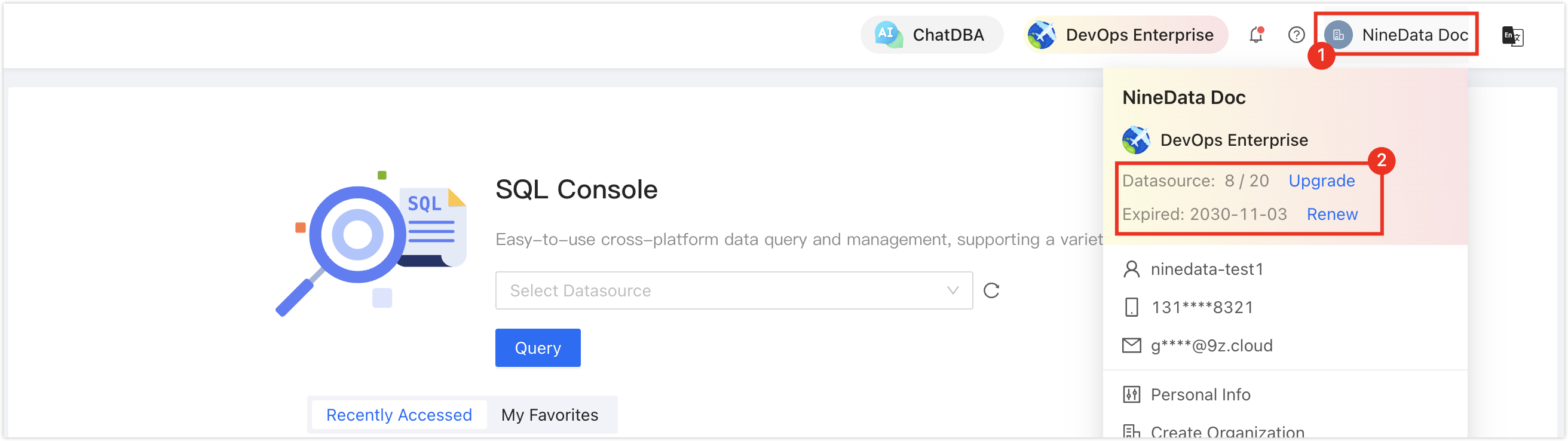
- To improve SQL generation accuracy, generate enhanced ER diagrams for the target data source. See Enhanced ER Diagram.
Procedure
Sign in to the NineData Console.
Go to DevOps > SQL Console.
Open the target data source in SQL Console.
- If a previous data source session is still open, NineData reopens that data source. To open another data source, select + next to the SQL Console tab, select the target data source on the New Query page, and click OK.
- If no data source session is open, open the dropdown under SQL Console, select the target data source, and click Query.
In the SQL editor, press / to open the Text2SQL input box.
Enter the request you want to query, then press Enter or click
 . NineData analyzes the request and inserts the generated SQL into the editor.
Review the generated SQL before execution, especially for statements that change data or database objects.
Add business context for enhanced AI
Add AI comments to target tables and fields to give Text2SQL more business context. Comments can describe field meanings, business rules, foreign key relationships, or valid values.
Note: AI comments improve generation accuracy only. They do not change the actual database.
Sign in to the NineData Console.
Go to DevOps > SQL Console.
Open the target data source in SQL Console.
- If a previous data source session is still open, NineData reopens that data source. To open another data source, select + next to the SQL Console tab, select the target data source on the New Query page, and click OK.
- If no data source session is open, open the dropdown under SQL Console, select the target data source, and click Query.
In the navigation tree, right-click the target database name and select Add Table Notes For AI. In Table List, use the Actions column next to the target table and select Add AI Notes.
tipAnother option is to right-click a target table or column in the navigation tree and select Add Table Notes For AI.
In the Add AI Notes window, add Table Notes For AI. Use the Actions column next to the target column name and select Edit to add AI Comment and configure Foreign key relationships for that column.
Click OK to save your changes.
Result
NineData saves the AI comments and uses them as additional context the next time you generate SQL with Text2SQL for the same tables or fields.
Next steps
- Run and validate the generated SQL in SQL Console.
- Use AI SQL Optimization to review SQL performance before running expensive queries.