Manage MongoDB with SQL Console
Use NineData SQL Console to work with MongoDB data sources from a shared browser-based workspace. Browse databases and collections, edit documents in visual modes, run MongoDB commands, create indexes, and review execution results without switching between multiple tools.
Background
MongoDB stores data as documents and is often used by applications that need flexible schemas, high throughput, or large volumes of semi-structured data.
NineData SQL Console combines a visual MongoDB workspace with a command-line editor. For teams, it also works with NineData controls such as permission management, audit logs, single sign-on (SSO), SQL development standards, and approval processes.
Feature overview
SQL Console provides these capabilities for MongoDB data sources:
| Feature | Description |
|---|---|
| Visual management | Browse MongoDB databases and collections, then create, view, update, copy, clone, or delete documents from the visual interface. |
| Command editor | Run supported MongoDB commands in a command-line editor and inspect the returned results. |
| Workspace recovery | Reopen the SQL Console after a browser exit or crash and restore previously opened data sources and executed commands. The page state is stored in the cloud, so recovery is not tied to one browser or host. |
| Execution history | History records commands executed by the current account in the NineData console. Search by data source, execution time, command keyword, or other fields, then copy and rerun commands from history. |
| SQL standards checking | In organizational modeOrganizational mode supports assigning different roles and resource management permissions to each user in the organization. It is suitable for collaborative development with multiple users within the same organization, ensuring data security and improving overall productivity., NineData checks every command executed in the SQL Console against the SQL development standards configured by Administrator. Commands that do not comply with the standards are blocked. |
Use cases
Use SQL Console for MongoDB to:
- Inspect MongoDB databases, collections, documents, indexes, and views from the NineData console.
- Edit documents during development, testing, troubleshooting, or controlled production maintenance.
- Run MongoDB commands and keep command history available for review or reuse.
- Apply team-level access controls, auditability, and approval processes to MongoDB operations.
Before you begin
Add the target MongoDB data source to NineData. For details, see Manage data sources.
The data source must be MongoDB version 3.2 or higher.
In organizational mode (DevOps Enterprise), your account must have read-only, DML, or DDL permissions for the target data source.
tipRead-only permission allows query operations only.
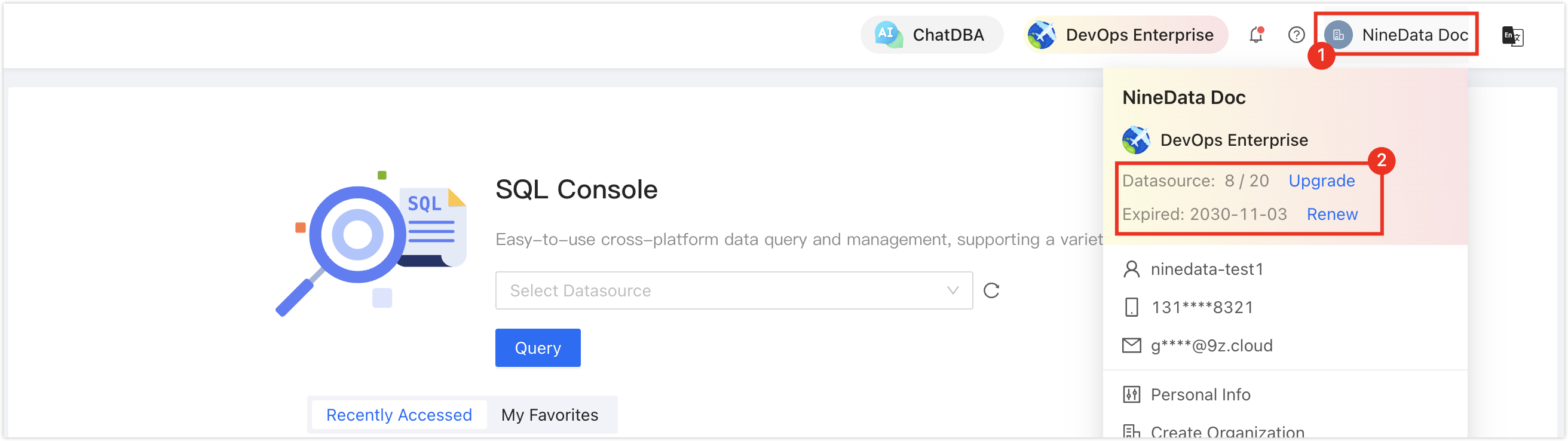
In the commercial versions (DevOps Pro, DevOps Enterprise), make sure your monthly or yearly subscription has not expired. An expired subscription may prevent you from using the Database DevOps service. Check the remaining quota and expiration date in the NineData Console header.
Procedure
Sign in to the NineData Console.
Go to DevOps > SQL Console.
tipIf a data source session is still open, NineData redirects you to that data source page.
Select the box under SQL Console. In the data source list, select the target MongoDB data source, and then click Query.
tipIf no Data Source exists yet, the page is empty. Click Create Datasource on the page.If you have many data sources, enter a full or partial keyword to search by:
- Data source name
- IP address
After the SQL Console opens, use the visual editor or command-line editor to work with the MongoDB data source. For details, see Interface reference.
Result
The SQL Console opens for the selected MongoDB data source. Browse databases and collections, switch between visual and command-line modes, edit documents, run commands, and inspect result sets.
Next steps
- Review Interface reference to understand each area of the MongoDB SQL Console.
- Use Advanced search to narrow document queries.
- Use Create an index when a collection needs a new MongoDB index.
Interface reference
Visual editor
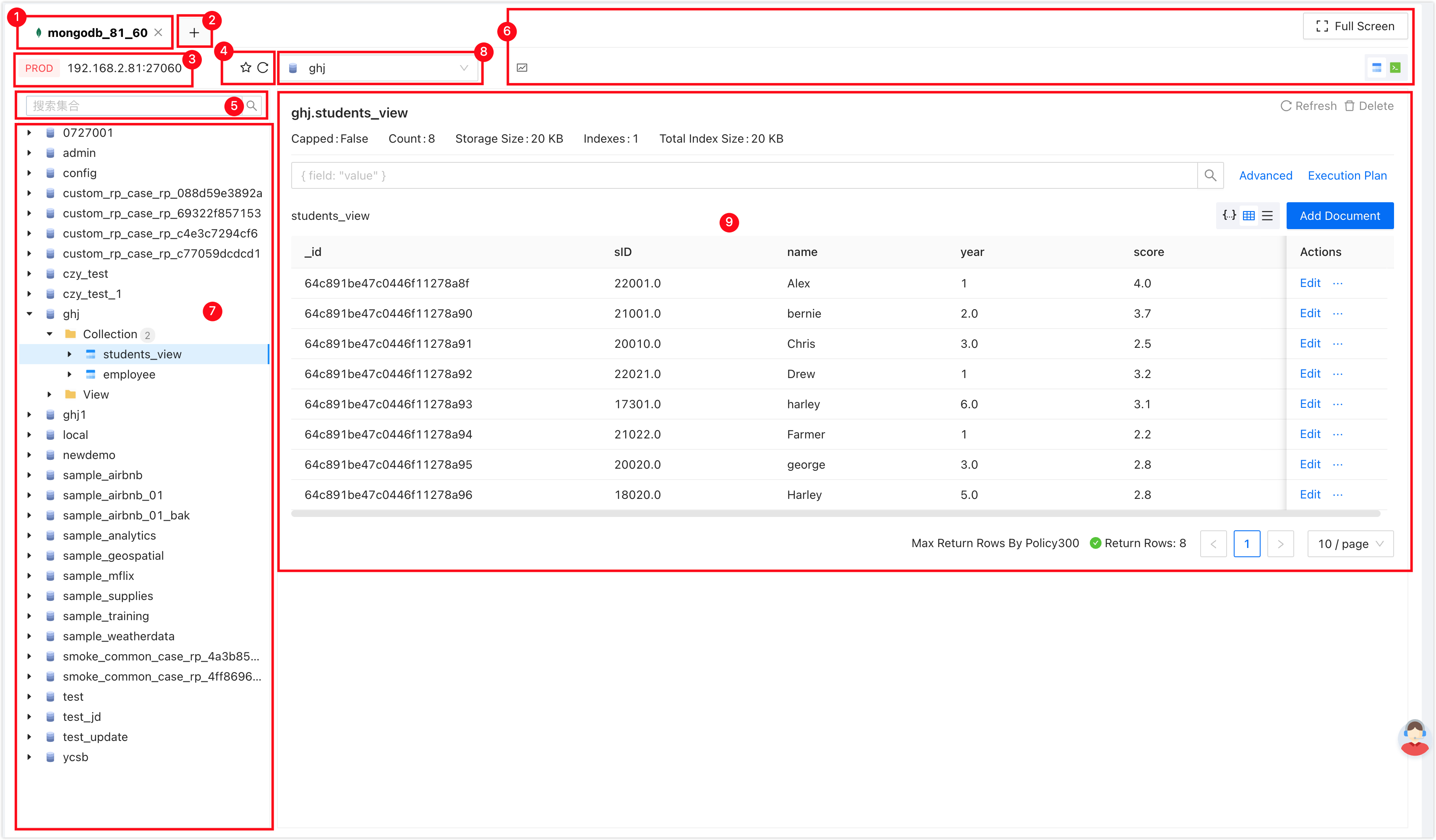
| Number | Function | Description |
|---|---|---|
| 1 | SQL Console Tab | Displays the currently open data source SQL Console. Use the tabs to switch between SQL Consoles. Click X on a tab to close the SQL Console. The right-click menu supports these actions:
|
| 2 | Open Data Source | Choose and open a new data source SQL Console. |
| 3 | Data Source Information | Displays the data source information of the current SQL Console, including environment, IP address, and port. Click the info icon on the right to view details of the current data source. Right-click menu:
|
| 4 | Favorite|Refresh |
|
| 5 | Search | Enter the collection name to quickly find the target collection. Supports searching by the complete collection name for precise search or by a partial collection name with an asterisk (*) for fuzzy search. |
| 6 | Function Buttons |
|
| 7 | Database List | Lists databases, collections, indexes, and related information in the current data source in a tree structure. Hover over the info icon next to a target database, collection, index, or view to display detailed information.Common Right-Click Menu
Database Right-Click Menu
Collection Right-Click Menu
Index Right-Click Menu
View Right-Click Menu
|
| 8 | Select Database | Visually select the target database to operate on. |
| 9 | View/Edit Data | Select a collection in the left-side database list to view its documents here. Available actions include:
|
 : View Threads Display information about active connections on the current database server and the queries running in those connections.
 : Visualize Switch to visualization mode.
 : Editor Switch to editor mode.
 : Full Screen Display SQL Console in full-screen browser mode. In full-screen mode, click
  to restore the original SQL Console size.
 in the Actions column of the target document, and then click Copy (or click Copy directly in JSON mode) to copy the document as a JSON array.
Command-line editor
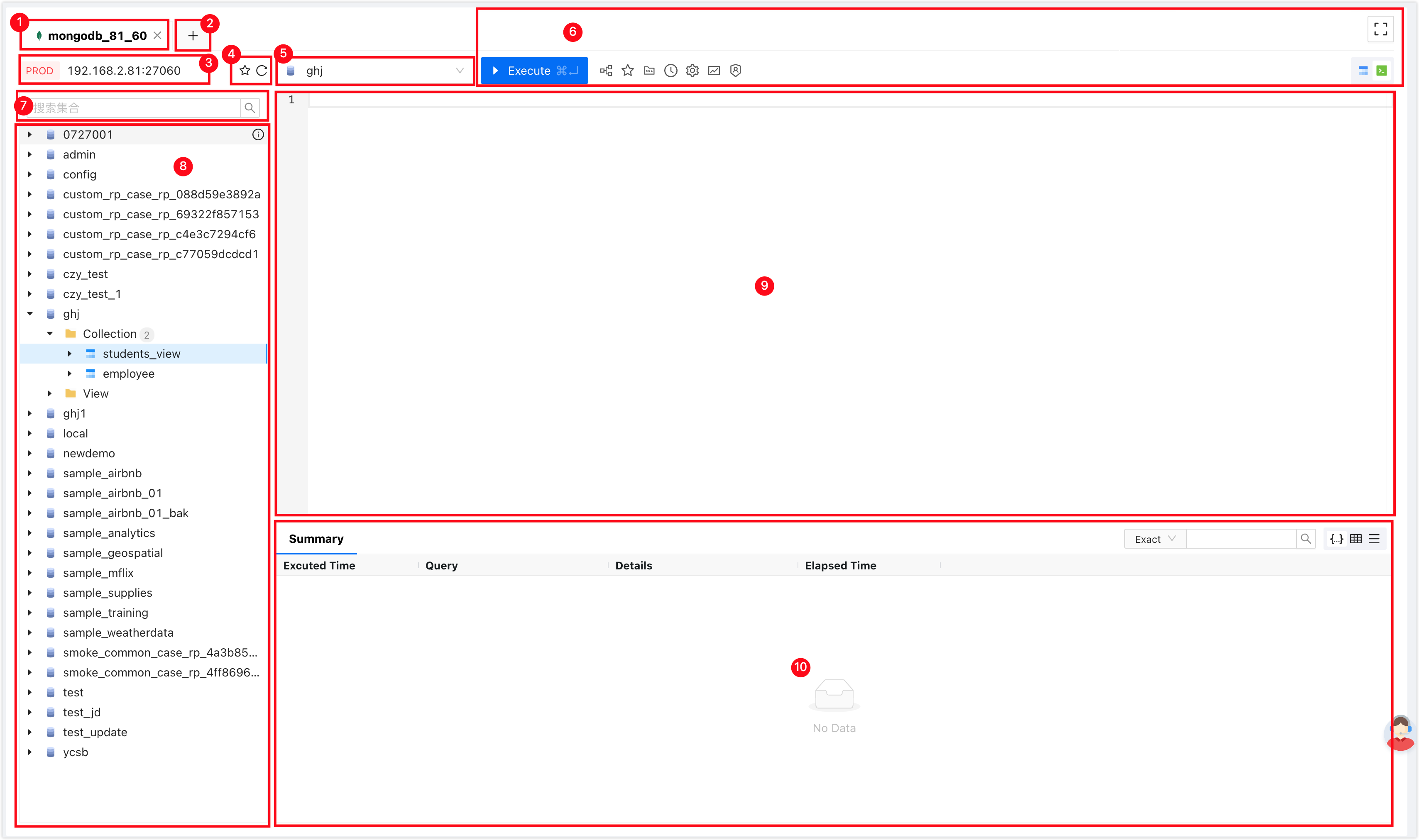
| Number | Function | Description |
|---|---|---|
| 1 | SQL Console Tab | Displays the currently open data source SQL Console. Use the tabs to switch between SQL Consoles. Click X on a tab to close the SQL Console. The right-click menu supports these actions:
|
| 2 | Open Data Source | Choose and open a new data source SQL Console. |
| 3 | Data Source Information | Displays the data source information of the current SQL Console, including environment, IP address, and port. Click the info icon ( ) on the right to view details of the current data source. ) on the right to view details of the current data source.Right-click menu:
|
| 4 | Favorite|Refresh |
|
| 5 | Select Database | Visually select the target database to operate on. |
| 6 | Function Buttons |
|
| 7 | Search | Enter the collection name to quickly find the target collection. Supports searching by the complete collection name for precise search or by a partial collection name with an asterisk (*) for fuzzy search. |
| 8 | Database List | Lists databases, collections, indexes, and related information in the current data source in a tree structure. Hover over the info icon () next to a target database, collection, index, or view to display detailed information.Common Right-Click Menu
Database Right-Click Menu
Collection Right-Click Menu
Index Right-Click Menu
View Right-Click Menu
|
| 9 | Command Line Window | The window for executing MongoDB commands. The command line window supports these features:
|
| 10 | Execution Information, Result Set | Displays command execution information and result sets.
|
 : Execute Execute the selected SQL statement.
 : Execution Plan: View the execution plan of the selected SQL statement.
 : Favorite this SQL: Save all commands in the current SQL Console to favorites for later use.
 : Favorites: View saved commands, insert the target command with Insert, or use Edit and Delete.
 : History: View the command execution history of the target data source. Filter command execution history by time period, or search by keyword, such as command, database name, or error message.
 : Settings
 : Enable Admin Mode|Disable Admin Mode Only Administrator can use this mode. When enabled, commands executed in SQL Console bypass standardization and approval flows.
Advanced search
SQL Console for MongoDB supports these advanced search parameters for collections:
- Project: Controls projection for the returned documents. Return selected fields or calculated results, rename fields, add fields, remove fields, and customize the output structure. For example,
{name:1}returns only thenamefield. For more information, see Aggregation Pipeline Optimization. - Sort: Sorts results in ascending or descending order by one or more fields. MongoDB can use indexes to improve sort performance. For example,
{age:1}sorts by age in ascending order, and{age:-1}sorts by age in descending order. For more information, see Aggregation Pipeline Optimization. - Collation: Defines string comparison rules, such as case sensitivity, multilingual sorting, and locale-specific sorting. For example,
{locale:"en"}sorts results by English collation rules. For more information, see Collation. - Skip: Skips a specified number of documents and returns the remaining documents. Use this option for pagination or to omit earlier results. For example,
10skips the first 10 results and starts from the 11th result. - Limit: Limits the number of returned documents. For example,
10returns only 10 results.
Edit documents
Edit MongoDB documents visually in these modes:
 Table mode: In the Actions column of the target document, click Edit to edit field values directly. Also click
  next to a field, edit the value in the Value box, and click OK. After editing, click Submit at the bottom of the page.
 List mode: In the Actions column of the target document, click Edit. Then click next to the Value column, edit the value, change field names, or add fields, and click OK. After editing, click Submit at the bottom of the page.
 JSON mode: Edit the JSON string directly. Change field names and values or add fields. After editing, click Submit at the bottom of the page.
Create an index
In the database list on the left side of the SQL Console, find the target collection, right-click the collection, and click Create Index.
Configure the index.
Parameter Description Name Enter the index name. Follow your index naming conventions. Field Select the field(s) to index. Click Add to add a row and index multiple fields. Type Select the index type. Supported types are: - Ascending Index: Sort the indexed field in ascending order.
- Descending Index: Sort the indexed field in descending order.
- Hashed Index: Hash the values of the indexed field and index by the hash value. This index is useful for quick searches in evenly distributed data but does not support range queries.
- Text Index: Used for full-text searches on text data. Supports keyword searches and sorting on text fields.
- 2dsphere Index: Used for storing geospatial data (longitude, latitude). Supports geospatial queries and indexing, such as distance calculation and range queries.
- 2d Index: Used for storing geospatial data on a plane (x, y coordinates). Supports queries and indexing on the plane's geospatial data.
- GeoHaystack Index: Used to optimize nearby geospatial location queries. Suitable for scenarios with a large amount of geospatial location data.
Additional Configurations Choose additional index configurations: - Background (selected by default): Specify whether to create the index in the background. For large collections, not selecting this option may block the instance.
- Unique: Specify whether the index requires unique values. Selecting this option ensures that the values of the indexed field are unique in the collection.
- Sparse: Specify whether to create a sparse index. When selected, the index is created only for documents that contain the target field; documents without this field are ignored. Using a sparse index can save index storage space.
- Expire after: Used to create an index with a TTL (Time to Live). This option allows you to specify an automatic deletion time for documents in the collection, in seconds.
Preview Displays the MongoDB commands used to create the index. Click OK.
Appendix: MongoDB command-line methods
- Collection
- Database
- Query Plan Cache
- Bulk Write Operation
- User Management
- Role Management
- Replication
- Sharding
- Constructors
| Method | Syntax |
|---|---|
| aggregate() | db.<collection name>.aggregate() |
| bulkWrite() | db.<collection name>.bulkWrite() |
| compactStructuredEncryptionData() | db.<collection name>.compactStructuredEncryptionData() |
| countDocuments() | db.<collection name>.countDocuments() |
| createIndex() | db.<collection name>.createIndex() |
| createIndexes() | db.<collection name>.createIndexes() |
| dataSize() | db.<collection name>.dataSize() |
| deleteOne() | db.<collection name>.deleteOne() |
| deleteMany() | db.<collection name>.deleteMany() |
| distinct() | db.<collection name>.distinct() |
| drop() | db.<collection name>.drop() |
| dropIndex() | db.<collection name>.dropIndex() |
| dropIndexes() | db.<collection name>.dropIndexes() |
| estimatedDocumentCount() | db.<collection name>.estimatedDocumentCount() |
| explain() | db.<collection name>.explain() |
| find() | db.<collection name>.find() |
| findAndModify() | db.<collection name>.findAndModify() |
| findOne() | db.<collection name>.findOne() |
| findOneAndDelete() | db.<collection name>.findOneAndDelete() |
| findOneAndReplace() | db.<collection name>.findOneAndReplace() |
| findOneAndUpdate() | db.<collection name>.findOneAndUpdate() |
| getIndexes() | db.<collection name>.getIndexes() |
| getShardDistribution() | db.<collection name>.getShardDistribution() |
| getShardVersion() | db.<collection name>.getShardVersion() |
| hideIndex() | db.<collection name>.hideIndex() |
| insertOne() | db.<collection name>.insertOne() |
| insertMany() | db.<collection name>.insertMany() |
| isCapped() | db.<collection name>.isCapped() |
| latencyStats() | db.<collection name>.latencyStats() |
| mapReduce() | db.<collection name>.mapReduce() |
| reIndex() | db.<collection name>.reIndex() |
| remove() | db.<collection name>.remove() |
| renameCollection() | db.<collection name>.renameCollection() |
| replaceOne() | db.<collection name>.replaceOne() |
| stats() | db.<collection name>.stats() |
| storageSize() | db.<collection name>.storageSize() |
| totalIndexSize() | db.<collection name>.totalIndexSize() |
| totalSize() | db.<collection name>.totalSize() |
| unhideIndex() | db.<collection name>.unhideIndex() |
| updateOne() | db.<collection name>.updateOne() |
| updateMany() | db.<collection name>.updateMany() |
| validate() | db.<collection name>.validate() |
| Method | Syntax |
|---|---|
| adminCommand() | db.adminCommand() |
| aggregate() | db.aggregate() |
| commandHelp() | db.commandHelp() |
| createCollection() | db.createCollection() |
| createView() | db.createView() |
| currentOp() | db.currentOp() |
| dropDatabase() | db.dropDatabase() |
| fsyncLock() | db.fsyncLock() |
| fsyncUnlock() | db.fsyncUnlock() |
| getCollection() | db.getCollection() |
| getCollectionInfos() | db.getCollectionInfos() |
| getCollectionNames() | db.getCollectionNames() |
| getLogComponents() | db.getLogComponents() |
| getMongo() | db.getMongo() |
| getName() | db.getName() |
| getProfilingStatus() | db.getProfilingStatus() |
| getReplicationInfo() | db.getReplicationInfo() |
| getSiblingDB() | db.getSiblingDB() |
| hello() | db.hello() |
| help() | db.help() |
| hostInfo() | db.hostInfo() |
| killOp() | db.killOp() |
| listCommands() | db.listCommands() |
| logout() | db.logout() |
| printCollectionStats() | db.printCollectionStats() |
| printReplicationInfo() | db.printReplicationInfo() |
| printSecondaryReplicationInfo() | db.printSecondaryReplicationInfo() |
| printShardingStatus() | db.printShardingStatus() |
| printSlaveReplicationInfo() | db.printSlaveReplicationInfo() |
| resetError() | db.resetError() |
| rotateCertificates() | db.rotateCertificates() |
| runCommand() | db.runCommand() |
| serverBuildInfo() | db.serverBuildInfo() |
| serverCmdLineOpts() | db.serverCmdLineOpts() |
| serverStatus() | db.serverStatus() |
| setLogLevel() | db.setLogLevel() |
| setProfilingLevel() | db.setProfilingLevel() |
| shutdownServer() | db.shutdownServer() |
| stats() | db.stats() |
| version() | db.version() |
| Method | Syntax |
|---|---|
| getPlanCache() | db.<collection name>.getPlanCache() |
| PlanCache.clear() | PlanCache.clear() |
| PlanCache.clearPlansByQuery() | PlanCache.clearPlansByQuery() |
| PlanCache.help() | PlanCache.help() |
| PlanCache.list() | PlanCache.list() |
| Method | Syntax |
|---|---|
| initializeOrderedBulkOp() | db.<collection name>.initializeOrderedBulkOp() |
| initializeUnorderedBulkOp() | db.<collection name>.initializeUnorderedBulkOp() |
| Bulk() | Bulk() |
| Bulk.execute() | Bulk.execute() |
| Bulk.find() | Bulk.find() |
| Bulk.find.arrayFilters() | Bulk.find.arrayFilters() |
| Bulk.find.collation() | Bulk.find.collation() |
| Bulk.find.delete() | Bulk.find.delete() |
| Bulk.find.deleteOne() | Bulk.find.deleteOne() |
| Bulk.find.hint() | Bulk.find.hint() |
| Bulk.find.remove() | Bulk.find.remove() |
| Bulk.find.removeOne() | Bulk.find.removeOne() |
| Bulk.find.replaceOne() | Bulk.find.replaceOne() |
| Bulk.find.updateOne() | Bulk.find.updateOne() |
| Bulk.find.update() | Bulk.find.update() |
| Bulk.find.upsert() | Bulk.find.upsert() |
| Bulk.getOperations() | Bulk.getOperations() |
| Bulk.insert() | Bulk.insert() |
| Bulk.toJSON() | Bulk.toJSON() |
| Bulk.toString() | Bulk.toString() |
| Method | Syntax |
|---|---|
| auth() | db.auth() |
| changeUserPassword() | db.changeUserPassword() |
| createUser() | db.createUser() |
| dropUser() | db.dropUser() |
| dropAllUsers() | db.dropAllUsers() |
| getUser() | db.getUser() |
| getUsers() | db.getUsers() |
| grantRolesToUser() | db.grantRolesToUser() |
| removeUser() | db.removeUser() |
| revokeRolesFromUser() | db.revokeRolesFromUser() |
| updateUser() | db.updateUser() |
| passwordPrompt() | passwordPrompt() |
| Method | Syntax |
|---|---|
| createRole() | db.createRole() |
| dropRole() | db.dropRole() |
| dropAllRoles() | db.dropAllRoles() |
| getRole() | db.getRole() |
| getRoles() | db.getRoles() |
| grantPrivilegesToRole() | db.grantPrivilegesToRole() |
| revokePrivilegesFromRole() | db.revokePrivilegesFromRole() |
| grantRolesToRole() | db.grantRolesToRole() |
| revokeRolesFromRole() | db.revokeRolesFromRole() |
| updateRole() | db.updateRole() |
| Method | Syntax |
|---|---|
| rs.add() | rs.add() |
| rs.addArb() | rs.addArb() |
| rs.conf() | rs.conf() |
| rs.freeze() | rs.freeze() |
| rs.help() | rs.help() |
| rs.initiate() | rs.initiate() |
| rs.printReplicationInfo() | rs.printReplicationInfo() |
| rs.printSecondaryReplicationInfo() | rs.printSecondaryReplicationInfo() |
| rs.printSlaveReplicationInfo() | rs.printSlaveReplicationInfo() |
| rs.reconfig() | rs.reconfig() |
| rs.remove() | rs.remove() |
| rs.status() | rs.status() |
| rs.stepDown() | rs.stepDown() |
| rs.syncFrom() | rs.syncFrom() |
| Method | Syntax |
|---|---|
| sh.abortReshardCollection() | sh.abortReshardCollection() |
| sh.addShard() | sh.addShard() |
| sh.addShardTag() | sh.addShardTag() |
| sh.addShardToZone() | sh.addShardToZone() |
| sh.addTagRange() | sh.addTagRange() |
| sh.balancerCollectionStatus() | sh.balancerCollectionStatus() |
| sh.commitReshardCollection() | sh.commitReshardCollection() |
| sh.disableBalancing() | sh.disableBalancing() |
| sh.enableBalancing() | sh.enableBalancing() |
| sh.disableAutoSplit() | sh.disableAutoSplit() |
| sh.enableAutoSplit() | sh.enableAutoSplit() |
| sh.enableSharding() | sh.enableSharding() |
| sh.getBalancerState() | sh.getBalancerState() |
| sh.removeTagRange() | sh.removeTagRange() |
| sh.removeRangeFromZone() | sh.removeRangeFromZone() |
| sh.help() | sh.help() |
| sh.isBalancerRunning() | sh.isBalancerRunning() |
| sh.moveChunk() | sh.moveChunk() |
| sh.removeShardTag() | sh.removeShardTag() |
| sh.removeShardFromZone() | sh.removeShardFromZone() |
| sh.reshardCollection() | sh.reshardCollection() |
| sh.setBalancerState() | sh.setBalancerState() |
| sh.shardCollection() | sh.shardCollection() |
| sh.splitAt() | sh.splitAt() |
| sh.splitFind() | sh.splitFind() |
| sh.startBalancer() | sh.startBalancer() |
| sh.status() | sh.status() |
| sh.stopBalancer() | sh.stopBalancer() |
| sh.waitForBalancer() | sh.waitForBalancer() |
| sh.waitForBalancerOff() | sh.waitForBalancerOff() |
| sh.waitForPingChange() | sh.waitForPingChange() |
| sh.updateZoneKeyRange() | sh.updateZoneKeyRange() |
| convertShardKeyToHashed() | convertShardKeyToHashed() |
| Method | Syntax |
|---|---|
| BinData() | BinData() |
| BulkWriteResult() | BulkWriteResult() |
| Date() | Date() |
| ObjectId() | ObjectId() |
| ObjectId.getTimestamp() | ObjectId.getTimestamp() |
| ObjectId.toString() | ObjectId.toString() |
| ObjectId.valueOf() | ObjectId.valueOf() |
| UUID() | UUID() |
| WriteResult() | WriteResult() |
| WriteResult.hasWriteError() | WriteResult.hasWriteError() |
| WriteResult.hasWriteConcernError() | WriteResult.hasWriteConcernError() |