SQL Console for VectorDB
Use NineData SQL Console to manage Baidu Cloud Vector Database (VectorDB), generate request bodies for supported VectorDB APIs, execute operations, and inspect returned JSON results.
Background
AI applications rely on vector databases to store and search high-dimensional data such as image embeddings and text embeddings. Many database management tools provide limited support for vector database operations, so teams often need a single workspace for metadata management, API-style operations, and query results.
NineData SQL Console helps address common VectorDB management challenges:
- Operational complexity: Run supported VectorDB operations without switching to CLI or SDK tools.
- Limited visibility: Browse databases, tables, fields, indexes, and related metadata in a visual tree.
- Permission management: Work with user and role operations from the SQL Console.
- Request-body efficiency: Generate JSON request-body samples and adjust them before execution.
Feature overview
For VectorDB data sources, SQL Console covers the workflow from metadata browsing to API request execution.
| Feature | Description |
|---|---|
| Visual object management | Browse and manage VectorDB libraries, tables, columns, indexes, and related objects in a tree view. |
| Request body generation | Use synchronized VectorDB operation interfaces for table management, index management, data updates, data queries, role management, and user management. After you select an operation, SQL Console generates a JSON request-body sample in the editor. |
| Editor | Adjust the generated request body and execute the selected VectorDB operation. |
| Workspace recovery | Reopen the SQL Console after a browser exit or crash and restore previously opened data sources and executed commands. The page state is stored in the cloud, so recovery is not tied to one browser or host. |
Before you begin
Add the target VectorDB data source to NineData. For details, see Manage Data Sources.
In organization mode (DevOps Enterprise), you must have read-only, DML, or DDL permissions for the target data source.
tipRead-only permissions support query operations only.
In the commercial versions (DevOps Pro, DevOps Enterprise), make sure your monthly or yearly subscription has not expired. An expired subscription may prevent you from using the Database DevOps service. Check the remaining quota and expiration date in the NineData Console header.
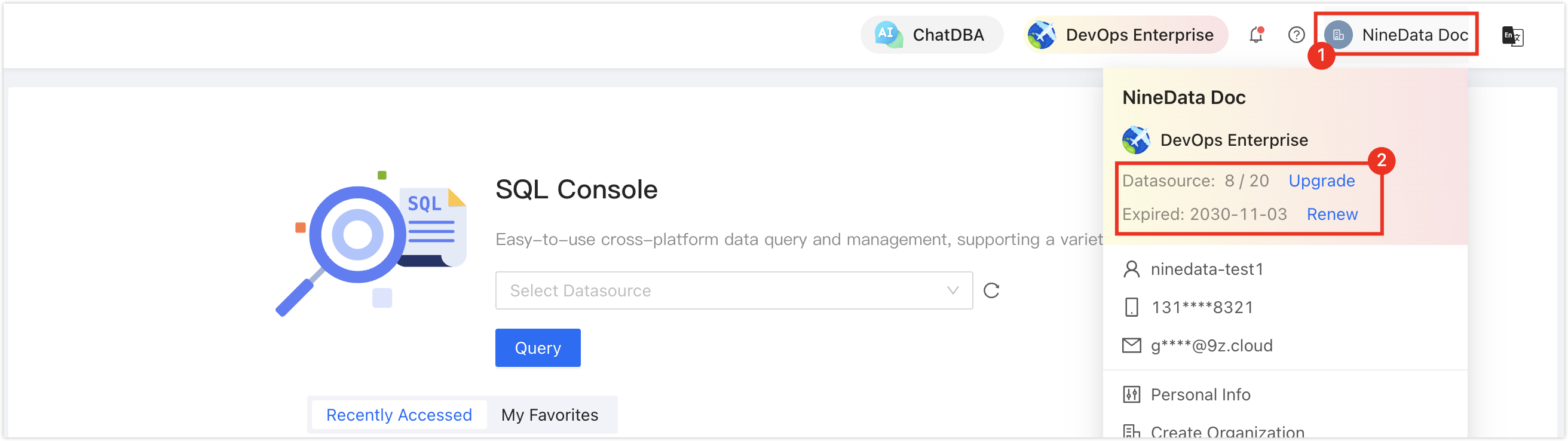
Procedure
Sign in to the NineData Console.
Go to DevOps > SQL Console.
tipIf a data source session is still open, NineData redirects you to that data source page.
Select the field below SQL Console. In the data source list, select the target data source and click Query to open the SQL Console.
tip- If no Data Source exists yet, the page is empty. Click Create Datasource on the page.
If you have multiple data sources, enter all or part of a keyword to search by these fields:
Data source name
IP address
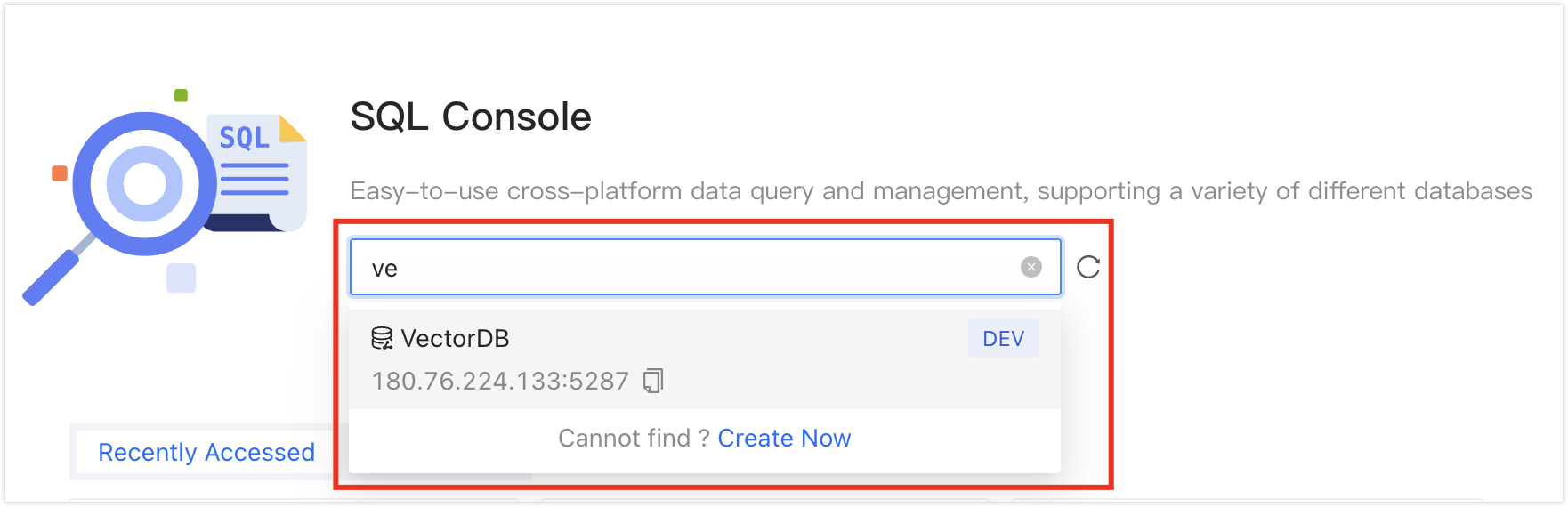
After the SQL Console opens, manage the VectorDB data source from the interface. For details, see Interface reference.
Result
The SQL Console opens for the selected VectorDB data source. Browse metadata, generate VectorDB request bodies, execute operations, and review JSON results.
Next steps
- Review Interface reference to understand each area of the SQL Console.
- Use the operation request selector to generate a request-body sample, then adjust the JSON before execution.
Interface reference
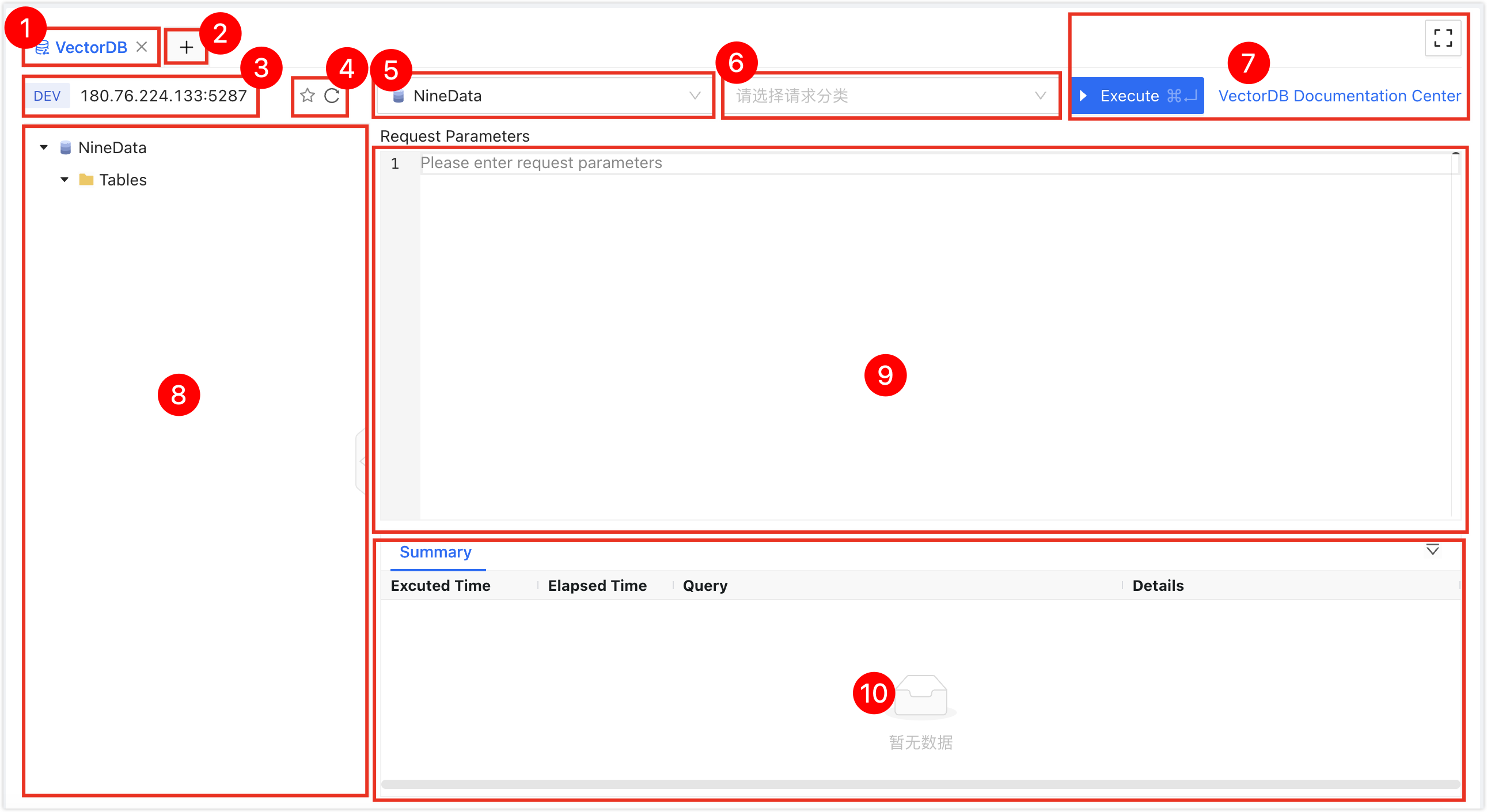
| No. | Feature | Description |
|---|---|---|
| 1 | SQL Console Tab | Represents the currently opened data source SQL Console. Use tabs to switch between SQL Consoles. Click X on a tab to close it, double-click a tab to rename it, or drag a tab to reorder it. The right-click menu supports these operations:
|
| 2 | Open Data Source | Select and open a new data source SQL Console. |
| 3 | Data Source Information | Displays the current SQL Console data source, including environment, IP address, and port number. Right-click menu:
|
| 4 | Favorite | Refresh |
|
| 5 | Database Name | Select the target database to perform SQL operations. |
| 6 | API Operation Request | Select a VectorDB management operation. SQL Console converts the selected operation into a standard VectorDB native API call and generates a JSON request-body sample in the editor. Adjust the sample before execution. Supported operations include:
|
| 7 | Function Buttons |
|
| 8 | Object Tree | Displays all libraries, tables, columns, and non-table objects in the current VectorDB in a tree view. Use this area to perform these operations:
|
| 9 | Editor Window | Runs VectorDB operations. It supports these features:
|
| 10 | Execution Information, Result Set | Displays command execution information and results.
|
 : Execute Execute the selected VectorDB operation.
 : Full Screen Open the SQL Console in full-screen mode. In full-screen mode, click
  Exit to restore the original size.