SQL Console for Milvus
NineData SQL Console supports Milvus vector databases with SQL-like syntax for vector data management, similarity search, and permission operations. Developers can work with Milvus from a familiar SQL workspace instead of switching to database-specific APIs for everyday tasks.
Background
Milvus is an open-source vector database developed by Zilliz. It is designed for unstructured data processing and is commonly used in AI inference, semantic search, and other AI application scenarios.
Milvus is powerful, but native workflows can require a steep learning curve. NineData provides a SQL-like layer for common Milvus operations, so developers can use familiar SQL patterns for vector database management.
Before you begin
Add the target Alibaba Cloud managed Milvus data source to NineData. For instructions, see Manage Data Sources. Supported Milvus versions are 2.3, 2.4, and 2.5.
In organization mode (DevOps Enterprise), you must have read-only, DML, or DDL permissions for the target data source.
tipRead-only permissions support query operations only.
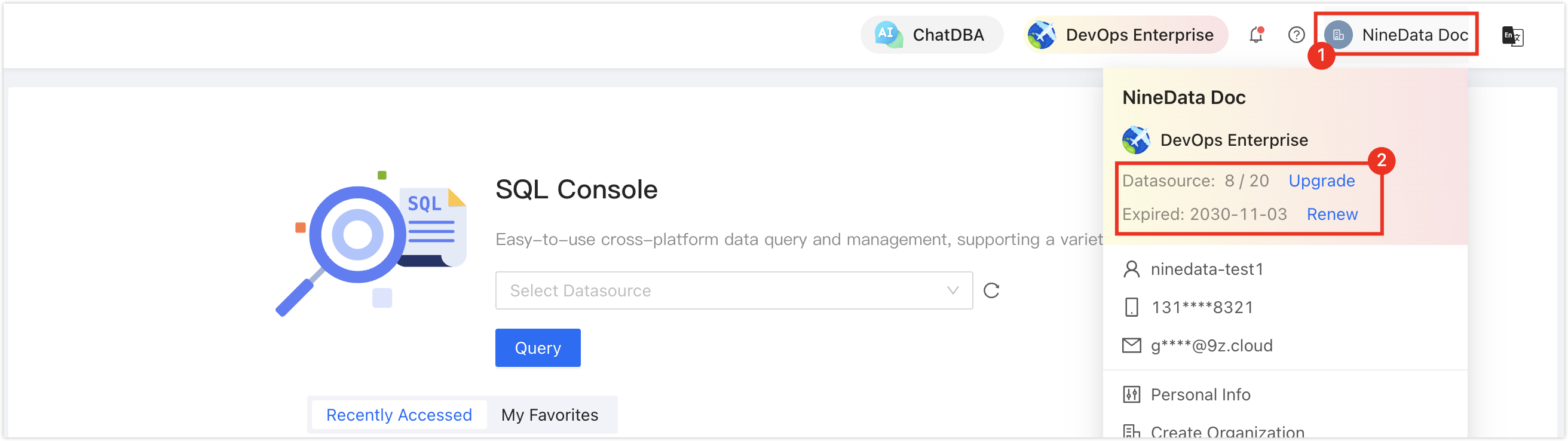
In the commercial versions (DevOps Pro, DevOps Enterprise), make sure your monthly or yearly subscription has not expired. An expired subscription may prevent you from using the Database DevOps service. Check the remaining quota and expiration date in the NineData Console header.
Procedure
Sign in to the NineData Console.
Go to DevOps > SQL Console.
tipIf you previously opened a data source and did not close it, NineData reopens that data source.
Select the field below SQL Console, select the target data source, and click Query to open the SQL Console.
tip- If no Data Source exists yet, the page is empty. Click Create Datasource on the page.
If you have multiple data sources, enter all or part of a keyword to search by these fields:
Data source name
IP address
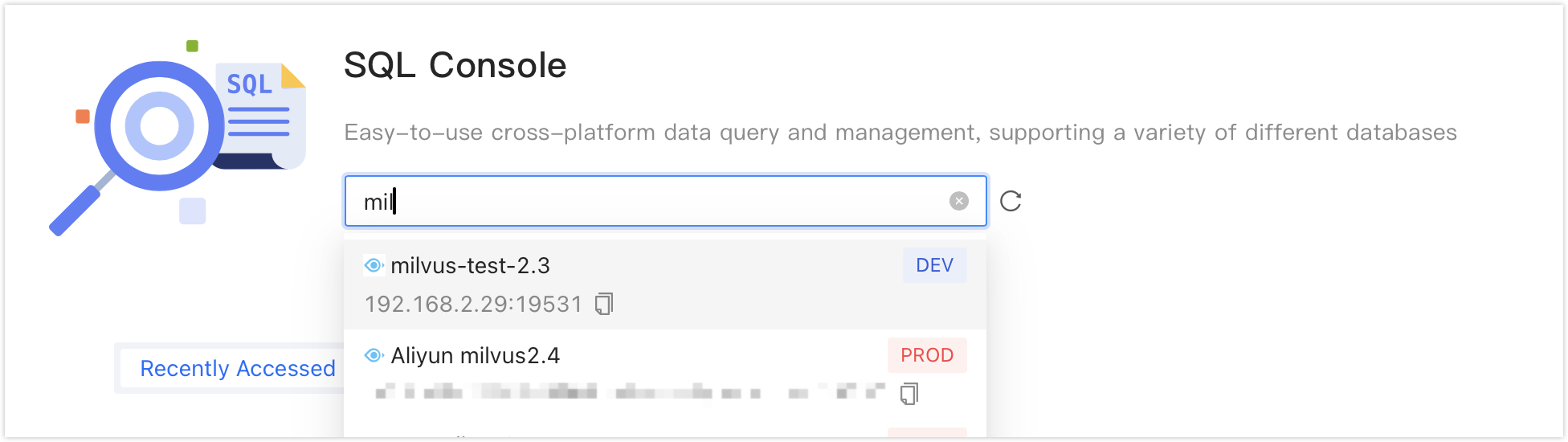
After the SQL Console opens, run SQL operations against the Milvus data source. For details about the workspace, see Interface reference.
Result
The SQL Console opens for the selected Milvus data source. Run SQL-like Milvus operations, browse database objects, and inspect execution results.
Next steps
- Review Interface reference to understand each area of the SQL Console.
- Use Appendix: SQL syntax design as a command reference when you write Milvus SQL-like statements.
Interface reference
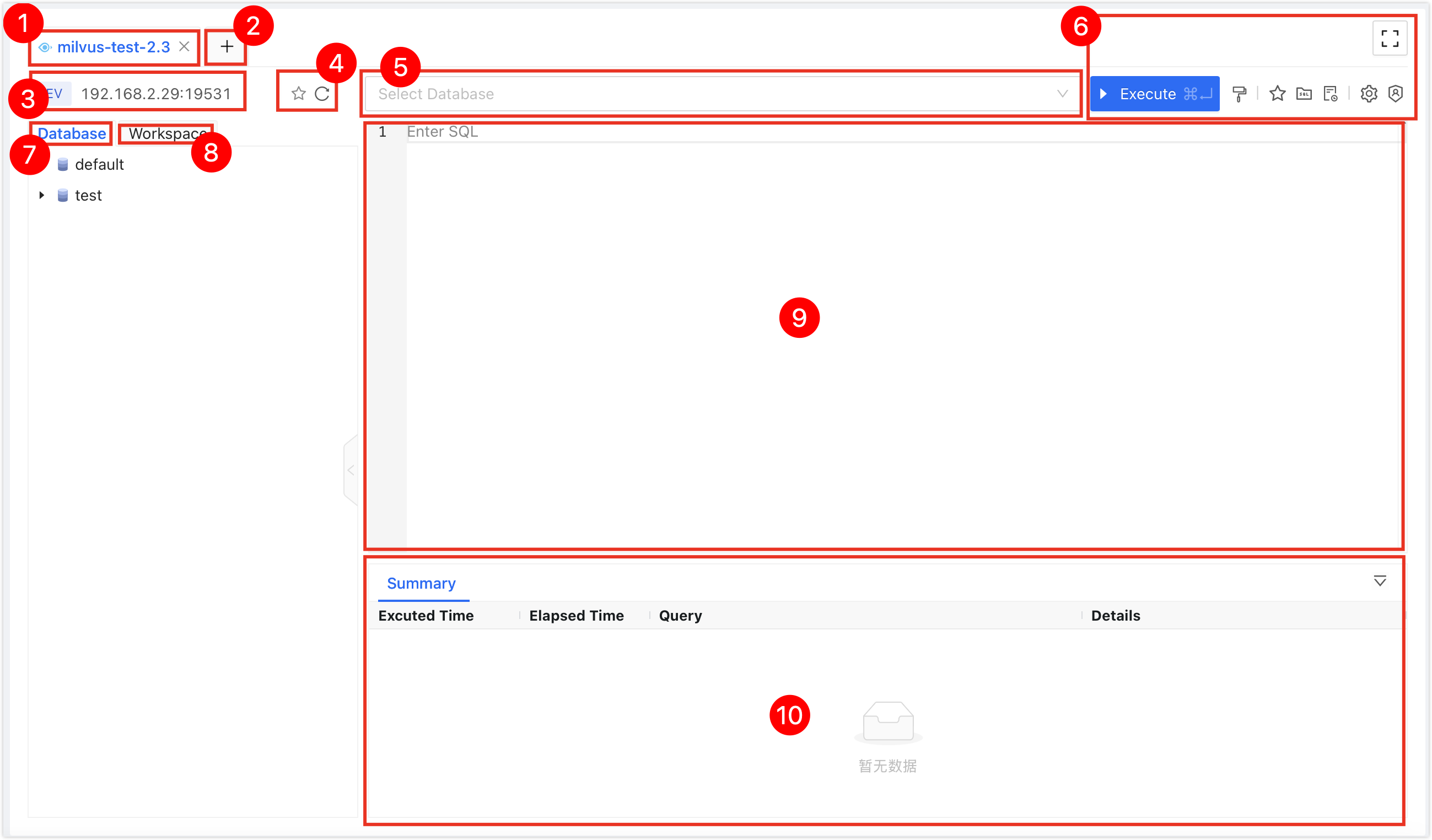
| No. | Feature | Description |
|---|---|---|
| 1 | SQL Console Tab | Represents the currently opened SQL Console. Use tabs to switch consoles, click X to close a console, double-click a tab to rename it, and drag a tab to reorder it. The right-click menu supports these operations:
|
| 2 | Open Data Source | Select and open a new data source SQL Console. |
| 3 | Data Source Information | Displays the current SQL Console data source, including environment, IP address, and port number. Right-click menu:
|
| 4 | Favorite|Refresh |
|
| 5 | Database Name | Select the target database to perform SQL operations. |
| 6 | Function Buttons |
|
| 7 | Database Object Tree | Displays all databases, tables, columns, and other objects in the current Milvus instance in a tree view. The object tree supports these actions:
|
| 8 | Workspace | Displays the active workspace for the selected SQL Console tab. |
| 9 | Editor Window | Supports these features:
|
| 10 | Execution Information, Result Set | Displays command execution information and results.
|
 : Execute Execute the selected SQL statement.
 : Format: Adjust the structure of the selected SQL statement to improve readability.
 : Favorite this SQL: Save all SQL statements in the current SQL Console to the SQL list for reuse.
 : Favorites: View saved SQL, insert the target SQL with Insert, or use Edit and Delete.
 : History: View SQL execution history for the target data source. Filter by date or search by SQL statement, database name, or error message.
 : Settings
 : Enable Admin Mode|Disable Admin Mode Only Administrator can use this mode. After you enable it, SQL executed in the SQL Console bypasses SQL standardization and approval flow restrictions.
 : Full Screen Open the SQL Console in full-screen mode. After you enter full-screen mode, click
  Exit to restore the original size.
Appendix: SQL syntax design
DDL
| Category | Command | Syntax |
|---|---|---|
| Database Operations | Create Database | CREATE DATABASE <Database Name> |
| Delete Database | DROP DATABASE <Database Name> | |
| Table Operations | Create Table | CREATE TABLE <Table Name>( <Primary Key Name><Data Type> PRIMARY KEY, <Column Name><Data Type>(<Length>) [PROPS Attribute][NOT NULL|NULL][comment 'Comment'], INDEX <Index Name>(<Column Name>) [PROPS Attribute] ) |
| Modify Table Properties | ALTER TABLE <Table Name> SET PROPS(<Table Properties>) | |
| Rename Table | RENAME TABLE <Table Name> TO <New Table Name> | |
| Delete Table | DROP TABLE <Table Name> | |
| Load Table | LOAD TABLE <Table Name> | |
| Release Table | RELEASE TABLE <Table Name> | |
| Index Operations | Create Index | CREATE INDEX <Index Name> ON <Table Name>(<Column Name>) PROPS(<Properties>) |
| Delete Index | DROP INDEX <Index Name> ON <Table Name> | |
| Alias Operations | Create Alias | CREATE ALIAS <Alias> FOR <Table Name> |
| Delete Alias | DROP ALIAS <Alias> |
Example:
--Create a simple table
create table t1(
  id bigint primary key, -- Primary key column
  vector vector(3), -- 3-dimensional floating-point vector
  name varchar(32), -- Short text field
  age int, -- Numeric field
  index idx1(vector) props( -- HNSW vector index
    index_type=HNSW, -- Index type
    M=16, -- Inter-layer connections
    metric_type=COSINE, -- Similarity calculation method
    efConstruction=128), -- Construction parameter
  index idx2(age)
);

--Create a complex table
create table t2 (
  id bigint primary key,
  c2 int64 props(is_partition_key=true) not null, -- Partition key
  c3 float null comment 'abc',
  c4 double comment 'c4 column comment',
  c5 vector(32), -- Standard floating-point vector
  c6 int[45], -- Fixed-length array
  c7 json, -- JSON document
  c8 varchar(2541) default 'abc',
  c9 varchar(10)[21],
  c10 float[32],
  c11 binary_vector(128), -- Binary vector
  c12 sparse_float_vector(128), -- Sparse vector
  c14 int8,
  c15 int16,
  c16 int32,
  c17 varchar(256) comment 'String test',
  c18 vector(32),
  index idx1(c3),
  index idx2(c2) props(type=autoindex),
  index idx3(c5) props(type=ivf_flat,nlist=10,metric_type=COSINE), -- IVF_FLAT vector index
  index idx4(c11) props(type=BIN_IVF_FLAT,nlist=10,metric_type=HAMMING), -- Binary vector index
  index idx5(c12) props(type=SPARSE_INVERTED_Index,metric_type=IP),
  index idx6(c18) props(type=HNSW,M=31,metric_type=L2,efConstruction=124),
  index idx7(c8) props(type=inverted),
  index idx8(c14) props(type=bitmap),
  index idx9(c15) props(type=STL_SORT),
  index idx10(c17) props(type=Trie)
) comment='test table' props(
  enable_dynamic_field=true, -- Allow dynamic fields
  collection.ttl.seconds=3600, -- Data automatic expiration time
  ABC=234);
DML
| Category | Command | Syntax Example |
|---|---|---|
| Data Insertion | Insert a Single Record | INSERT INTO <Table Name> (<Column Name 1>,<Column Name 2>) VALUES (<Value 1>,<Value 2>) |
| Insert Multiple Records | INSERT INTO <Table Name> (<Column Name 1>,<Column Name 2>) VALUES (<Value 1>,<Value 2>),(<Value 3>,<Value 4>) | |
| Insert via SET | INSERT INTO <Table Name> SET <Column Name 1>=<Value 1>, <Column Name 2>=<Value 2> | |
| Data Replacement | Replace Data | REPLACE INTO <Table Name> (<Column Name 1>,<Column Name 2>) VALUES (<Value 1>,<Value 2>) |
| Data Deletion | Delete by Condition | DELETE FROM <Table Name> WHERE <Condition Statement> |
DQL
| Category | Command/Function | Syntax Example |
|---|---|---|
| Basic Query | View Databases | SHOW DATABASES |
| View Tables | SHOW TABLES | |
| Full Table Query | SELECT * FROM <Table Name> | |
| Conditional Filtering | SELECT * FROM <Table Name> WHERE <Column Name 1> IN (1,2,3) | |
| Paging Query | SELECT * FROM <Table Name> LIMIT 10 OFFSET 20 | |
| Vector Retrieval | Single Vector Search | SELECT * FROM <Table Name> ORDER BY vector_search(<Vector Column Name>, [1.0,2.0,3.0]) |
| Vector Search with Parameters | SELECT * FROM <Table Name> ORDER BY vector_search((<Vector Column Name>, [1.0,2.0], nlist=10, metric_type=COSINE) | |
| Combined Filtering Conditions | SELECT * FROM <Table Name> WHERE filter='id>0' ORDER BY vector_search(<Vector Column Name>, [1.0,2.0,3.0]) | |
| Aggregation and Grouping | Group Retrieval | SELECT * FROM <Table Name> GROUP BY <Column Name> PROPS(group_size=3) |
Example:
-- Normal Query
select * from table_name
select id,c1 from table_name where id=1
select * from table_name where id in (1,2)
select * from table_name where id in (1,2,3) limit 10
select * from table_name where id in (1,2,3) limit 10,20
select * from table_name where filter='id==3' limit 10
select * from table_name where filter='id in [1,2,8]' limit 10 offset 20
select * from table_name where filter='age>15 and age<81' limit 10,20
select * from table_name where filter='TEXT_MATCH(text, \'test deep\') and id>0';

select * from t123 where id in (14641243,88282101)
and  filter='id>0 and name like "beyond%"'
limit 2;


-- Vector Query
select * from table_name
order by vector_search(column_name,{vector_value})
limit 10

select id,text from table_name
order by vector_search(column_name,{vector_value},nlist=10,param2=2)
limit 10

select id,text from table_name
where filter='id>0'
order by vector_search(column_name,{vector_value},nlist=10,radius=0.4,range_filter=0.6)
limit 10

select * from t123 where filter='id>0'
group by docId
order by vector_search(vector,[1,2,1])
props(group_size=3,strict_group_size=false)

select * from products
order by vector_search(embedding('sample text','text-embedding-v3',64))
limit 10
select embedding('sample text','text-embedding-v3',64)
Result
Use SQL Console to run Milvus database, table, vector search, role, and user management statements through the SQL-like syntax supported by NineData.
Next steps
- Review SQL history after running vector search or permission statements.
- Use SQL development policies and approval processes if Milvus operations must be governed before execution.
Permission Control
| Category | Command | Syntax Example |
|---|---|---|
| Role Management | View Roles | SHOW ROLES |
| Create Role | CREATE ROLE <Role Name> | |
| Grant Role | GRANT <Permission> ON <Scope> TO <Role Name> | |
| Revoke Permission | REVOKE <Permission> ON <Scope> FROM <Role Name> | |
| User Management | View Users | SHOW USERS |
| Create User | CREATE USER <User Name> IDENTIFIED BY '<Password>' | |
| Bind Role | GRANT <Permission>, <Role Name> TO <User Name> |
Example:
-- Role management example
create role role1; -- Create role role1
grant CreateDatabase,DropDatabase on Global to role1; -- Grant the permission to create and delete databases globally to role1
grant Delete,Insert on Colleciton to role1; -- Grant the permission to delete and insert within the collection to role1
revoke Delete on Colleciton from role1; -- Revoke the delete permission from role1 within the collection
-- User management example
create user user1 identified by 'abc123'; -- Create a user named user1 with password abc123
grant admin,role1 to user1; -- Bind the administrator role and role1 to user1
desc user user1; -- Display all roles owned by user1
desc role role1; -- Display all permissions owned by role1
Appendix II: Function Syntax Table
| Function Name | Function Purpose | Parameter Definition | Usage Example |
|---|---|---|---|
VECTOR_SEARCH | Perform vector similarity computation for ranking during retrieval. The returned results include a score field, which indicates the degree of match. |
| SELECT * FROM <Table Name> ORDER BY vector_search(vector_col, [0.1,0.2,0.3], nlist=10) |
EMBED | Convert text to vector |
| INSERT INTO t1 VALUES (1, 'text', embed('sample text', 'text-embedding-v3', 64)) |
VERSION | Return database version information | No parameters | SELECT VERSION() |