Create a Baidu Cloud GaiaDB-X Data Source
Add a Baidu Cloud GaiaDB-X data source to NineData for Database DevOps, backup and restore, data replication, database comparison, and other supported features. This guide covers connection mode, endpoint settings, encrypted transmission, environment settings, and the connection test.
Before you begin
The server IP address of NineData has been added to the data source allowlist. The server IP address can be viewed by selecting the target region in Access Region on the Create Datasource page.

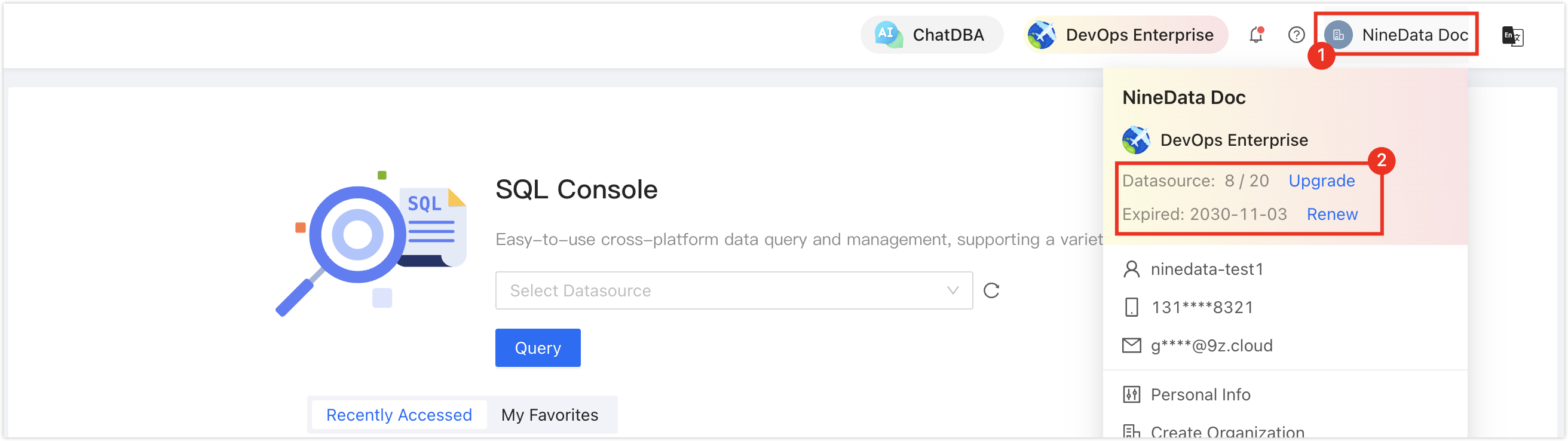
Make sure data source quota is available; otherwise, the data source cannot be added. Check the remaining quota in the NineData Console header.
Procedure
Sign in to the NineData Console.
Go to Datasource > Datasource.
Click the Datasource tab, and then click Create Datasource. In the data source type dialog, choose Baidu Cloud > Cloud Datasource > Cloud Database GaiaDB-X. On the Create Datasource page, configure the parameters using the table.
tipIf you select the wrong type, click the
 icon at the top of the Create Datasource page to reselect the data source type.
Configure the data source parameters:
Parameter Description Name Enter a data source name. Use a meaningful name to find and manage it later. Connection Select how NineData connects to the data source. The console supports IP Address, Gateway, and SSH Tunnel. Access Method The current fixed value is Connection Address. Connection Address Enter the GaiaDB-X endpoint and port. The default port shown in the console is 3306.DB Account Enter the database login username. DB Password Enter the database login password. Access Region Select the access region closest to the instance. Environment Select the environment tag for the data source, such as Production or Development. Encryption Choose whether to enable encrypted transmission. This option is enabled by default in the console. After expanding it, choose Prefer or Require, and configure SSL Cipher, server certificate validation, server identity validation, and client certificates when needed. After you configure all parameters, click Connection Test next to Create Datasource to test connectivity. When Connection Successfully is displayed, click Create Datasource to create the data source. Otherwise, review the connection settings and run the test again.
Result
After the connection test succeeds and the data source is created, it appears in the data source list and is available to NineData features that support Baidu Cloud GaiaDB-X.