Kafka to ClickHouse Replication
Use this workflow to replicate Kafka topic data to ClickHouse in NineData. Choose the start offset and map Kafka message fields to ClickHouse table columns.
Overview
Kafka is a distributed message queue with high throughput, low latency, high reliability, and scalability. It is well suited to real-time data processing and fan-out scenarios, and it is a common upstream source for data warehouses.
ClickHouse is a columnar database management system (DBMS) that can efficiently store and analyze large volumes of real-time data when Kafka data is copied into it.
Before you begin
- Add the source and target data sources to NineData. For details, see Creating a Data Source.
- The source data source is Kafka 0.10 or later.
- The target data source is ClickHouse 20.3 or later.
- Prepare the target ClickHouse databases, tables, and columns based on the field names in the Kafka JSON objects.
Procedure
Sign in to the NineData Console.
In the navigation menu, click Replication > Data Replication.
On the Replication page, click Create Replication.
On the Source & Target tab, configure the parameters in this table, and then click Next.
Parameter Description Name Enter a meaningful name for the data replication task. Up to 64 characters are supported. Source Select the Kafka data source that contains the data to replicate. Target Select the ClickHouse data source that receives the copied data. Kafka Topic Select the Kafka topic to replicate. Message Format Choose the format used to copy data to ClickHouse. Currently, only Canal-JSON is supported. Replication Started - Earliest (Copy Earliest Message from Topic): Start copying from the earliest message in the Kafka topic.
- Latest (Copy Latest Message from Topic after Starting): Ignore existing data in the Kafka topic and only copy new messages generated after the task starts.
- Customer Offset (Start From Customer Offset): Customize the message position in the Kafka topic, that is, the Offset number. NineData starts copying messages from this Offset number in order.
Target Table Exists Data - Pre-Check Error and Stop Task: Stop the task if the precheck finds data in the target table.
- Ignore existing target data and append to it.: Ignore the data found in the target table during precheck and append the other data.
- Clear target existing data before write: Delete the data found in the target table during precheck and rewrite it.
On the Objects tab, configure the parameters in this table, and then click Next.
Parameter Description ClickHouse Replicate Objects Select where Kafka data is stored in ClickHouse. Choose All Objects to include all ClickHouse databases, or choose Customized Object, select the required locations from the Source Object list, and click > to add them to the Target Object list. On the Mapping tab, map Kafka message key-value pairs to columns in each ClickHouse table. If a Kafka message meets the configured conditions, NineData writes it to the mapped ClickHouse location. For more information, see Appendix.
tipWhen Message Format is Canal-JSON, configure the mapping of the $.database and $.table fields in each ClickHouse database and table. For example, if $.database is
ninedata_m2cand $.table issbtest1, NineData copies all Kafka messages that match this condition to the corresponding columns in the target ClickHouse table.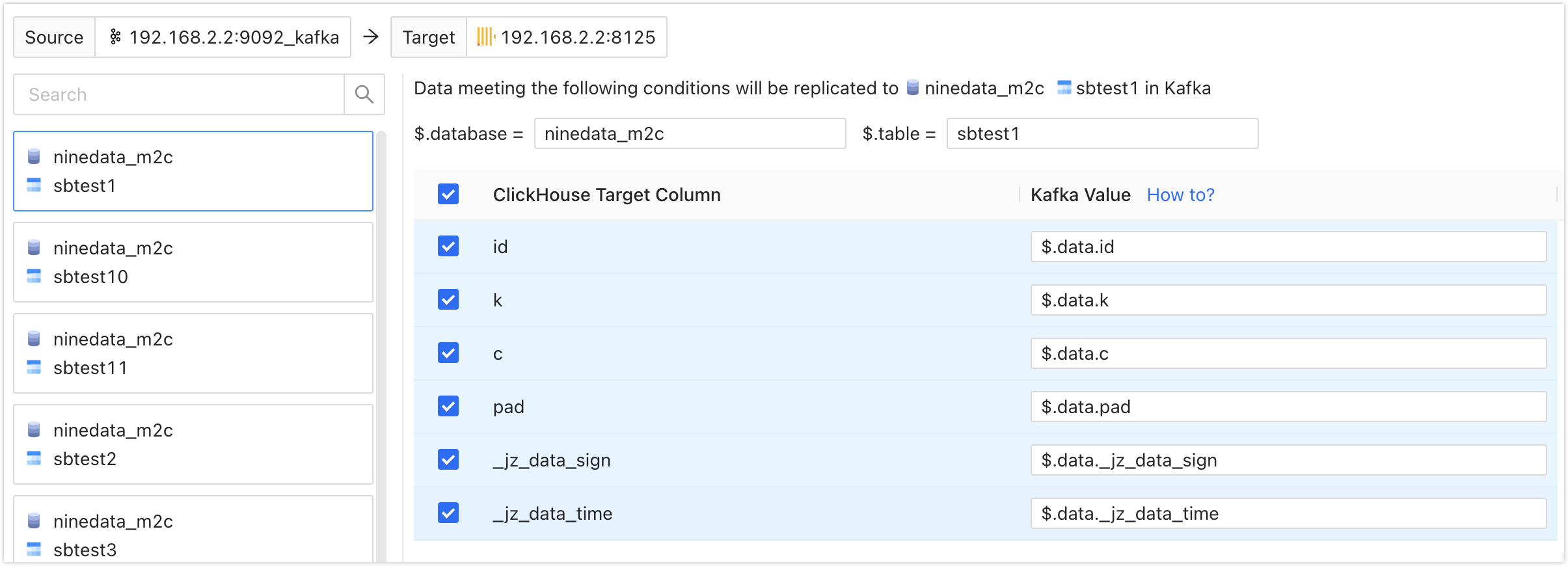
On the Pre-check tab, wait for NineData to finish the precheck. After the precheck passes, click Launch.
tip{/* Select Enable data consistency comparison to compare target data with source data after the synchronization task finishes. The start time of Enable data consistency comparison depends on the following:
Full: Started after full copy.
Full + Incremental, Incremental: Started when incremental data is first consistent with source data source and Delay is 0 seconds. Click View Details to view the synchronization delay on the Details page.
 */}
*/}If the precheck fails, click Details to the right of the failed check item, review the cause, fix it manually, and click Check Again to run the precheck again.
For items whose Result is Warning, fix the issue or ignore the warning when appropriate.
On the Launch page, after Launch Successfully appears, the replication task starts running. Use these actions to review the task:
- Click View Details to view the execution status of each stage of the synchronization task.
- Click Back to list to return to the Replication task list page.
Result
Sign in to the NineData Console.
In the navigation menu, click Replication > Data Replication.
On the Replication page, click the ID of the target replication task to open the Details page. Use the following areas to monitor the task.

Number Feature Description 1 Sync Delay Shows the replication lag between the source and target data sources. 0seconds means the target is caught up with the source.2 Configure Alerts Notifies selected contacts through the chosen method when the task fails. For more information, see Introduction to operational monitoring. 3 More - Pause: Pause a task whose status is Running.
- Terminate: Terminate a task that is unfinished or still listening for incremental changes. A terminated task cannot be restarted. Proceed with caution.
- Delete: Delete the task. Deleted tasks cannot be recovered. Proceed with caution.
4 Incremental Copy Shows incremental-copy metrics. - Click Log to view the incremental-copy execution log.
- Click the
 icon to view the latest information.
5 Modify Object Shows synchronization-object changes. - Click Modify Objects to configure the synchronization object .
- Click the icon to view the latest information.
6 More Shows detailed information about the current copy task, including the Kafka Topic and Message Format currently being synchronized, Started, and other settings.
Appendix: JSON_PATH definition
Kafka to ClickHouse replication is achieved by extracting data from Kafka JSON objects and storing it in the corresponding databases and tables in ClickHouse. JSON_PATH is a path expression used to locate specific elements in a JSON object. This section introduces the definition of JSON_PATH.
JSON_PATH consists of two main parts: Scope and pathExpression.
- Scope: Represented by the dollar sign ($), it signifies the root of the JSON.
- pathExpression: Used to match the path of specific elements in the JSON object. It consists of one or more pathLegs, which can be member, arrayLocation, or doubleAsterisk. Multiple pathLegs represent multiple levels.
- member: Matches the key in the JSON object. The format is
.<Key Name>or.*, where the former looks for the specified key name in the JSON object, and the latter represents all keys in the JSON object. - arrayLocation: Matches array elements in the JSON object. The format is
[<non-negative integer>]or[*], where the former locates array elements based on the specified non-negative integer, and the latter represents all array elements in the JSON object. - doubleAsterisk: Matches keys or array positions at any level. The format is
.**.
- member: Matches the key in the JSON object. The format is
Examples:
$.data: Matches the JSON object with the name data.$.data.order_id: Matches the key named order_id under the data JSON object.$[1]: Matches the array element with index 1 in the JSON object.$[*]: Matches all array elements in the JSON object.$.**: Matches any key or array position at any level in the JSON object.
Appendix 2: Pre-check items
| Check Item | Check Content |
|---|---|
| Target Database Data Existence Check | Checks whether data already exists for the objects to be replicated in the target database. |
| Source Data Source Connection Check | Checks the source data source gateway status, instance reachability, and username/password validity. |
| Target Data Source Connection Check | Checks the target data source gateway status, instance reachability, and username/password validity. |
| Target Database Permission Check | Checks whether the target database account permissions meet the requirements. |
| Check if Target Table Contains System Fields | Checks whether the target table contains the _sign and _version system fields. |
| Target Database Same Name Object Existence Check | Checks whether objects with the same names already exist in the target database. |