Schema Transformation
NineData schema transformation converts table structures between heterogeneous data sources. After transformation completes, review the generated DDL and execute it on the target data source.
Overview
Use schema transformation to prepare PostgreSQL-compatible table structures before migrating Oracle workloads. NineData generates transformed DDL for review, download, copy, or execution on the target database.
Before you begin
- Add the source and target data sources to NineData. For details, see Add Data Source.
- The source data source is Oracle 23ai, 21c, 19c, 18c, 12c, or 11g.
- The target data source is PostgreSQL 15, 14, 13, 12, 11, or 10.
Procedure
Sign in to the NineData Console.
Go to Replication > Schema Conversion.
Click Create Conversion, configure the parameters in the table, and then click Next.
Parameter Description Name Enter a meaningful schema transformation task name. Up to 64 characters are supported. Source Select the source data source for schema transformation. Target Select the target data source for schema transformation. Target Object Name Select the naming rule for transformed objects. - Convert all to Lowercase: Convert all target object names to lowercase, regardless of the source naming rule.
- Consistent with Source: Keep the source naming rule.
- Convert all to Uppercase: Convert all target object names to uppercase, regardless of the source naming rule.
On the Select Objects tab, select the objects to transform from the Source Object list, click > to add them to the Target Object list, and then click Launch.
On the Launch tab, after Launch Successfully appears, the schema transformation begins. Use these actions to review the task:
- Click View Details to view the execution status of the schema transformation task.
- Click Back to list to return to the task list page under Schema Conversion.
Result
Sign in to the NineData Console.
Go to Replication > Schema Conversion.
On the Schema Conversion page, click the Task ID of the target task.
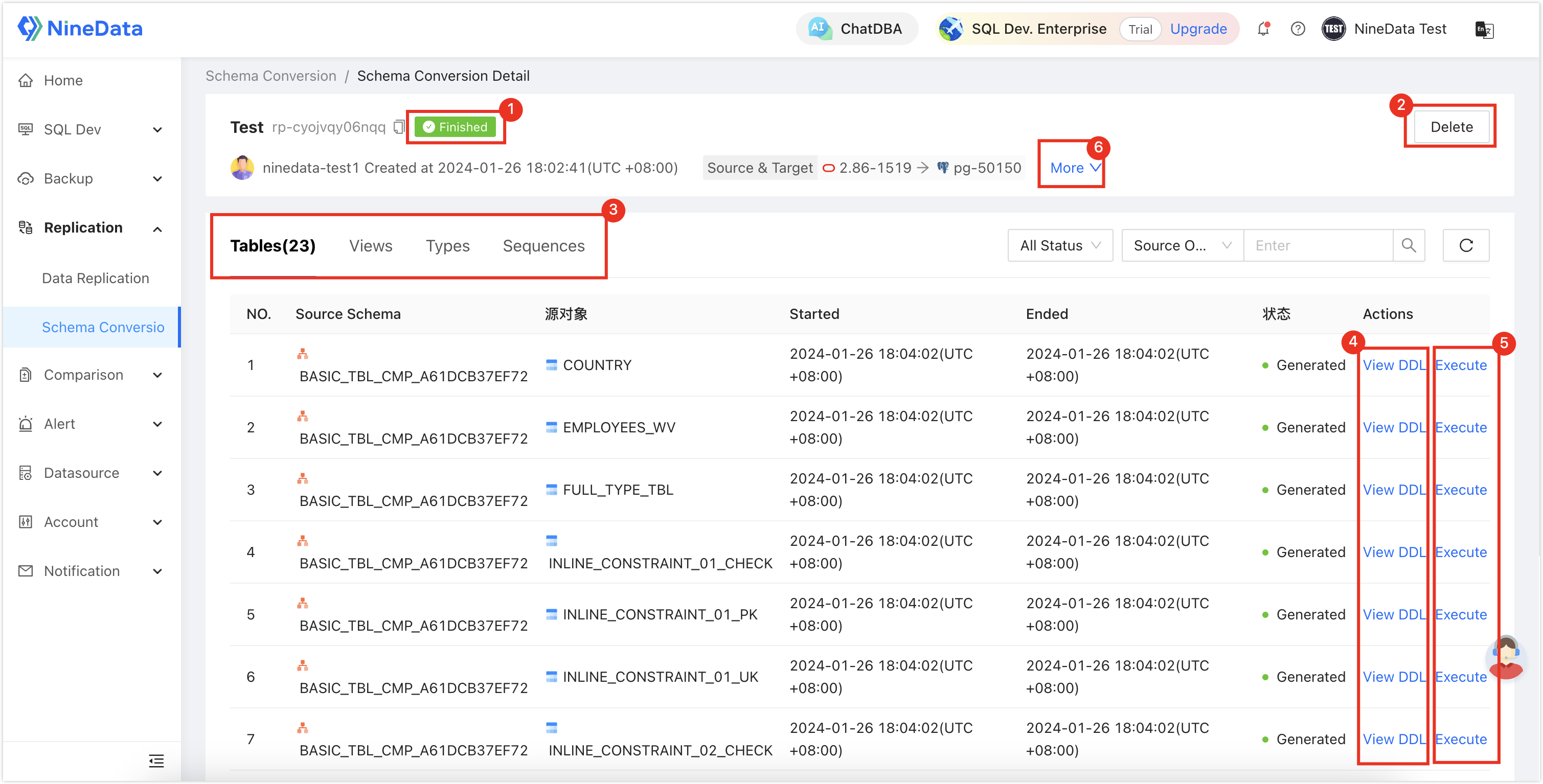
Number Function Description 1 Task Status Shows the current status of the schema transformation task. 2 Download SQL | Delete Task Click Download to download all SQL files generated by the current task. Execute these files in the target database.
Click > Delete to delete the current schema transformation task.
3 Object Details Click each object tab to view schema transformation details. 4 View DDL View the DDL before and after transformation, and copy the DDL when needed. 5 Execute Execute the transformed DDL in the target database. Select Target DB, and then click OK. 6 More View naming rules for the schema transformation task and copy object information.