Design PostgreSQL Table Structures
NineData provides a visual table designer in SQL Console. Create PostgreSQL tables, configure columns, indexes, foreign keys, constraints, and partitions, and review the generated SQL before saving the change.
Before you begin
The data source type is PostgreSQL.
In organization mode, you have the permission for the SQL Console function module.
In organization mode, you have read and write permissions for the target data source.
tipIf you do not have these permissions, contact your organization administrator to configure permissions or bind roles.
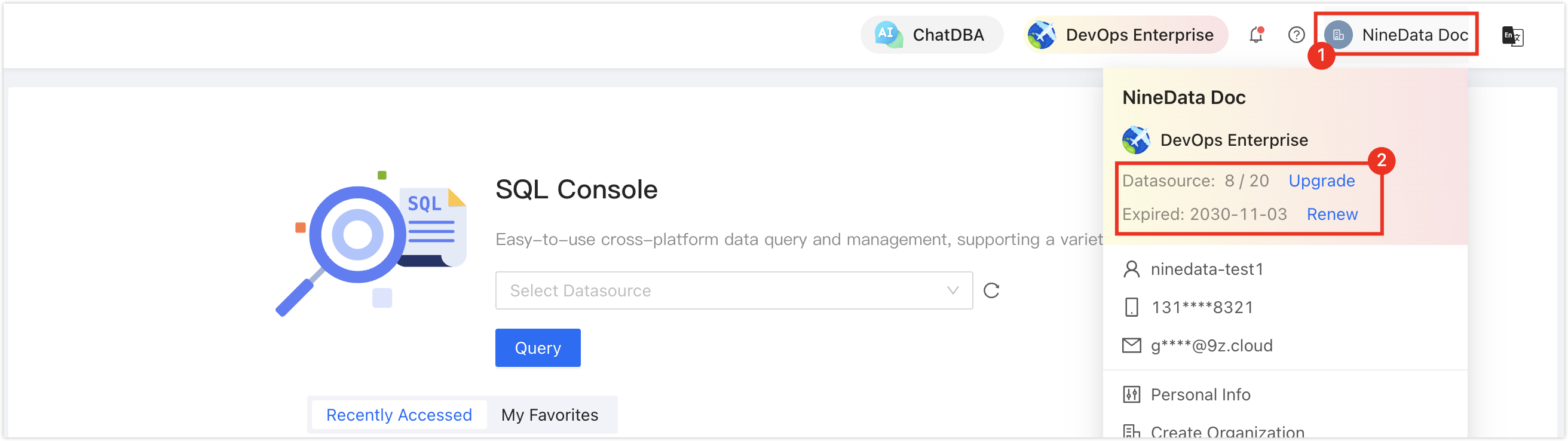
In the commercial versions (DevOps Pro, DevOps Enterprise), make sure your monthly or yearly subscription has not expired. An expired subscription may prevent you from using the Database DevOps service. Check the remaining quota and expiration date in the NineData Console header.
Procedure
Design the table structure when you create or edit a table in SQL Console. This procedure uses table creation as the example.
In the SQL Console database tree, right-click the target database, schema, or data table, and click Create Table.
tipThe object you right-click determines the default table location:
- Database: NineData creates the table in the
publicschema by default. - Schema: NineData creates the table in this schema by default.
- Data table: NineData creates the table in the schema that contains this table by default.
- Database: NineData creates the table in the
In the Create Table tab, configure the table structure. NineData generates SQL Script at the bottom of the page based on your configuration. Use the tabs below to review the available settings.
- Common
- Column
- Index
- Foreign Key
- Constraint
- Partition
- Table Options
- Name: Enter a custom table name.
- Database: Select the database where the table is created.
- Schema: Select the schema where the table is created.
- Comment: Add a table comment.
Set columns.
- Columns: Enter the column name in the leftmost text box. The name can contain up to 64 characters. The first row is the primary key column by default, and the default column name is id.
- Data Type: Select the column data type.
- NOT NULL: Specify whether the column allows null values. For the default primary key row, this option is selected and cannot be cleared.
- Default: Set the default value of the column, which is written as the DEFAULT attribute. If no other value is inserted into the column, this default value is used.
- Comment: Add a column comment. The maximum length is 1024 characters.
- Generated: Configure a generated column whose value is calculated from other columns. After selecting this option, enter the expression.
- Collate: Specify the COLLATE for the current column.
- Other Options: Add other options for the table.
Set indexes.
- Name: Enter the index name. If the current table has a primary key, the first row displays the primary key index by default.
- Index Type: Select the index type.
- Column or Expression: Select the column to index, or enter **Customized Expression**.
- Other Options: Add other options for the index.
Set foreign key constraints.
- Foreign Key: Enter the name of the foreign key.
- Column: Select the foreign key column that is associated with the external table.
- Referenced: Select which library, Schema, table, and column to associate the current foreign key column with.
- ON UPDATE: Set the restrictions during the UPDATE operation.
- ON DELETE: Set the restrictions during the DELETE operation.
Set the constraints.
- Name: Enter the name of the constraint.
- Type: Select the type of constraint to be added.
- Expression: Enter constraint expressions.
For large tables, configure partitions to improve read performance.
Partitioned table: Select this option and enter the partition statement. Use Example as a reference.
Set table-level options.
Click Save, and in the Submit window, click OK.
tipAlternatively, copy the SQL script and run it in another database client.
Result
NineData creates the PostgreSQL table and keeps the generated SQL script available for review or reuse.
Next steps
- Review the generated SQL script before you run the change in production.
- Open the table in SQL Console and confirm that columns, indexes, constraints, and partition settings match your design.