Create an AWS Redshift Data Source
NineData supports adding different data source types and environments for unified management. Added data sources can use Database DevOps, Backup and Recovery, Data Replication, and Database Comparison features. This page explains how to add AWS Redshift to NineData.
Before you begin
The server IP address of NineData has been added to the data source allowlist. The server IP address can be viewed by selecting the target region in Access Region on the Create Datasource page.

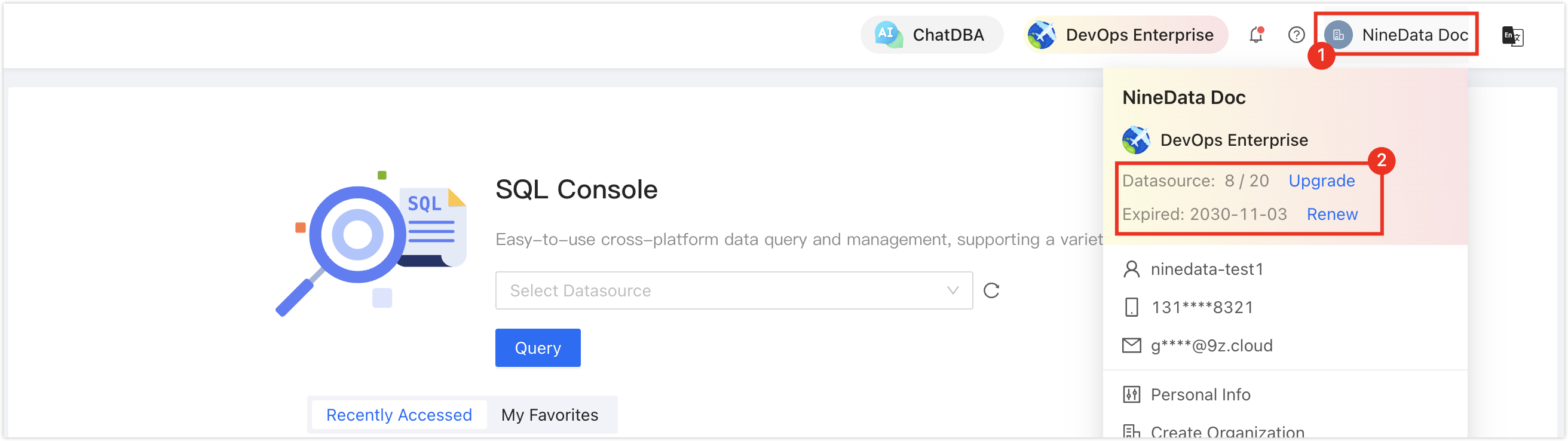
Make sure data source quota is available; otherwise, the data source cannot be added. Check the remaining quota in the NineData Console header.
Procedure
Sign in to the NineData Console.
In the left-side navigation pane, choose Datasource > Datasource.
On the Datasource tab, click Create Datasource. In the data source type selector, choose AWS > Cloud Database > Redshift, then configure the fields on the Create Datasource page.
tipIf you select the wrong type, click the
 icon at the top of the creation page to choose another data source type.
Configure the data source parameters:
Parameter Description Name Enter a data source name. Connection Select a connection method. The current page supports Private Network, IP Address, Gateway, and SSH Tunnel. If you already created a private-network connection, you can select it first. Private network connection If you select Private Network as the connection method, select a private-network connection that you created previously. Connection method The current value is Connection Address. Connection address Enter the Redshift connection address and port. The console default port is 5439.Authentication database Enter the database name used for authentication. The console default prompt is dev.DB Account Enter the database login username. DB Password Enter the database login password. Access Region Select the access region closest to the instance. Environment Select the environment for the data source, such as production or development. After configuring the fields, click Connection Test to test connectivity. After the test succeeds and the page displays Connection Successfully, click Create Datasource to create the data source.