Configure Personal Messages via DingTalk
This topic describes how to configure DingTalk personal message delivery in NineData so that users can receive message notifications at key workflow stages.
This guide is based on the actual validation performed on March 11, 2026, and the Send Test Message step has been verified in NineData Cloud.
Overview
NineData supports configuring personal notification channels for individual users. With Personal Channel Management, you can:
- Bind a dedicated DingTalk channel for a specific member.
- Receive more timely notifications without affecting the default subscription settings.
- Enable or disable personal-channel notifications for specific subscription types and workflow nodes.
Prerequisites
- You have created or joined an organization, and this organization has subscribed to either DevOps Pro or DevOps Enterprise. Please ensure that your annual or monthly subscription is still active. For more information, please refer to Manage Organizations.
- Your current account has switched to the target organization. For more information, please refer to Switching to an Organization.
- You are logged in to DingTalk Developer Platform with enterprise admin or app admin permissions.
- A target internal app is already prepared.
- You are logged in to the NineData console as a system administrator.
Notes
- In this test, Phone was used successfully as the notification field.
- In the actual test, the Template ID field was left empty and the message was still sent successfully.
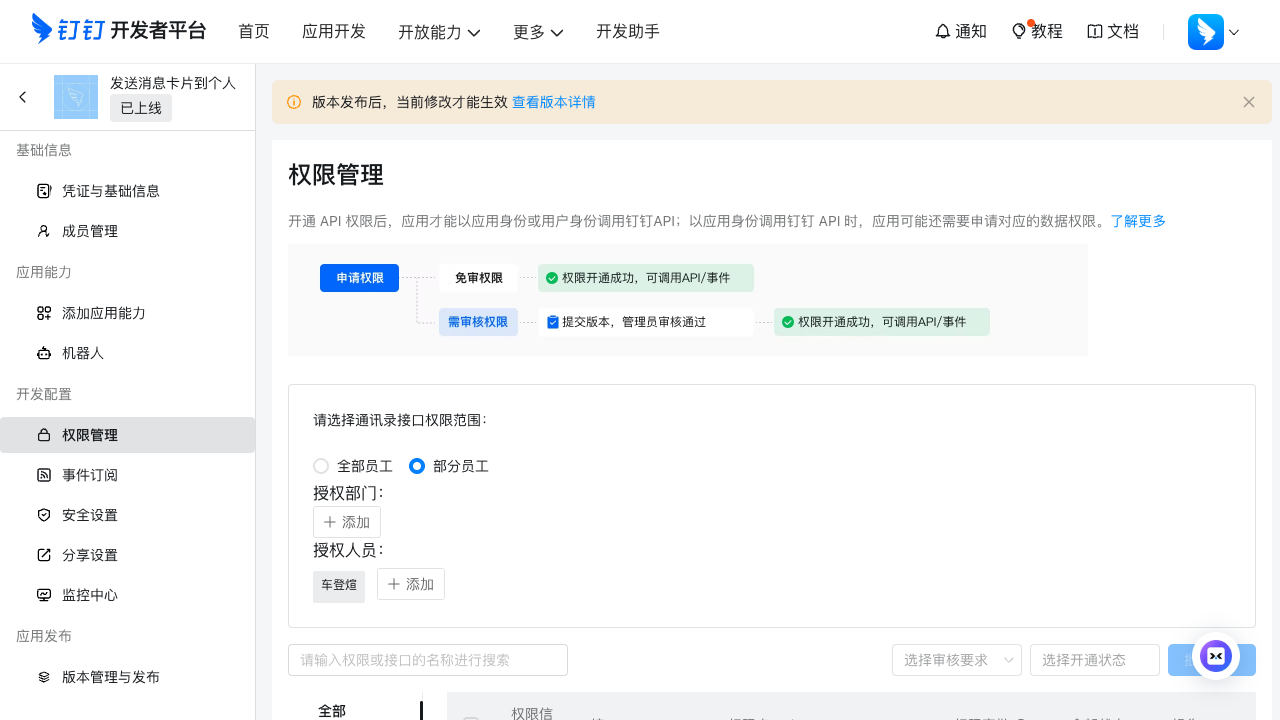
- Make sure that the target receiver is within the app visibility scope.
Step 1: Prepare DingTalk App Credentials
Sign in to DingTalk Developer Platform and open the target app.
In the left navigation pane, click Credentials & Basic Info, and record the following values:
- Client ID (used as AppKey in NineData)
- Client Secret (used as AppSecret in NineData)
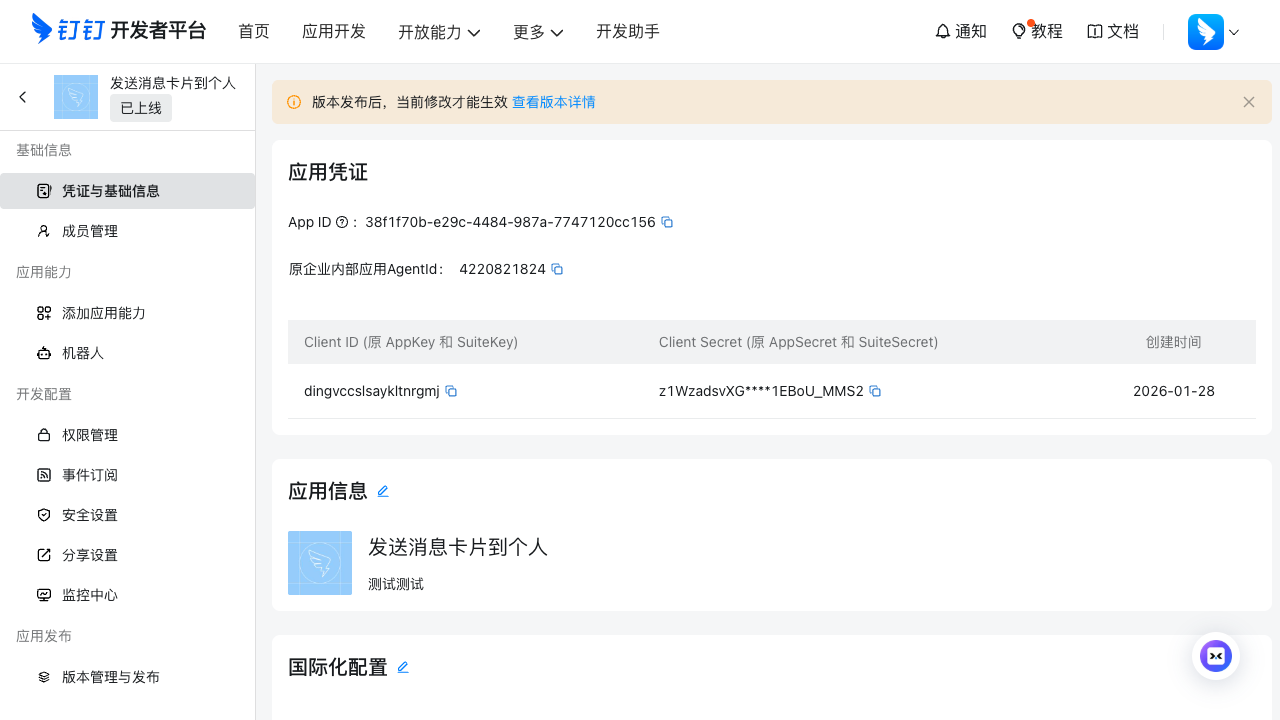
If needed, open Permission Management and make sure the authorization scope covers the target receiver.
Step 2: Bind the DingTalk App in NineData
Log in to the NineData Console.
In the left navigation pane, click Notification > Subscription, and then click the Channel Management tab.
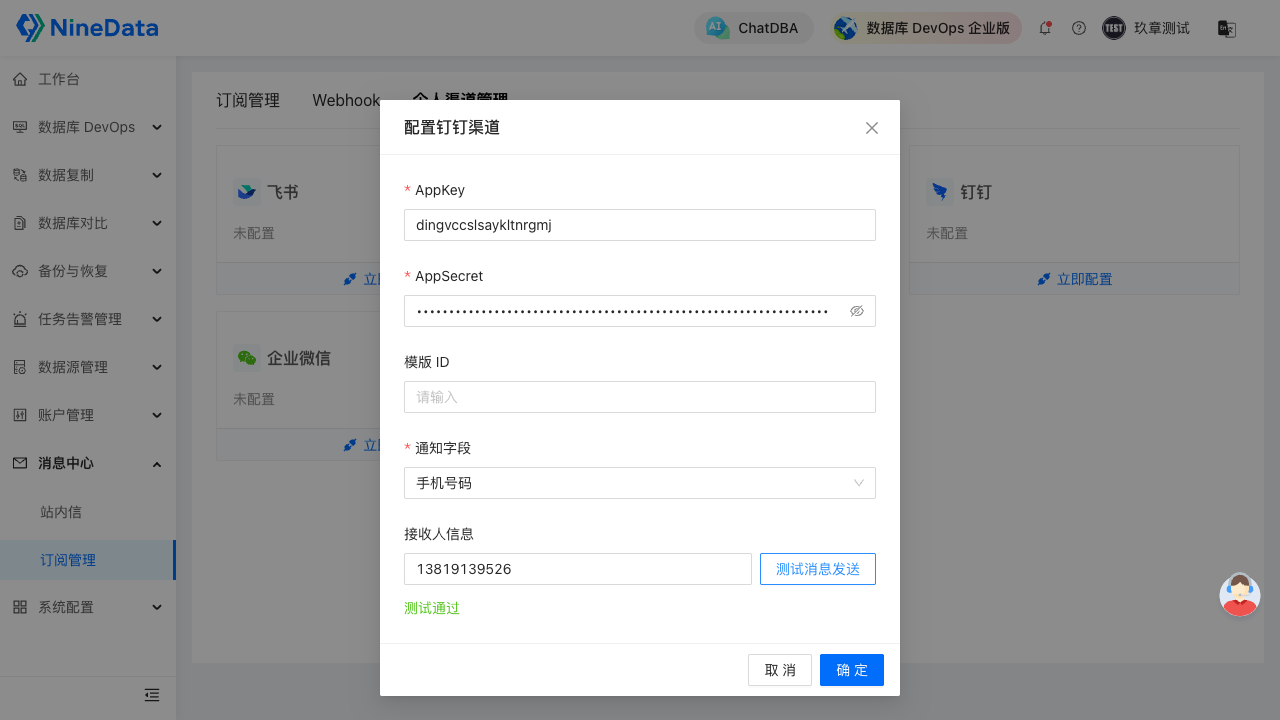
On this tab, locate the Dingtalk personal channel card, click Configure, and open the Configure Ding Ding Message Channels dialog. Complete the fields and click OK.
Parameter Description AppKey Enter the Client ID recorded in Step 1. AppSecret Enter the Client Secret recorded in Step 1. Template ID Optional. It was left empty during the test and message sending still succeeded. Source Column The current UI supports Phone. Receiver Info Enter the DingTalk member's Phone and click Test Message Sending to validate delivery. Click Test Message Sending and confirm that the page displays Successful.
Step 3: Enable the Personal Channel in Subscription Management
Log in to the NineData Console.
- In the left navigation pane, click Notification > Subscription.
- On the Subscription tab, locate the target subscription type and select the checkbox in the Personal Channel column. For more information, see Subscription Management.
After the configuration is complete, target users with the personal channel enabled can receive notifications in DingTalk when the workflow reaches the subscribed notification node.