Manage IP whitelist
Use an IP whitelist to allow organization access only from trusted IP addresses or IP ranges.
Overview
The NineData IP whitelist adds a network-level access control layer for organizations. A user with the Administrator role can allow access from trusted networks and block access from all other networks. This reduces the risk of compromised credentials being used from an untrusted location.
Before you begin
- You have already created or joined an organization, and the organization has subscribed to DevOps Enterprise. Please ensure that your annual or monthly subscription is still active. For more information, please refer to Manage Organizations.
- Your current account has been switched to the target organization. For more information, please refer to Switching to an Organization.
- Your role is Administrator. For details, see Roles.
Limitations
The Administrator role is not restricted by the IP whitelist and can sign in to the organization from any network.
Procedure
Sign in to the NineData Console.
Open Account > Organization.
In the User Security section, turn on the switch next to Access IP Whitelist and click Modify Config.
In the configuration dialog, enter the IP addresses or IP ranges that can access the organization in Access IP Whitelist. Separate multiple values with commas (,).
Supported formats:
- IP addresses:
192.168.0.1,192.168.0.2allows access from these two IP addresses. - IP range:
192.168.1.0/24allows access from hosts in the range192.168.1.1to192.168.1.254.
- IP addresses:
Click Submit.
Result
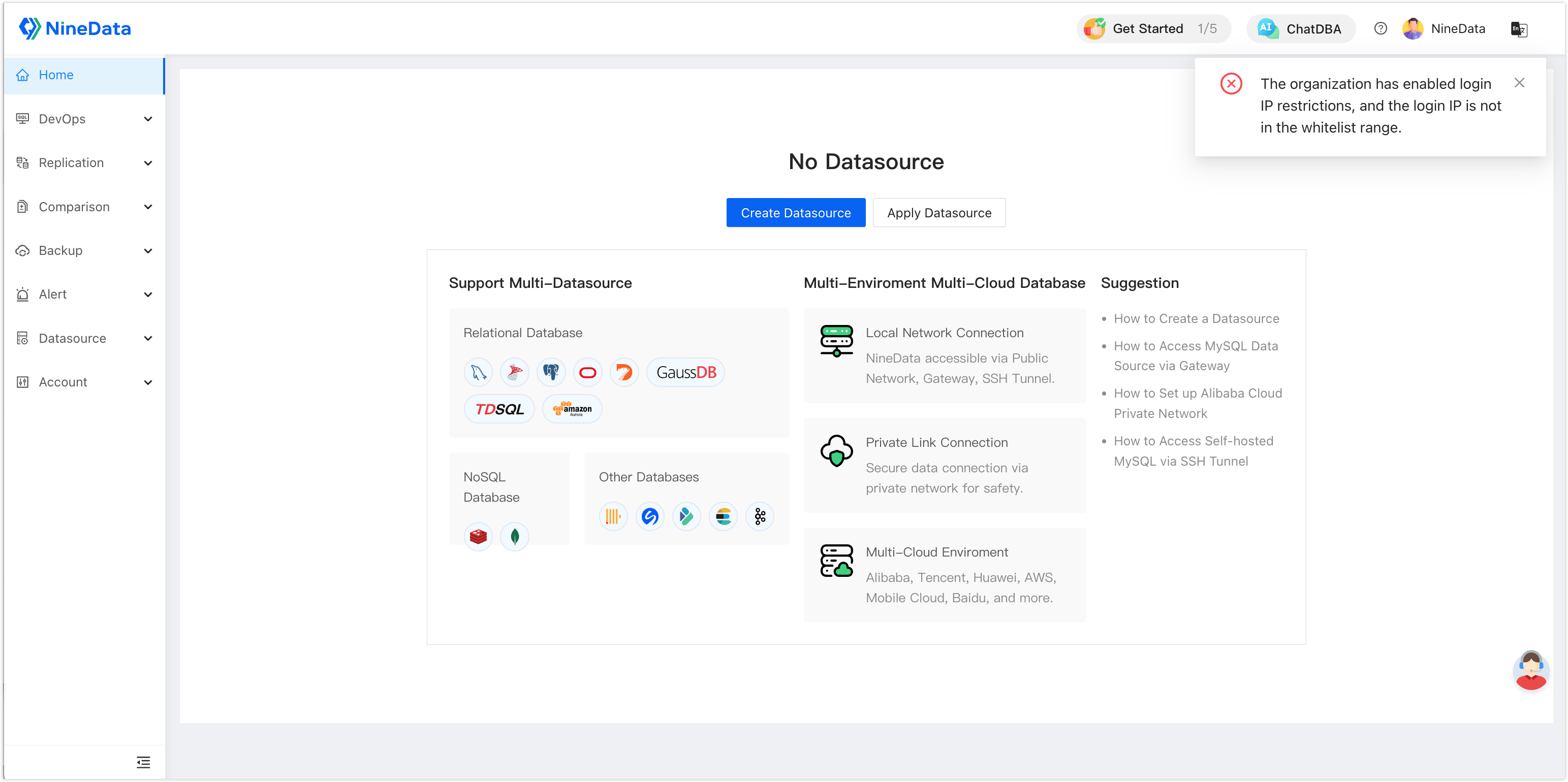
After the IP whitelist is enabled, users who try to sign in to the organization from an IP address outside the whitelist receive the The organization has enabled login IP restrictions, and the login IP is not in the whitelist range. message.