Create GoldenDB Datasource
NineData supports adding data sources of different types and environments to the console for centralized management. After a datasource is added, you can use features such as Database DevOps, Backup and Restore, Data Replication, and Data Comparison. This topic describes how to add a GoldenDB datasource to NineData.
Prerequisites
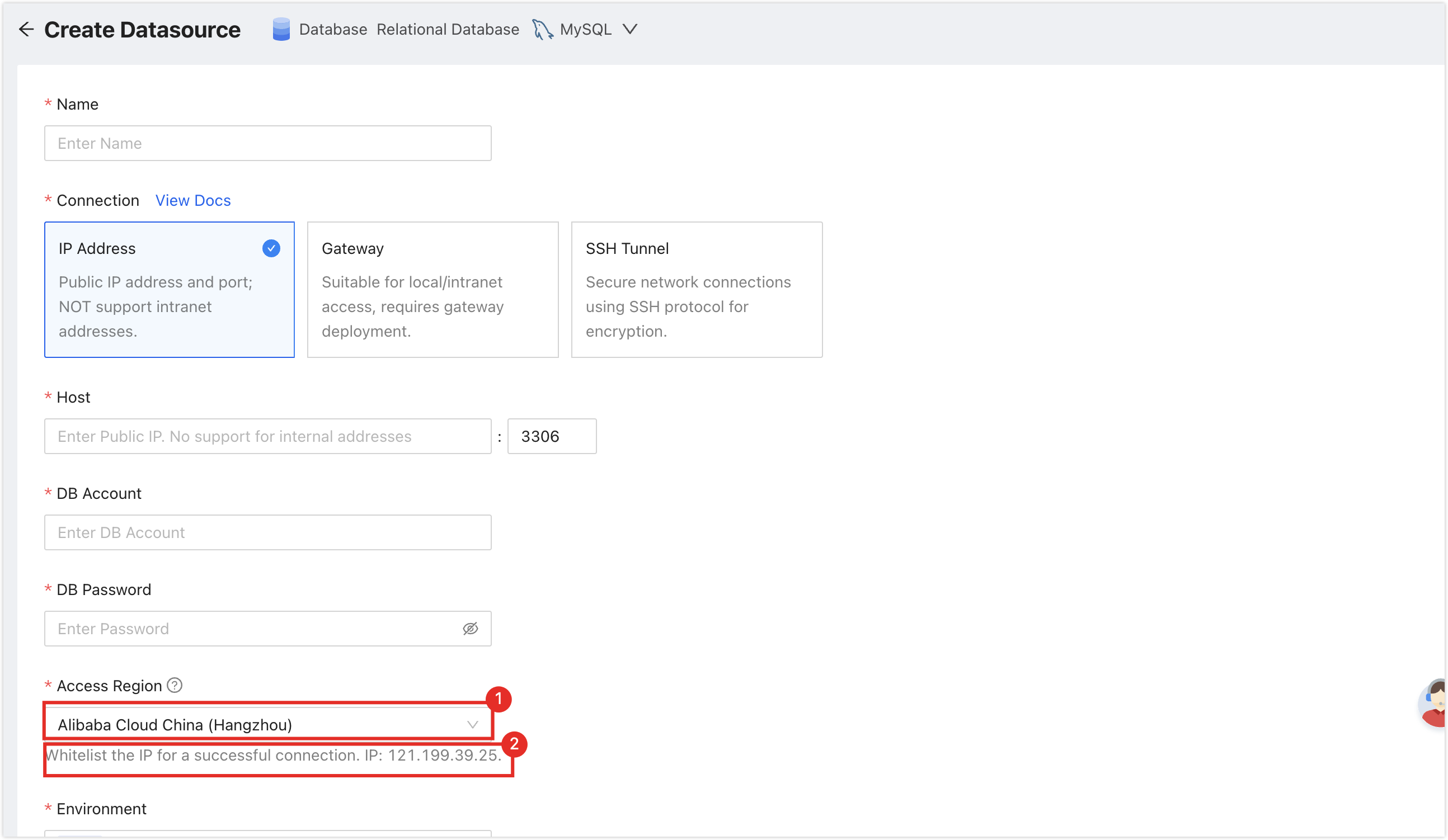
The server IP address of NineData has been added to the data source allowlist. Please refer to the image below for instructions on how to obtain the server IP address.
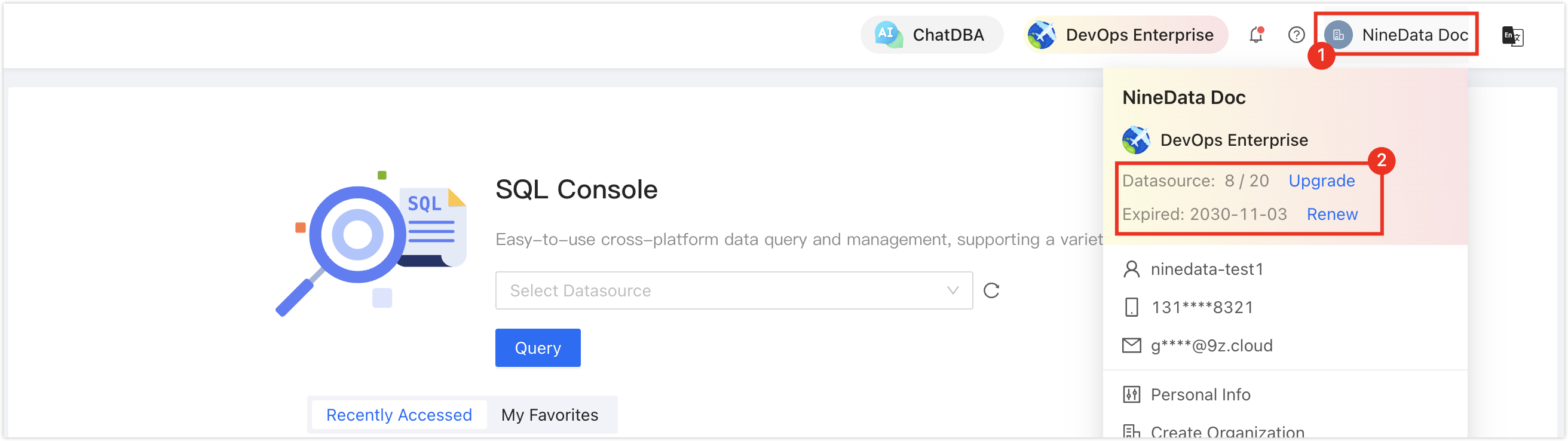
Make sure you have available data source quota; otherwise, the data source cannot be added. You can quickly check your remaining quota at the top-right corner of the NineData console.
Procedure
Log in to the NineData Console.
In the left-side navigation pane, choose Datasource > Datasource.
On the Datasource tab, click Create Datasource. In the datasource type dialog box, choose Self-Managed Database > Relational Database > GoldenDB, and then configure the parameters on the Create Datasource page according to the following table.
tipIf you select the wrong type, click the
 icon at the top of the Create Datasource page to reselect the datasource type.
Configure the datasource parameters:
Parameter Description Name Enter a datasource name. Connection Select the connection method. The console currently supports IP Address, Gateway, and SSH Tunnel. Architecture Type Select the GoldenDB deployment architecture. The console currently supports Single, Disaster Recovery, and Read/Write Splitting. When Disaster Recovery or Read/Write Splitting is selected, follow the page prompts to enter the corresponding node addresses and ports. Configuration for IP Address Host: Enter the public address and port of the GoldenDB instance. The default port shown in the console is 3306.Configuration for Gateway - Gateway: Select an onboarded datasource gateway.
- Host: Enter the GoldenDB address and port in the gateway network. If the database is deployed on the gateway host itself, you can enter
localhost.
Configuration for SSH Tunnel Enter the public address, port, authentication method, login username, and password or private key file for the tunnel host first. After the tunnel is ready, enter the target GoldenDB address and port. DB Account Enter the database login username. DB Password Enter the database login password. Access Region Select the access region nearest to the database instance. Environment Select the environment tag for the datasource, such as Production or Development. Encryption Specifies whether to enable encrypted transmission. This option is enabled by default in the console. After expanding it, you can choose Prefer or Require, and configure SSL Cipher, server certificate validation, server identity validation, and client certificates when needed. After all parameters are configured, click Connection Test on the right of Create Datasource to test connectivity. When Connection Successfully is displayed, click Create Datasource to finish creating the datasource.