Text2SQL / Chat2SQL
Text2SQL, also referred to as Chat2SQL, converts natural language requirements into SQL statements for drafting queries, completing conditions, and speeding up SQL writing.
What It Does
- Natural-language SQL generation: Convert short Chinese or English requests into SQL statements.
- Support for complex query drafting: Useful for joins, aggregation, filters, and statistical analysis.
- Schema-aware generation: Uses database, table, column, and comment information to generate more accurate SQL.
Supported Data Sources
Supported data source types include MySQL, PostgreSQL, Oracle, Sybase, SQL Server, Redis, Vastbase, MongoDB, OceanBase, Greenplum, KingbaseES, DaMeng, GaussDB, PolarDB Oracle, TiDB, Doris, ClickHouse, and more. Actual support is subject to the console.
Prerequisites
- Add the target data source to NineData first. For more information, see Manage Data Sources.
- Open the SQL Console for the target data source.
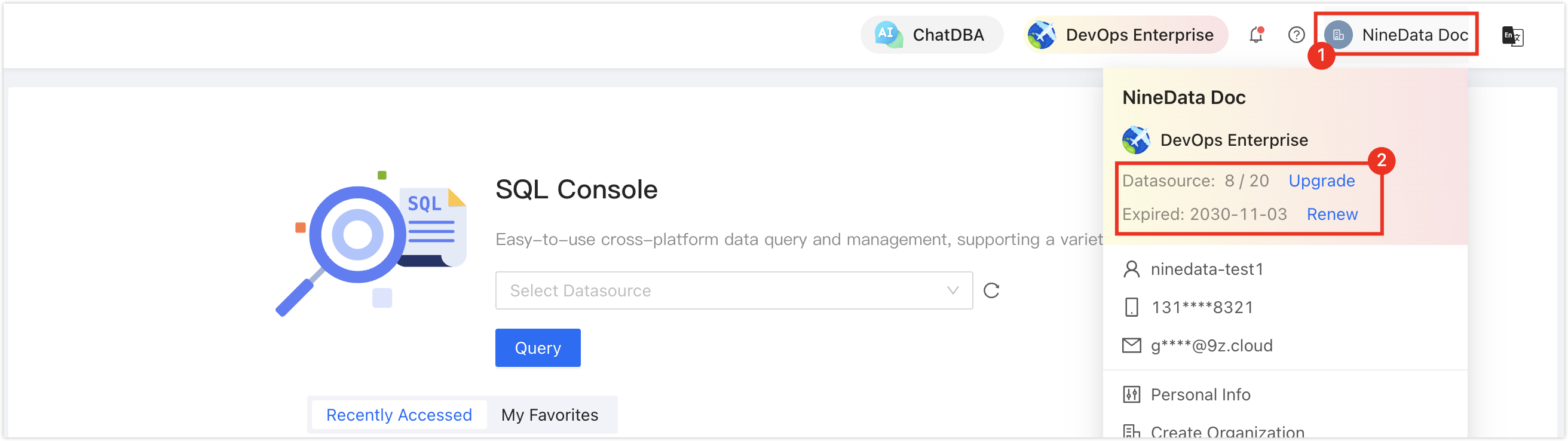
In the commercial versions (DevOps Pro, DevOps Enterprise), please ensure that your monthly/yearly subscription is not expired, as it may result in the inability to use the Database DevOps service. You can quickly check the remaining quota and expiration date at the top right corner of the NineData console page.
- To further improve accuracy, generate an enhanced E-R diagram for the target data source first. For more information, see Enhanced E-R Diagram.
Generate SQL
Log in to the NineData Console.
- In the left navigation pane, click DevOps > SQL Console and open the SQL Console for the target data source.
- In the SQL editor, type / to open the Chat2SQL input box.
- Enter your natural-language request, such as filters, metrics, or time ranges, then press Enter or click the send button.
- Review the generated SQL and continue editing or execute it as needed.
Improve Accuracy with AI Notes
You can add AI notes to tables and columns so Text2SQL can better understand business semantics.
Log in to the NineData Console.
- Open the SQL Console for the target data source.
- In the object tree on the left, right-click the target database, table, or column, then click Add Table Notes For AI.
- Fill in table descriptions, column meanings, foreign-key relationships, and other helpful context.
- Click OK to save the configuration.
Tips
- Include time range, metric definition, sorting rules, and required output columns in your prompt whenever possible.
- If you want live suggestions while hand-writing SQL, use this feature together with AI SQL Completion.
- For important SQL, review database names, table names, filters, and sorting logic before execution.
- For Redis scenarios, see Natural Language to Redis Commands.