Reset NineData Community Edition Administrator Password
Overview
If you forget the NineData Community Edition administrator password, set a temporary password to access the console and create a new administrator password. You must then remove the temporary password and restart the NineData service to complete the reset.
Before you begin
The NineData service container is running normally.
The NineData Community Edition version is at least 4.1.0. To view the current version, sign in to the NineData Community Edition console and check the upper-left corner of the page.

Procedure
Do not stop after setting the new administrator password. The temporary password can still be used to sign in, and the administrator continues to receive password change prompts. The reset completes only after you remove the temporary password and restart the NineData service.
| Stage | Action | Reset status afterward |
|---|---|---|
| Step 1 | Configure a temporary password | Not complete |
| Step 2 | Sign in with the temporary password and set a new administrator password | Still not complete |
| Step 3 (required) | Remove the temporary password and restart the NineData service | Complete |
Step 1: Configure a temporary password
At the terminal interface of the NineData Community Edition server, enter the following command to enter the niup tool interactive interface.
docker exec -it ninedata niupInject a temporary password.

console config put admin.login.password <Password>tipReplace
<Password>with the temporary password you want to set.Apply the temporary password change, and NineData service will restart after execution.
console restart
Step 2: Sign in with the temporary password and set a new administrator password
Access the NineData Community Edition console and log in with the temporary password from Step 1.
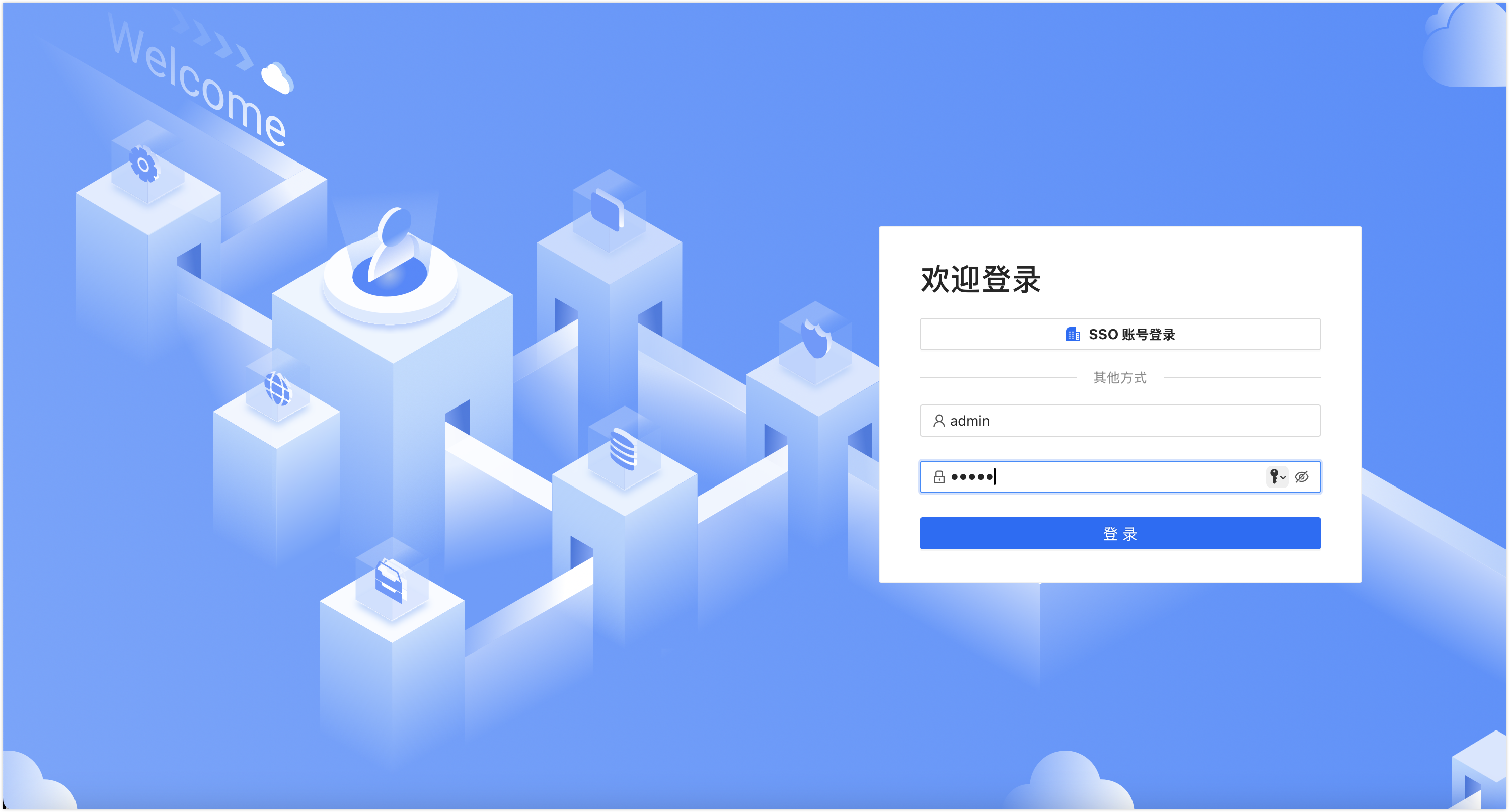
NineData starts the password change process. In the dialog, enter a new password, complete the confirmation, and then click OK.
Step 3: Remove the temporary password and restart the NineData service (required)
After setting the new administrator password, the reset is not yet complete. Return to the NineData Community Edition server and remove the temporary password immediately.
At the terminal interface of the NineData Community Edition server, enter the following command to enter the niup tool interactive interface.
docker exec -it ninedata niupDelete the temporary password.

console config remove admin.login.passwordApply the change, and NineData service will restart after execution.
console restart
Result
The temporary password is removed, and the NineData service restarts. The administrator can now sign in with the new password and no longer receives password change prompts caused by the temporary password.
Appendix: Command reference
| Operation | Command | Execution Environment |
|---|---|---|
| Enter niup tool | docker exec -it ninedata niup | Host Machine Shell |
| Set temporary password | console config put admin.login.password | niup Interactive Interface |
| Remove temporary password | console config remove admin.login.password | niup Interactive Interface |
| Restart NineData Service | console restart | niup Interactive Interface |