Connect Huawei Cloud DCS Redis through the NineData Gateway
Huawei Cloud Distributed Cache Service Redis instances do not provide public internet endpoints, so NineData cannot connect to them directly over the public internet. Use the NineData Gateway to connect to the instances through a private network.
Before you begin
You have purchased a Huawei Cloud ECS instance in the same Virtual Private Cloud (VPC) as the Huawei Cloud Distributed Cache Service Redis instance. Verify the VPC for both resources in Huawei Cloud:
Virtual Private Cloud (VPC) of the Huawei Cloud Distributed Cache Service Redis instance.
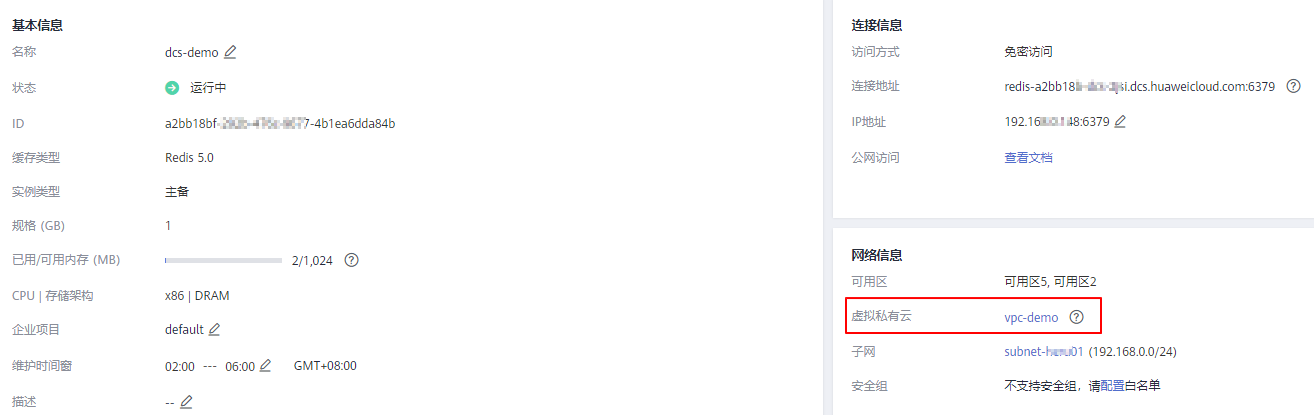
Virtual Private Cloud (VPC) of the Huawei Cloud ECS instance.
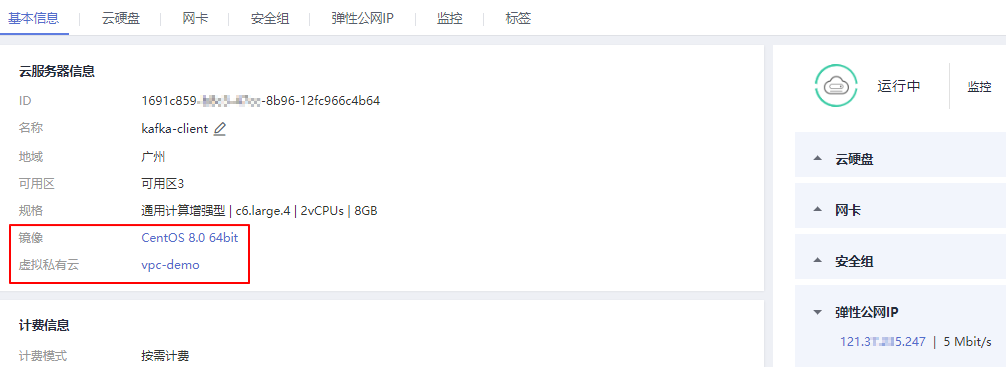
The Huawei Cloud ECS instance must have access to the public internet.
Notes
Through the gateway, NineData currently supports only Redis data sources whose Architecture Type is Standalone. For master-slave or other multi-node Redis deployments, a Redis failover may cause the connected data source to change from the master node to a slave node.
Procedure
Step 1: Deploy the Gateway
Sign in to the NineData Console, then go to Datasource > Gateway.
Click Create Gateway.
Configure the parameters in the table.
Parameter Description Name Enter a gateway name. Use a meaningful name to identify and manage the gateway later. Environment Select the operating system of the gateway host. NineData displays the corresponding installation method. Supported operating systems: - Windows(x86_64)
- Linux(x86_64)
- macOS
Access Region Select the region closest to the gateway host to reduce network latency. Advanced No configuration required. Follow the installation instructions on the page to install and configure the gateway on the Huawei Cloud ECS instance. When configuration finishes, the connection diagram changes from Waiting for the local gateway to launch... to The local gateway is connected successfully.
Click Create Datasource. In the dialog, select the data source you want to add, then continue to Step Two.
Step 2: Connect to Redis Data Source
On the Create Datasource page, configure the parameters in the table.
Parameter Description Name Enter the data source name. Use a meaningful name to identify and manage the data source later. Architecture Type Select Standalone. Connection Select Gateway. Gateway Select the gateway ID deployed in Step One. Host The access address and port of the Redis data source. Find it in the Connection Information area on the overview page of the Huawei Cloud Distributed Cache Service Redis instance. 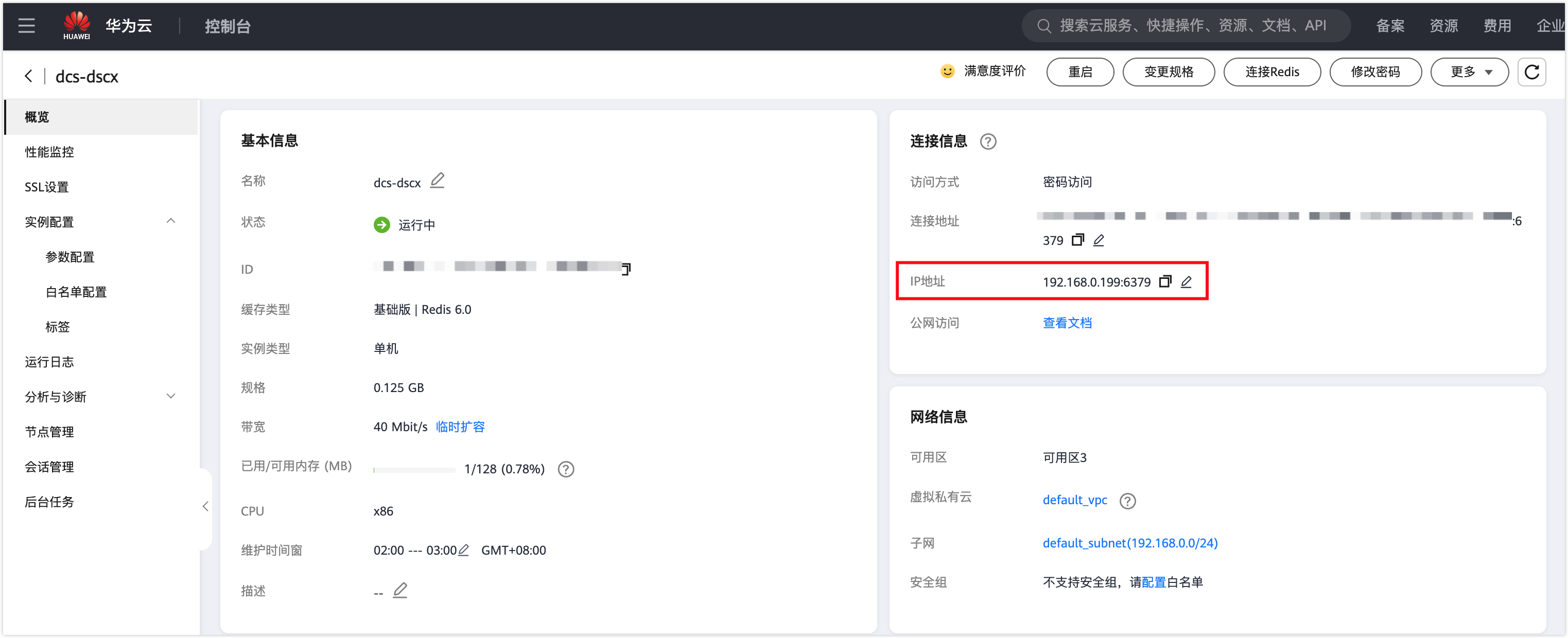
DB Account Enter the login username for Redis, leave it blank if not set. DB Password Enter the login password for Redis, leave it blank if not set. Access Region Select the region closest to the location of your Redis host to effectively reduce network latency. Environment Select the environment that matches the business purpose of the data source. The default provides the PROD and DEV environments, and also supports you to create a custom environment.
Note: Under the organization mode, the database environment can also be applied to permission policy management. For example, the default Prod Admin role only supports access to data sources in the PROD environment and cannot access data sources in other environments. For more information, see manage roles.Encryption Configure encrypted transmission for data source access (disabled by default). If the data source requires encrypted connections, enable this option or the connection fails.
Use the switch to enable or disable encrypted transmission. Click > to the left of Encryption to expand the detailed settings.- SSL Options: Supports the following two methods.
- If Available: Detects the server SSL status. If SSL is enabled, NineData connects over SSL first. Otherwise, it uses a non-SSL connection.
- Require: Always connects to the data source over SSL. If the server does not support SSL or the SSL connection cannot be established, the connection fails.
- Verify Server Certificate (SSL CA): If the server uses a certificate issued by a self-signed CA, upload the root certificate of that CA.
- Authenticate Client: If the server requires a client certificate, upload the client certificate and key. The server verifies the uploaded information to secure the connection.
- SSL Options: Supports the following two methods.
After configuring the parameters, click Connection Test next to Create Datasource to verify that NineData can reach the data source. When Connection Successfully appears, click Create Datasource to add the data source. If the test fails, review the connection settings and run the test again.
Step 3: Manage Huawei Cloud Distributed Cache Service Redis Instances with SQL Console
Sign in to the NineData Console.
Go to DevOps > SQL Console.
tipIf a data source session is still open, NineData redirects you to that data source page.
Click the text box under SQL Console. In the data source list, select the Huawei Cloud Distributed Cache Service Redis instance you added, then click Query to open the SQL Console.
Run a test query against a key to confirm that the instance is accessible.
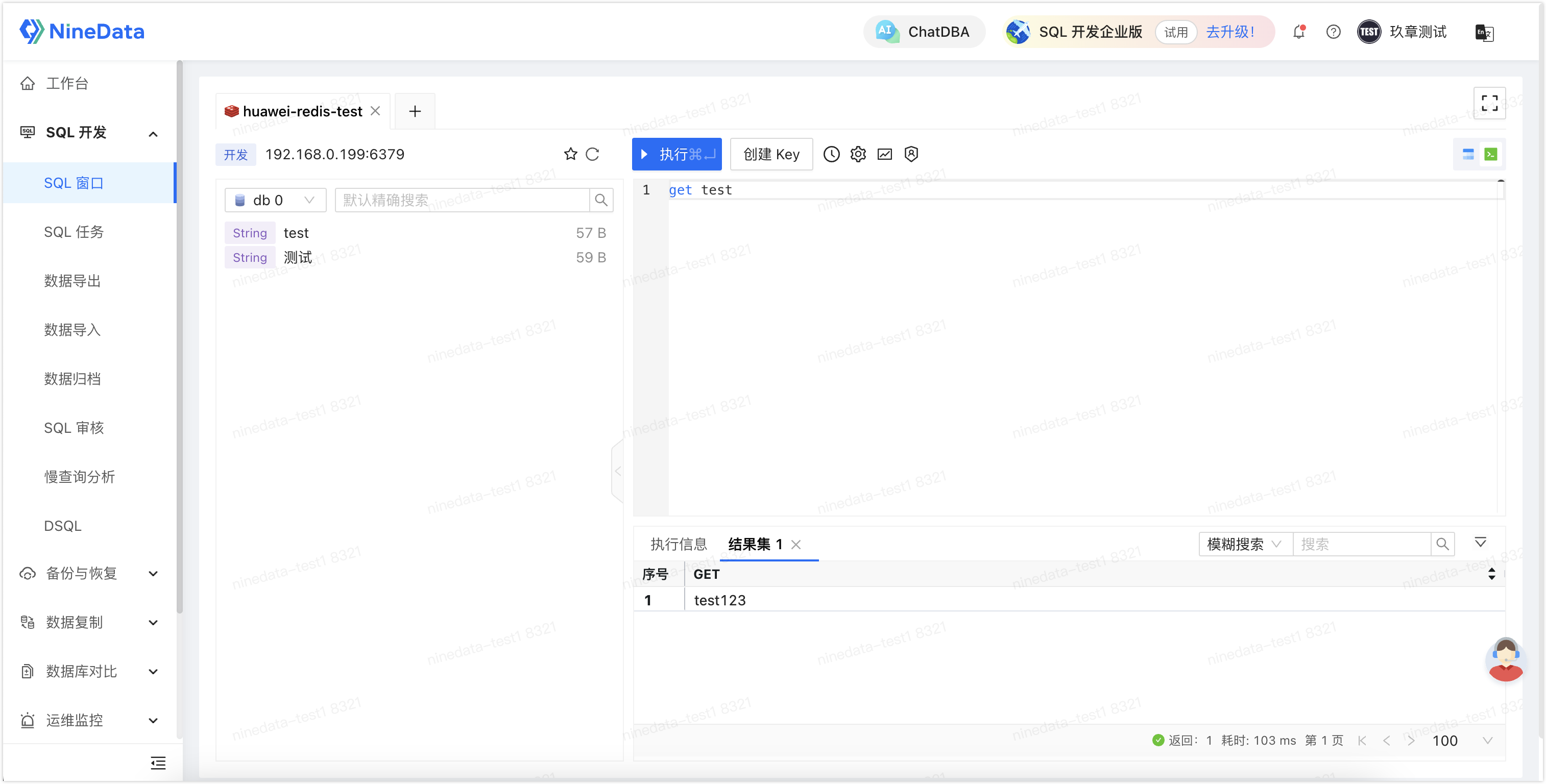
Result
After the gateway is deployed and the Redis data source is added, open SQL Console and run queries against the Huawei Cloud Distributed Cache Service Redis instance through the NineData Gateway.