Data comparison
NineData Data Comparison verifies whether user data is consistent between two data sources. Use it after backup and recovery, data migration, data synchronization, or any workflow where the source and target data must match.
Before you begin
- The data sources to compare have been added to NineData. For details, see Add data sources.
- The source and target data source types are supported. For supported comparison links, see Database comparison overview.
Procedure
Sign in to the NineData Console.
In the navigation pane, click Comparison > Data.
On the Data Comparison page, click Create Data Comparison.
On the Source & Target tab, configure the parameters in the table, and click Next.
Parameters Description Name Enter a name for the comparison task. Use a meaningful name to make the task easier to find and manage later. The name can contain up to 64 characters. Source Select the source data source. NineData uses the source data source as the baseline for comparison. Target Select the target data source to compare with the source. Frequency Select how often the comparison runs. - One-time: Run the comparison task once. Run the comparison again manually later if needed.
- Periodic: Run the comparison task on a recurring schedule.
Periodic (Periodic comparison only) Select the comparison schedule. Select one or more days from Monday to Sunday, or select Every day to run the comparison daily. Time Zone (Periodic comparison only) Select the time zone for the task. This setting affects the time displayed for the comparison task. Launch Time (Periodic comparison only) Select the time when the comparison task starts. The available range is 00:00 to 23:59. Click Now to use the current time as the start time. Method Select how NineData compares data. - Full Data: Compare all selected data.
- Quick Comparison: Run one or more quick checks, including record count comparison, maximum/minimum/average value comparison for numeric and boolean columns, and random sampling based on the Sample Proportion configuration.
Advanced Click the  icon to expand advanced settings. Use the switch on the right to enable or disable the settings.
- Compare the number of concurrent: Sets the number of concurrent threads during task execution. Configure concurrency to balance performance and resource consumption.
- Single shard size: Sets the data size for each comparison shard. For example, a value of 1000 means each shard contains 1,000 records. Use this parameter with Compare the number of concurrent to improve comparison speed.
- Number of inconsistent data storage records (upper limit for a single table): Sets the maximum number of inconsistent records displayed per table in the comparison results. The selectable range is 1,000 to 10,000.
- Float comparison accuracy: Sets the decimal precision for comparing FLOAT fields.
- Double comparison accuracy: Sets the decimal precision for comparing DOUBLE fields.
- String space handling strategy: Configures how NineData handles leading, trailing, and internal spaces when comparing string fields.
On the Objects tab, select the objects to compare, and click Next. Both Full Instance and Customized Object are supported.
- Full Instance: Select all databases and objects in the source instance.
- Customized Object: Select specific databases and objects. In the Source list, select the databases and objects to compare, and click > to add them to the Target list.
On the Mapping tab, configure mappings between source and target database or object names, and click Save and Pre-Check.
tipIf database or object names differ between the source and target, configure mappings before starting the comparison. For MySQL-to-MySQL and SQL Server-to-SQL Server comparisons, use Mapping & Filtering in the table list to map target column names to source column names.
On the Pre-check tab, wait for NineData to complete the pre-check. After the pre-check passes, click Launch.
tip- If the pre-check fails, click Details in the Actions column for the failed check item, review and fix the issue, and run the pre-check again.
- For warnings, review the message and decide whether to fix the item or continue.
On the Launch tab, wait for the Launch Successfully message. Then choose one of these actions:
- For a Periodic comparison task, click Compare to run a comparison immediately.
- Click View Details to open the task execution details.
- Click Back to List to return to the Data Comparison list.
Result
The data comparison task is created and runs based on the selected frequency. Open the task details page to view comparison progress, logs, monitoring data, inconsistent records, generated SQL, and historical comparison results.
View comparison results
Sign in to the NineData Console.
In the navigation pane, click Comparison > Data.
On the Data Comparison page, click the Task ID of the target comparison task.
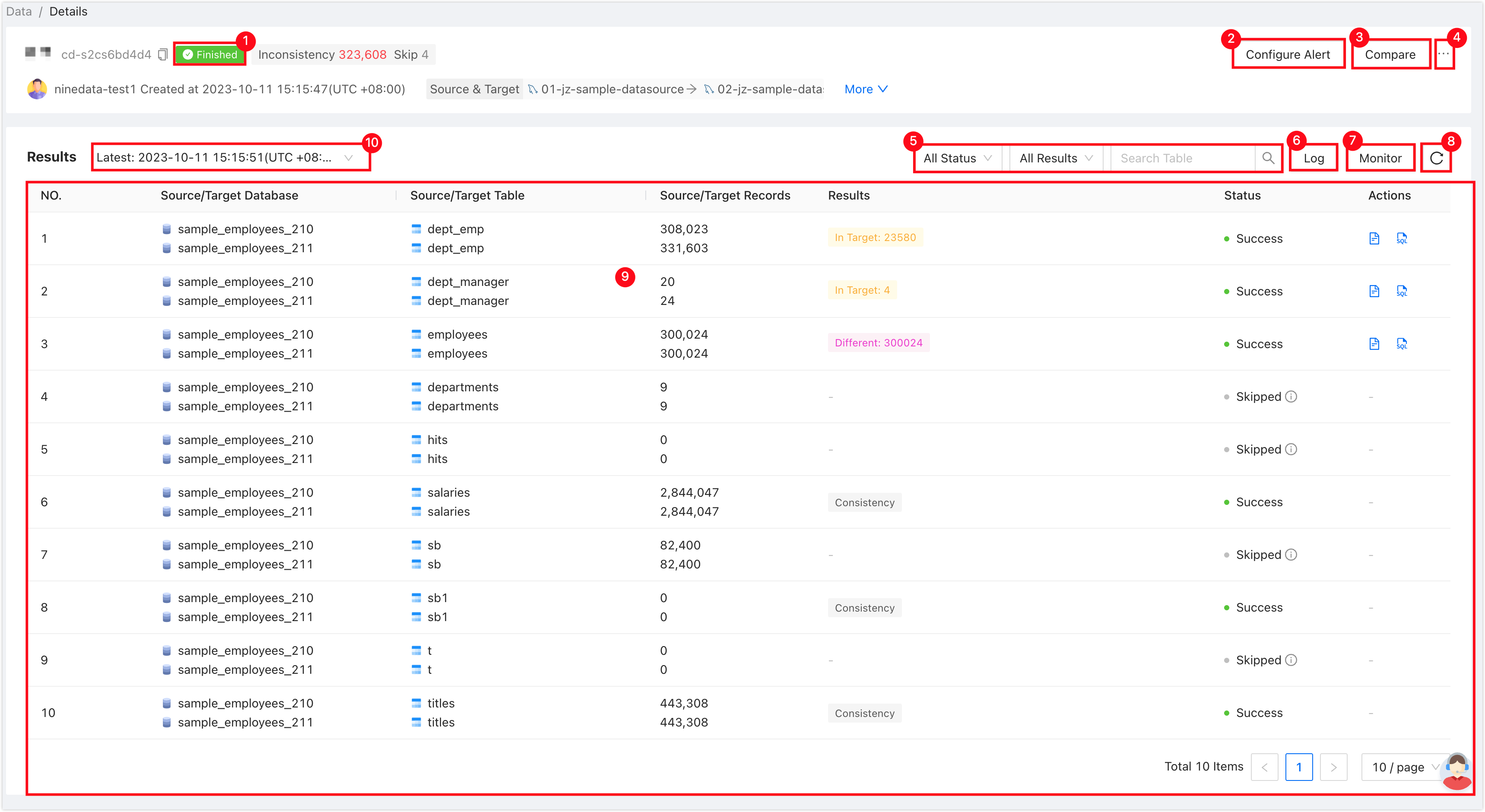
No. Section Description 1 Task status Displays the current status of the comparison task. 2 Configure alerts Sends notifications through the configured notification method when the task fails. 3 Compare now Displayed for tasks that are not currently running. Starts a comparison immediately. Options include: - Method
- Full Data: Run a full data comparison.
- Quick Comparison: Run a quick comparison.
- Inconsistent Recheck: Compare data that was inconsistent in the previous comparison.
- Ignore Datatype: Ignore source and target data type or format differences, and compare only valid numeric values.
4 More Provides task actions. - Pause: Pause a task. This applies only to tasks whose status is Running.
- Edit: Edit task configuration.
- Terminate: End the task.
- Delete: Delete the task. This action is irreversible. Proceed with caution.
5 Filter items Filter comparison results by task status, task results, and table names. 6 Log Displays logs generated during task execution. Filter logs by log type, log generation time, keywords, and other items. 7 Monitor Displays task monitoring information, including comparison records per second. For MySQL and SQL Server, flow control is also available. When flow control is enabled and the thread_runningvalue of the source database reaches the configured threshold, comparison pauses until the value drops below the threshold.8 Refresh Refreshes the latest comparison task status. 9 List of comparison results Displays data comparison results between the source and target. - Click the
 icon in the Actions column for an inconsistent result to view detailed differences.
 - Click the
 icon in the Actions column for an inconsistent result to generate SQL that can be applied to the target instance to fix inconsistent data.
10 History of comparison task results Displays historical comparison results. Click a result to open its details. - Method